EasyManua.ls Logo

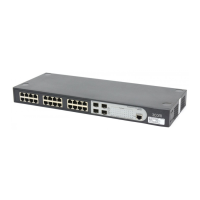
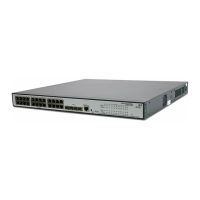
3Com 2924-PWR - User Manual

3Com 2924-PWR
248 pages
Print Icon
To Next Page IconTo Next Page
Loading...
3Com
®
Baseline Switch 2924-PWR Plus
User Guide
3CBLSG24PWR
www.3Com.com
Part Number 10016095 Rev. AA
Published June 2007

Table of Contents

Questions and Answers

  • S
    Sheila PerezAug 13, 2025
    How to connect to 3Com Switch management using RS-232 serial connection?
    • J
      Joshua DawsonAug 13, 2025
      To connect to management using an RS-232 serial connection, ensure your terminal emulator program is set to VT-100 compatible, 38400 baud rate, no parity, 8 data bits, and one stop bit. Use the included cable, or ensure the pin-out complies with a standard null-modem cable.
  • M
    Matthew BaileyAug 16, 2025
    What to do if I cannot connect to 3Com 2924-PWR Switch management using HTTP or SNMP?
    • T
      Taylor FloresAug 17, 2025
      If you're unable to connect to the switch management using HTTP or SNMP, ensure the switch has a correctly configured IP address, subnet mask, and default gateway. Verify that your cable is properly connected and the port hasn't been disabled. Also, confirm your management station is plugged into the correct VLAN for device management. If Telnet or web connections fail, the maximum number of connections may be open; try again later.
  • D
    Diana GriffinAug 20, 2025
    What to do if no connection is established and the port LED is on in 3Com 2924-PWR Switch?
    • J
      jennifermooreAug 20, 2025
      If no connection is established but the port LED is on, make sure the workstation has the correct network address configured. If no network address is set, configure it. Ensure the workstation uses the IP protocol. Also, check for a faulty Ethernet cable and replace it if needed. Faulty ports or modules may also be the cause, requiring module replacement. Finally, an incorrect initial configuration can cause this, so erase the connection and reconfigure the port.
  • L
    Linda DouglasAug 25, 2025
    What to do if my 3Com 2924-PWR device is in a reboot loop?
    • J
      jareddavidsonAug 25, 2025
      If your device is stuck in a reboot loop, it might be due to a software fault. Try downloading and installing a working or previous software version from the console.
  • A
    Amanda CurtisAug 28, 2025
    What to do if no connection and the port LED is off on my 3Com 2924-PWR Switch?
    • J
      Jason KimAug 28, 2025
      If there's no connection and the port LED is off, the issue could be due to an incorrect Ethernet cable (e.g., crossed instead of straight, or split pair). Check the pinout and replace the cable if necessary. If using a fiber optic cable, ensure the connection isn't reversed by checking Rx and Tx. A bad cable could also be the problem, so replace it with a tested one. Finally, verify that all 10 Mbps connections use a Cat 5 cable. Check the port LED or zoom screen in the NMS application, and change setting if necessary.
  • A
    Allen HaynesSep 1, 2025
    Why is the response from the terminal emulation software not readable on my 3Com 2924-PWR Switch?
    • S
      Sarah EdwardsSep 1, 2025
      If the response from the terminal emulation software is unreadable, it could be due to a faulty serial cable. Try replacing the serial cable. Also, incorrect software settings can cause this, so reconfigure the emulation software connection settings.
  • D
    Dr. Bruce CruzSep 4, 2025
    Why is there no response from the terminal emulation software on my 3Com 2924-PWR Switch?
    • D
      David GrantSep 4, 2025
      If there is no response from the terminal emulation software, the cause may be a faulty serial cable, try replacing it. Another possible cause is an incorrect serial cable, in this case replace it with a pin-to-pin straight/flat cable. Finally, the issue may be related to software settings, so try reconfiguring the emulation software connection settings.
  • A
    alexandertownsendSep 8, 2025
    How to fix 3Com Switch if self-test exceeds 15 seconds?
    • C
      Casey PooleSep 9, 2025
      If the self-test takes more than 15 seconds, the device might not be correctly installed. Remove and reinstall the device.

Summary

About This Guide

Managing Device Security

Information for configuring system and network security.

1 Getting Started

Setting Up for Management

Explains initial setup and management access methods.

2 Using the 3 Com Web Interface

Saving the Configuration

Instructions on how to save device configuration.

Resetting the Device

Procedures for resetting the switch.

3 Viewing Basic Settings

4 Managing Device Security

Configuring System Access

Defines users, passwords, and access levels for switch management.

Defining Port-Based Authentication (802.1 X)

Details on configuring port-based authentication using 802.1X.

Defining Access Control Lists

Information on defining classification actions and rules for ports.

5 Managing System Information

Saving the Device Configuration

Instructions on how to save the current device configuration.

6 Configuring Ports

Defining Port Settings

Allows configuration of port parameters for specific ports.

7 Aggregating Ports

Configuring Link Aggregation

Optimizes port usage by linking groups of ports into a single LAG.

8 Configuring VLANs

Creating VLANs

Allows the administrator to create or rename VLANs.

9 Configuring IP and MAC Address Information

Defining IP Addressing

Fields for assigning an IP address to the device.

10 Configuring IGMP Snooping

11 Configuring Spanning Tree

Defining Spanning Tree

Assigns STP settings to specific interfaces.

12 Configuring SNMP

13 Configuring Quality of Service

Defining Voice VLAN

Enhances VoIP service by configuring ports for IP voice traffic.

14 Managing System Files

Backing Up System Files

Permits managers to back up system configuration to a server.

Restore the Software Image

Permits managers to retrieve the device software.

15 Managing Power over Ethernet Devices

16 Managing System Logs

17 Viewing Statistics

18 Managing Device Diagnostics

D Troubleshooting

E 3 Com CLI Reference Guide

3Com 2924-PWR Specifications

General IconGeneral
Model2924-PWR
Ports24
Gigabit Ports2
Power over Ethernet (PoE)Yes
Switching Capacity8.8 Gbps
Layer2
Rack MountableYes
Form Factor1U
MAC Address Table Size8000 entries
Jumbo Frame SupportNo
VLAN SupportYes
TypeManaged
Port Type10/100 Mbps
Dimensions44.0 x 25.7 x 4.4 cm
Weight4.4 kg

Related product manuals