Step 5: Connect to the lab
Press the Connect button to send your connection request to the desired laboratory. A message will be
sent along with your request (text can be customized).
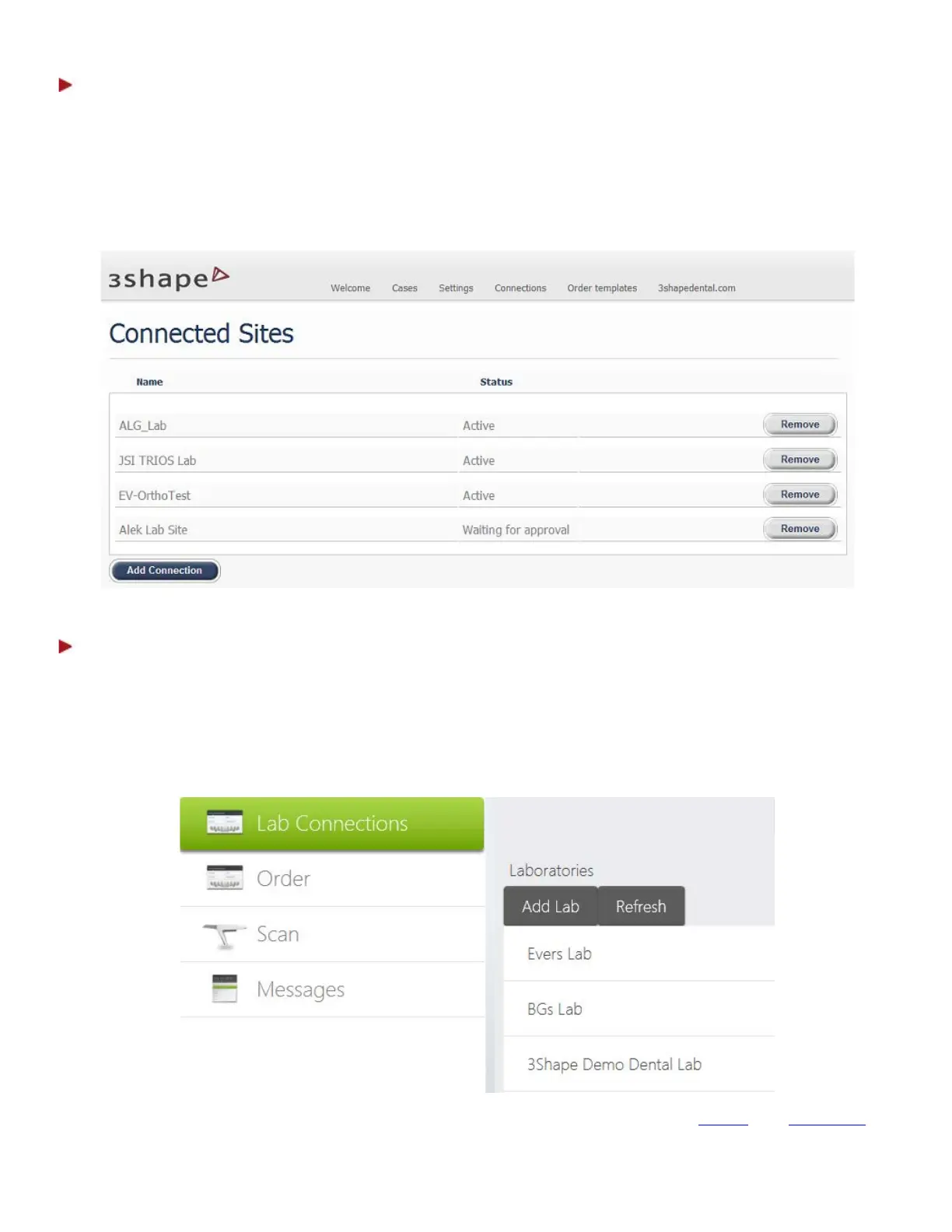
The lab you wish to connect to will be added to the Connected Sites list with the status Waiting for
approval.
Step 6: Start working with the lab
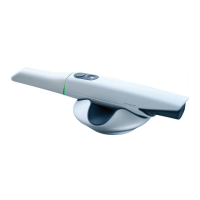
When lab confirms the connection, its status will be changed to Active and the laboratory will appear in
the list of added labs in your TRIOS system. If you added a lab from a remote PC, press Refresh to
update the list.
When the lab has been added, the system automatically checks for order templates and downloads them
to your TRIOS system.
You can now select the lab from the list in the Order form to be able to exchange
orders and messages
with the lab.
69


 To Next Page