• Cancel - closes the window and returns to the main
screen.
After cleaning and disinfecting the scanner, put the protection tip on the
scanning tube to protect its optics from contamination when not in use.
The Standby button on the cart also functions as a Reset one to restart the
mes frozen and stops responding. Should that happen, push
Standby button pressed for about 5 seconds to restart the system.
4.7 TRIOS Client
3Shape TRIOS installer contains two installation options: Cart and Client.
The Cart version is installed directly on a TRIOS cart.
The Client version can be installed on regular PC's for an easy data-exchange between TRIOS cart and
client PC's within the clinic. The Client can be used for all TRIOS operations except scanning such as,
creating new orders and reviewing old ones.
The Client cannot run if the Cart or Pod PC is turned off.
Software Requirements for installing 3Shape TRIOS Client:
• Windows XP or later.
• Microsoft .Net 4. (version 4.5 is part of the installer)
Step 1: Enable Client sharing on the Cart
Before you can start using the Client, Client sharing must be enabled on the Cart.
1. In the Cart interface, select Configure from
the Service toolbar on the left to open
Settings.
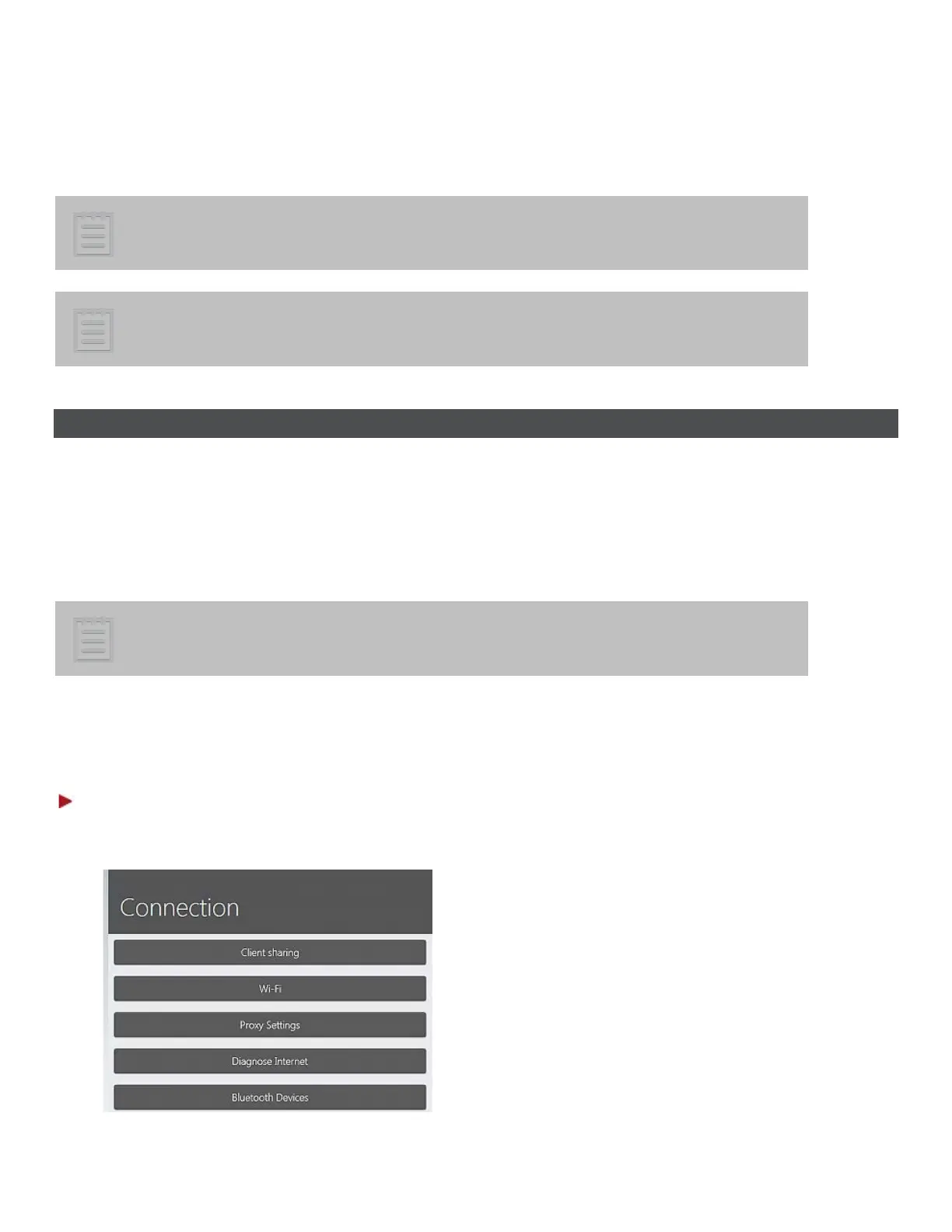
2. Select Connection and press the Client
sharing button in the Connection page.
60


 To Next Page