CHAPTER 6
94
Using Layers
Using the Layers palette
When you open Photoshop Elements for the first
time, the Layers palette appears in the palette well.
(See “Using the palette well” on page 13.) You can
drag the palette out of the palette well to keep it on
display.
Using the Layers palette, you can control whether
a layer is visible and whether Photoshop Elements
displays a preview, or thumbnail, of a layer.
Tur ning off thumbnails or reducing their size can
save space in your work area and reduce memory
usage.
Note: Only visible layers are printed.
To display the Layers palette:
Choose Window > Layers.
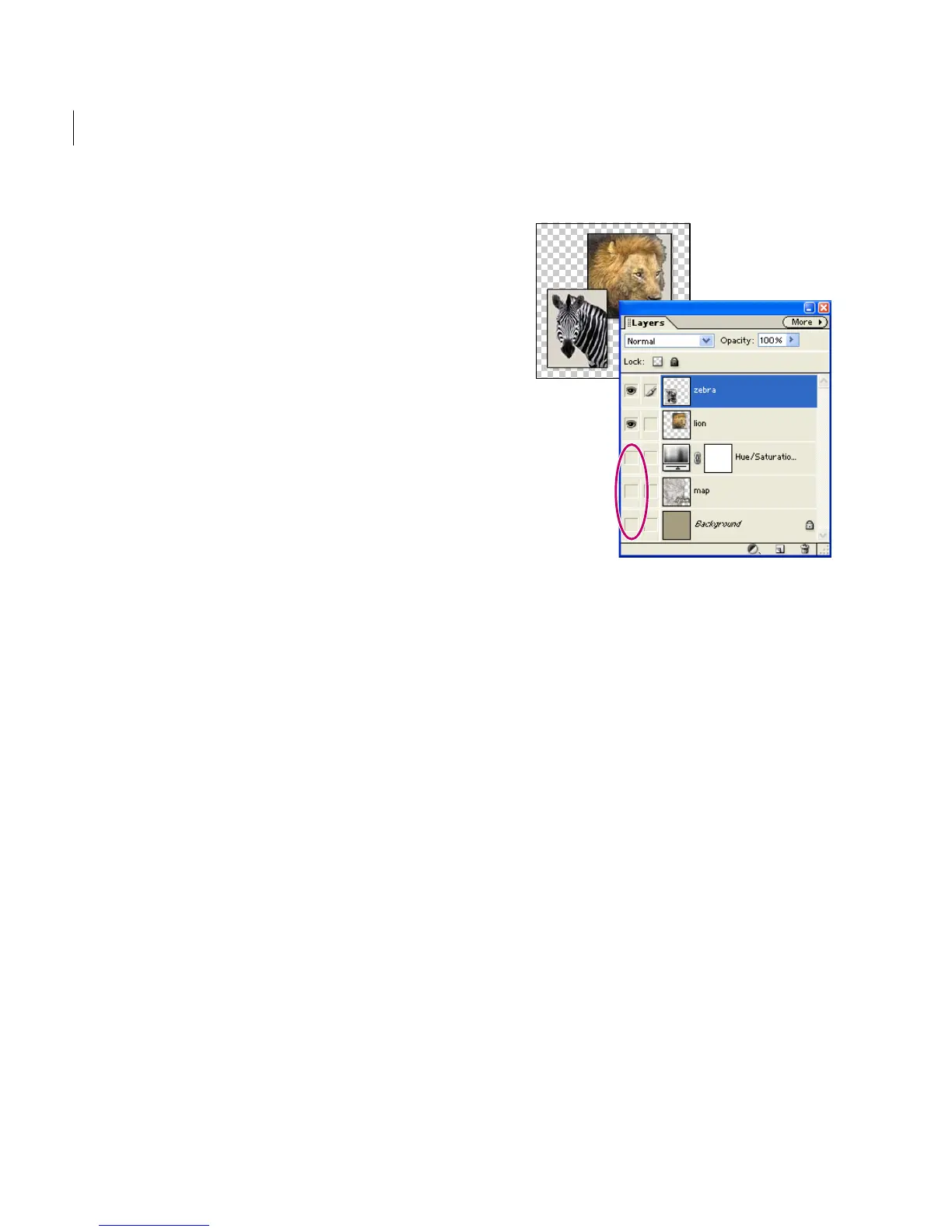
To show or hide a layer in the document window:
Do one of the following:
• In the Layers palette, click the eye icon next to a
layer to hide that layer. Click in the leftmost
column again to redisplay the layer.
• Drag through the eye column to show or hide
multiple layers.
• To display just one layer, Alt-click (Windows) or
Option-click (Mac OS) the eye icon for that
layer. Alt/Option-click in the eye column again
to redisplay all the layers.
Multiple hidden layers
To change the display of layer thumbnails:
1 Choose Palette Options from the Layers
palette More menu.
2 Select a size or select None to hide the thumb-
nails, and then click OK.
To change the transparency display:
1 Choose Edit > Preferences > Transparency
or Photoshop Elements > Preferences >
Tr ansparency (Mac OS X).
2 For Grid Size, choose a pattern size. By default,
the transparent areas of a document appear as a
checkerboard pattern. If you choose None, trans-
parent areas in the layer appear white.



 To Next Page