191
Chapter 11: Creating Shapes and Text
dobe Photoshop Elements lets you add
text and shapes to images with flexibility
and precision.
About vector graphics
In Photoshop Elements, shapes and text are vector
graphics, which means they are made up of
lines and curves defined by their geometric
characteristics. Vector graphics are resolution-
independent—that is, they can be scaled to any
size and printed at any resolution without losing
detail or clarity. You can move, resize, or change
them without losing the quality of the graphic.
Because computer monitors display images on a
pixel grid, vector data is displayed as pixels on-
screen.
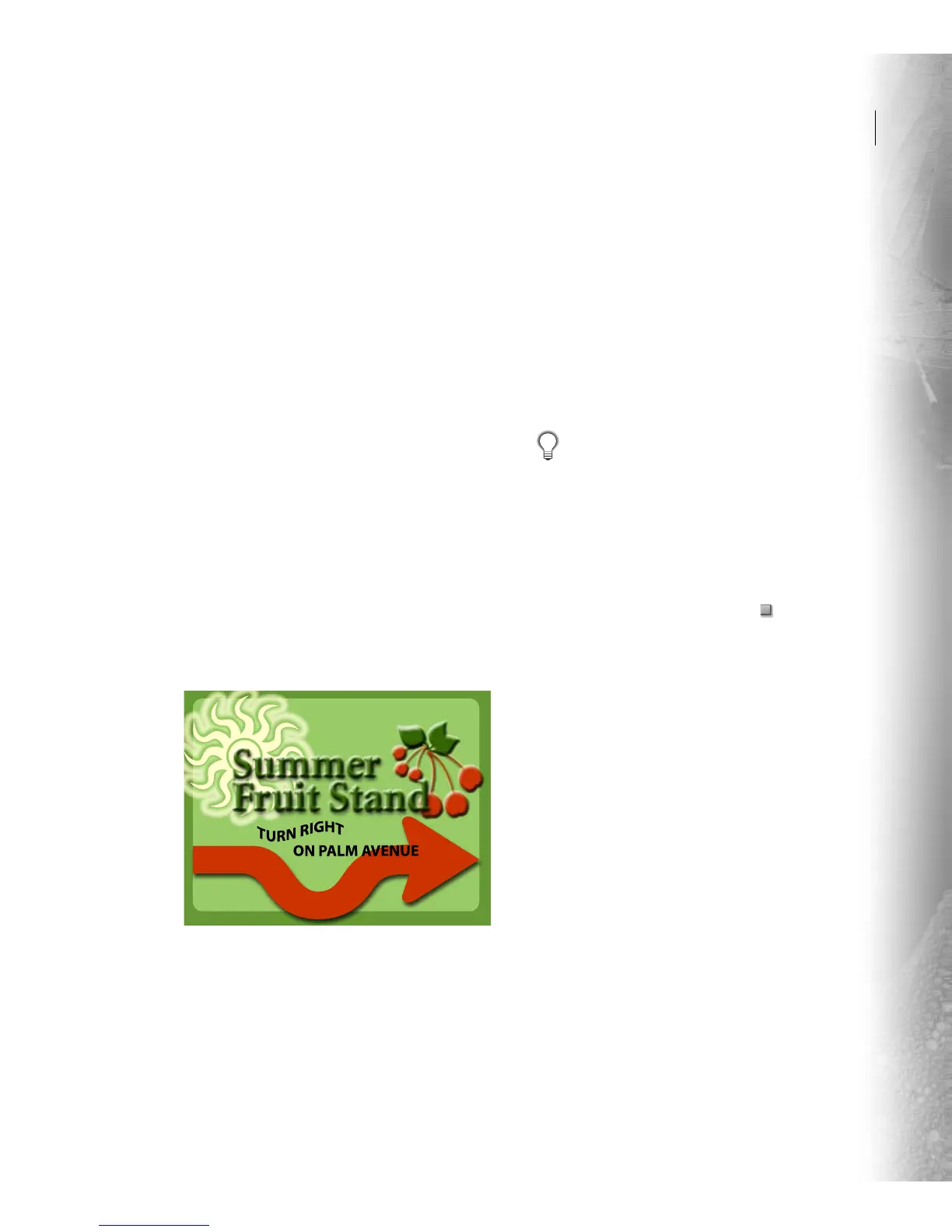
Composition using vector objects, including text and shapes
found in Photoshop Elements
About shapes
You use the shape tools to draw lines, rectangles,
rounded rectangles, polygons, ellipses, and
custom shapes in an image. You can change the
color of a shape by editing its fill layer and applying
layer styles to it.
The shape tools provide an easy way to create
buttons, navigation bars, and other items used
on Web pages.
Shapes are created in shape layers. A shape layer
can contain a single shape or multiple shapes,
depending on the shape area option you select.
If you want a new shape to be in its own layer,
make sure Create new shape layer is selected in
the options bar. You can also choose to have more
than one shape in a layer (see “Creating multiple
shapes in one layer” on page 192).
Creating shapes
You create shapes by selecting one of the shape
tools, and then dragging in your image. The shape
tools are located in the options bar and in the
toolbox, where the active shape tool is visible and
the rest are hidden. To select a hidden shape tool,
position the pointer on the visible tool and hold
down the mouse button until the tools list appears.
Then click the tool you want.
A



 To Next Page