CHAPTER 6
106
Using Layers
Merging adjustment layers
You can merge an adjustment or fill layer in several
ways: with the layer below it, with the layers in its
own group of layers, with the layers it’s linked to,
and with all other visible layers. You cannot,
however, use an adjustment layer or fill layer as the
base or target layer for a merge.
When you merge an adjustment layer or fill layer
with the layer below it, the adjustments are
rasterized and permanently applied to the merged
layer. Adjustment no longer affects other layers
below the merged adjustment layer. (See “Merging
layers” on page 111.) You can also rasterize a fill
layer without merging it. (See “Simplifying layers”
on page 110.)
Adjustment layers and fill layers whose masks (the
layer’s rightmost thumbnail in the Layers palette)
contain only white values do not add significantly
to the file size, so you needn’t merge these
adjustment layers to conserve file space.
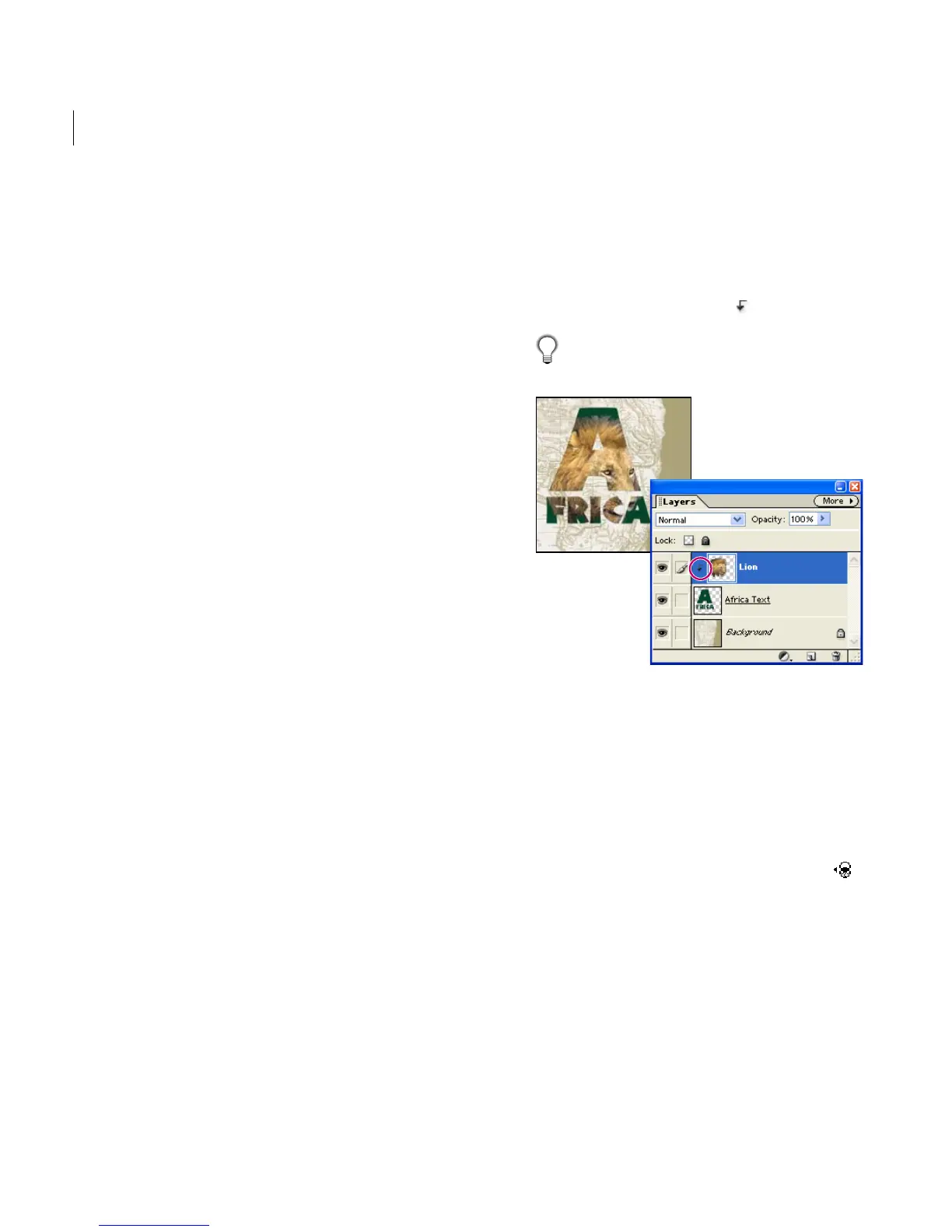
Creating grouped layers
In grouped layers, the bottommost layer, or base
layer, defines the visible boundaries for the entire
group. For example, you might have a shape on the
base layer, a photograph on the layer above it, and
text on the topmost layer. If you group all three
layers, the photograph and text appear only
through the shape outline on the base layer; they
also take on the opacity of the base layer.
Note that you can group only successive layers.
The name of the base layer in the group is under-
lined, and the thumbnails for the overlying layers
are indented. Additionally, the overlying layers
display the grouped layer icon .
Yo u can link grouped layers so they move
together. See “Linking layers” on page 99.
Africa text layer is the base layer in a layer group with the
Lion layer
To create grouped layers:
1 Do one of the following:
• Hold down Alt (Windows) or Option
(Mac OS), position the pointer over the line
dividing two layers in the Layers palette (the
pointer changes to two overlapping circles ),
and then click.
• In the Layers palette, select the top layer of a pair
of layers you want to group, and choose Layer >
Group with Previous.



 To Next Page