CHAPTER 1
16
Looking at the Work Area
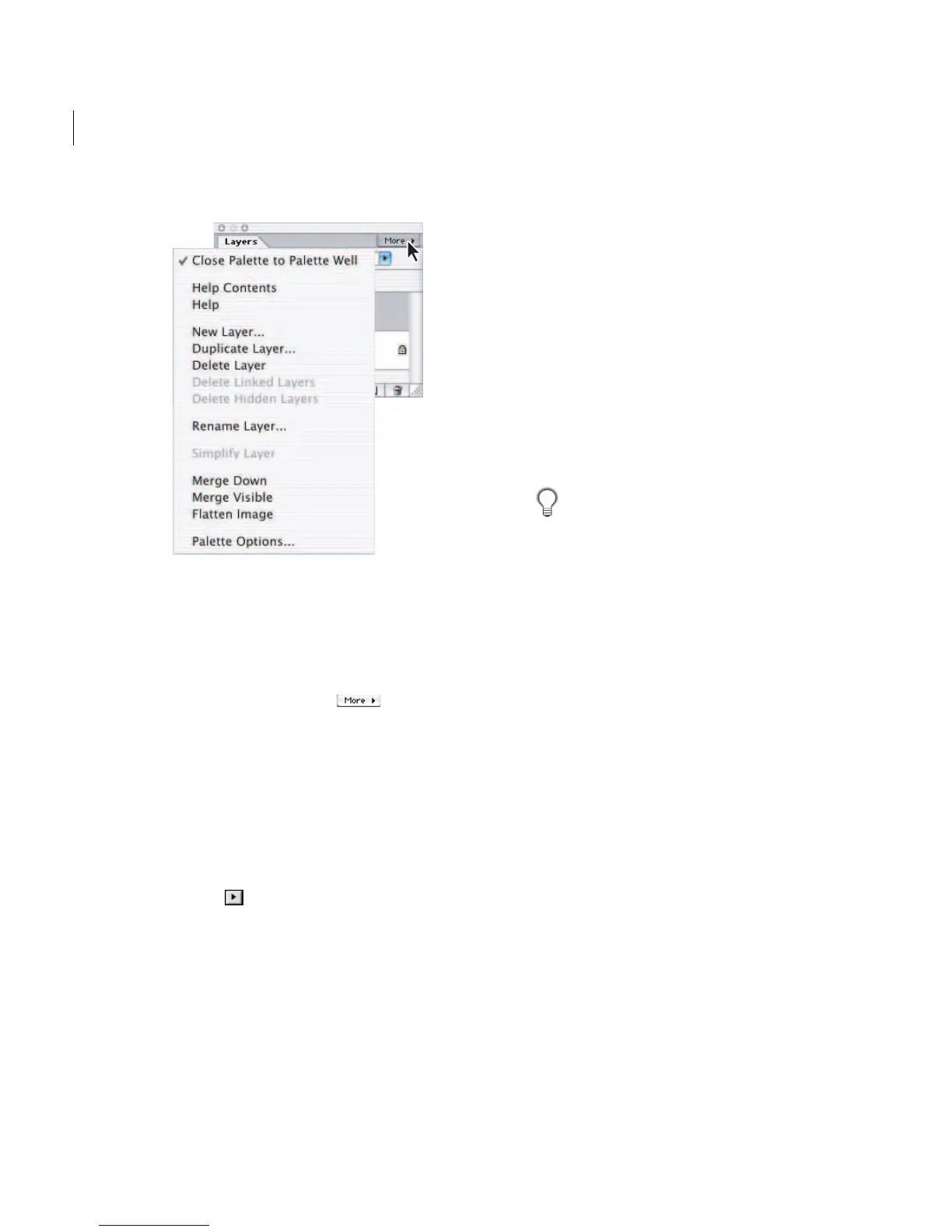
Layers palette menu
To use a palette menu:
1 Select a palette. If the palette is in the palette
well, click the palette’s tab to open it.
2 Click the More button in the upper right
corner of the palette.
3 Choose a command from the palette menu.
Using pop-up sliders
A number of palettes and dialog boxes contain
settings that use pop-up sliders (for example, the
Opacity option in the Layers palette). If there is a
triangle next to the text box, you can activate
the pop-up slider by clicking the triangle.
To use a pop-up slider:
Do one of the following:
• Position the pointer over the triangle next to the
setting, hold down the mouse button, and drag
the slider or angle radius to the desired value.
• Click the triangle next to the setting to open the
pop-up slider box, and drag the slider or angle
radius to the desired value. Click outside the
slider box or press Enter or Return to close the
slider box. To cancel changes, press the Escape
key (Esc).
To increase or decrease values in 10% incre-
ments when the pop-up slider box is open, hold
down Shift and press the Up Arrow or Down Arrow.
Getting the most out of
Photoshop Elements
The Photoshop Elements interface provides a
variety of features to help you work efficiently and
knowledgeably. Some features—such as the Hints
palette and the How To palette—provide infor-
mation about using tools and performing tasks.
Other features—such as the Info palette and status
bars—provide feedback about the current image
and operation. Yet other features—such as context
menus and keyboard commands—provide
alternate ways to access commands.
Using the Hints palette
The Hints palette helps you learn how to use tools
and palettes. As you run your mouse over a tool or
select a tool, the Hints palette will give you infor-
mation on using the tool.



 To Next Page