91
Chapter 6: Using Layers
ayers are the basis for creating and editing
images in Photoshop Elements. Layers can
help you customize your images, fix color
and contrast, and give your images different
artistic effects. Layers also make composing and
managing different elements in an image much
easier.
About layers
You create and manage layers using the Layers
palette and the Layers menu. Layers give you the
freedom to rearrange your image, adjust its color
and brightness, apply special effects, edit, and add
new elements to your image. With layers, all these
things can be done without making permanent
changes to your original image and without
affecting other layers.
When you create, import, or scan an image in
Photoshop Elements, the image consists of a single
layer. If you’re retouching the image, you can edit
the original layer to make permanent changes.
Alternatively, you can leave the original layer intact
as a backup, and retouch a duplicate copy of the
layer, or use adjustment layers to fine-tune your
image.
The power of layers is that they enable you to work
on one element of your image without disturbing
the others, and without making tedious selections.
Until you combine, or merge, the layers, each
layer remains independent. This means you can
experiment freely with different compositions
without making permanent changes to your
overall image. In addition, special features such as
adjustment layers, fill layers, and layer styles let
you create sophisticated effects.
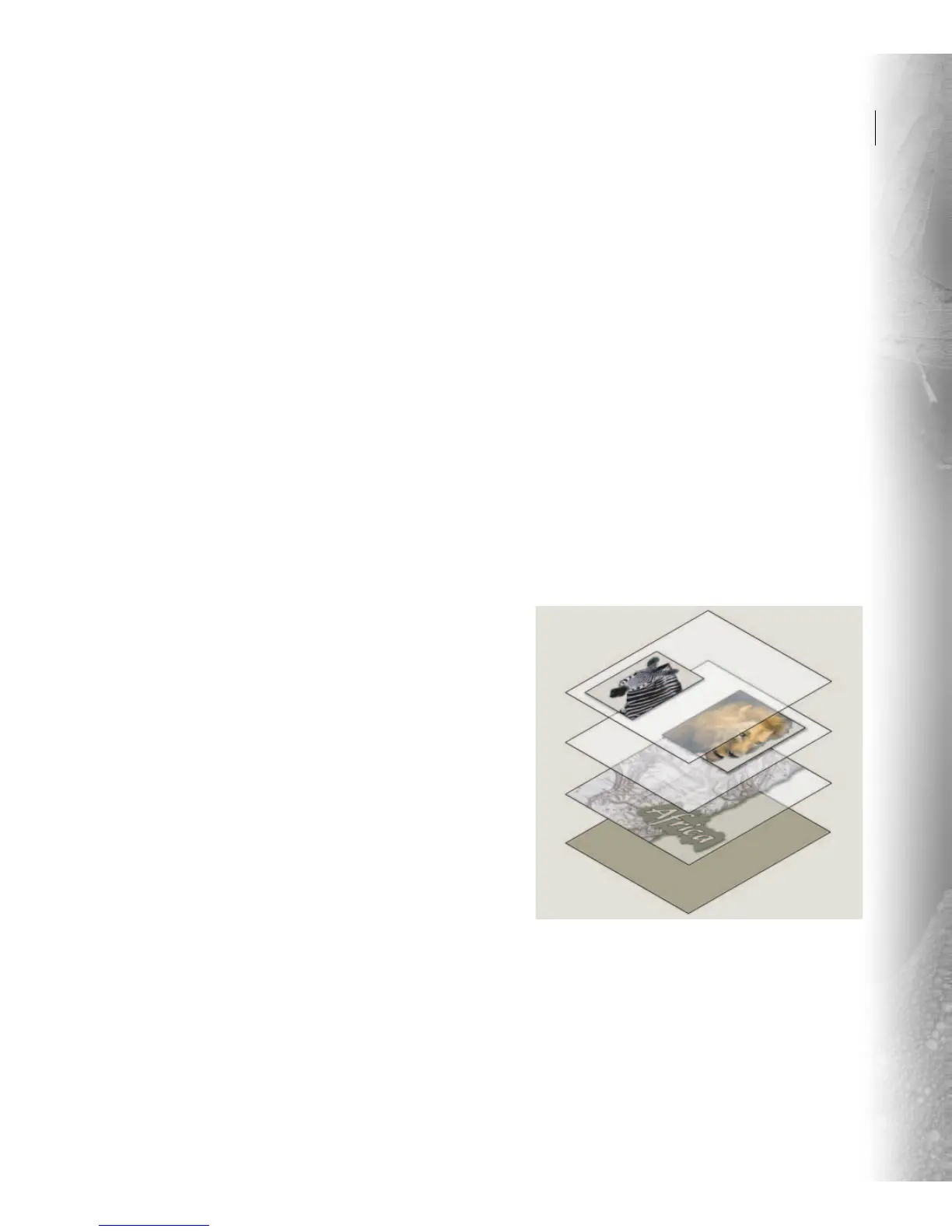
A good way to think of layers is as sheets of trans-
parent glass stacked one on top of the other. Where
there is no image on a layer, you can see through to
the layers below. Behind all of the layers is the
Background layer. In the following illustration,
each animal and the map are on separate layers.
The map of Africa is the Background layer.
Depending on how you stack and position the
layers, the composition changes.
Transparent areas on a layer let you see through to the
layers below.
L



 To Next Page