75
Chapter 5: Resizing, Cropping, and
Laying Out Images
djusting the resolution and size of
your images is easy using the tools
in Photoshop Elements.
About image size and resolution
When you take a photo with a digital camera, or
scan a photo, you create an image that has specific
number of pixels on each side. For example, your
digital camera may make a photo that is 1024
pixels wide and 800 pixels high. These two
measurements, referred to as the pixel dimensions,
have a direct correlation to the image’s file size,
and both are an indication of the amount of image
data in a photo.
Resolution is the number of pixels per linear unit
of measure—for example, the number of pixels
per inch (ppi). While a digital photo contains a
specific amount of image data, it doesn’t have a
specific physical output size or resolution. As you
change the resolution of a file, its physical dimen-
sions change, or as you change the width and
height of an image the resolution changes.
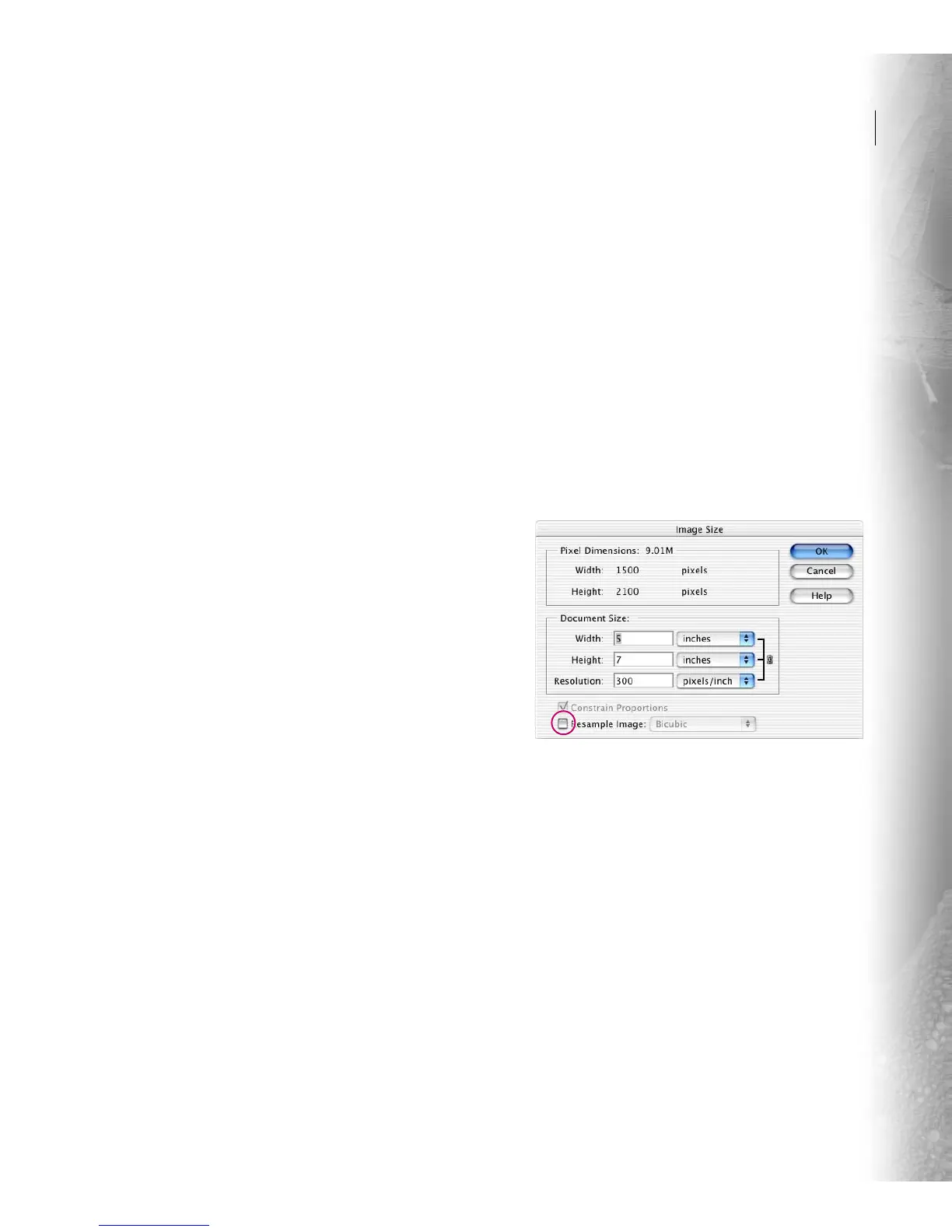
You can see the relationship between image size
and resolution in the image size dialog box
(choose Image > Resize > Image Size). Deselect
Resample Image, because you don’t want to
change the amount of image date in your photo.
Then change the width or the height or the
resolution. Notice that as you change one value the
other two values change.
The image size dialog box with Resample Image deselected
Generally, the higher the resolution of your image,
the better the printed image quality. Some printing
devices may require a specific image resolution,
but for a photo inkjet printer, the resolution can
range from 240 to 360 ppi.
A



 To Next Page