77
ADOBE PHOTOSHOP ELEMENTS 2.0
User Guide
When you work in Photoshop Elements, you
can change the image magnification on-screen,
so you can easily work with images of any pixel
dimensions.
Changing image size and
resolution
Once you have scanned or imported an image,
you may want to adjust its size. The Image Size
command lets you adjust the pixel dimensions,
print dimensions, and resolution of an image.
Keep in mind that bitmap and vector data can
produce different results when you resize an
image. Bitmap data is resolution-dependent;
therefore, changing the pixel dimensions of a
bitmap image can cause a loss in image quality and
sharpness. In contrast, vector data is resolution-
independent; you can resize it without losing its
crisp edges.
Displaying image size information
You can display information about the current
image size using the information box at the
bottom of the application window (Windows)
or the document window (Mac OS). (See “Using
the status bar” on page 18.)
To display the current image size:
Click the file information box, and hold down the
mouse button. The box displays the width and
height of the image (both in pixels and in the unit
of measurement currently selected for the rulers),
the number of channels, and the image resolution.
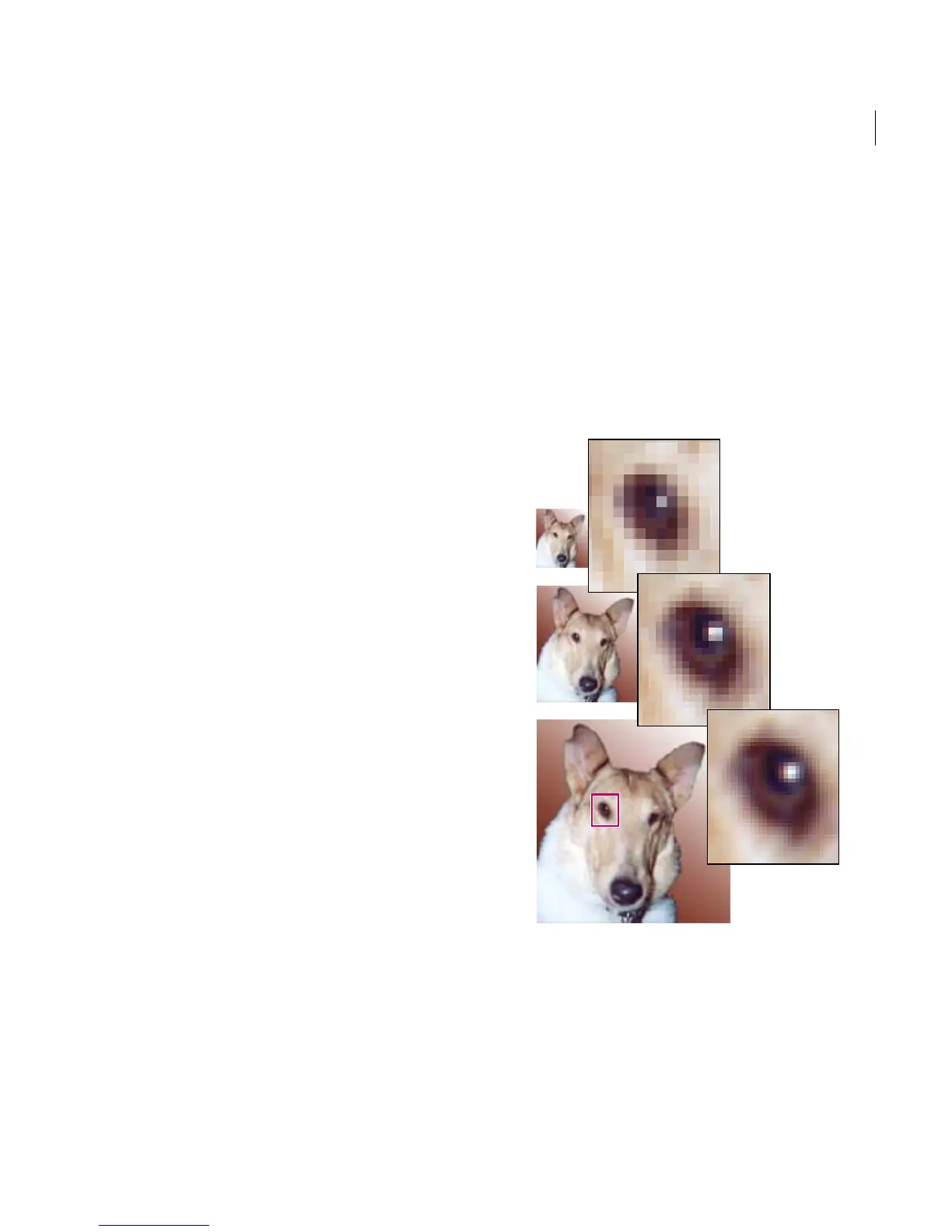
Resampling images
Changing the pixel dimensions of an image is
called resampling. Resampling also affects the
display size of your image. When you downsample,
meaning that you decrease the number of pixels in
your image, information is deleted from the
image. When you resample up, or increase the
number of pixels in your image, new pixels are
added based on color values of existing pixels.
Resampling pixels that make up the dog’s eye
A. Downsampled B. Original C. Resampled up
(Selected pixels displayed for each image.)
A
B
C



 To Next Page