131
ADOBE PHOTOSHOP ELEMENTS 2.0
User Guide
Using the Adobe Color Picker
You can use the Adobe Color Picker to select the
foreground or background color by choosing from
a color spectrum or by defining colors numeri-
cally. In addition, you can select colors based on
HSB or RGB color models, or choose to select only
Web-safe colors.
To display the Adobe Color Picker:
In the toolbox, click the foreground or
background color selection box.
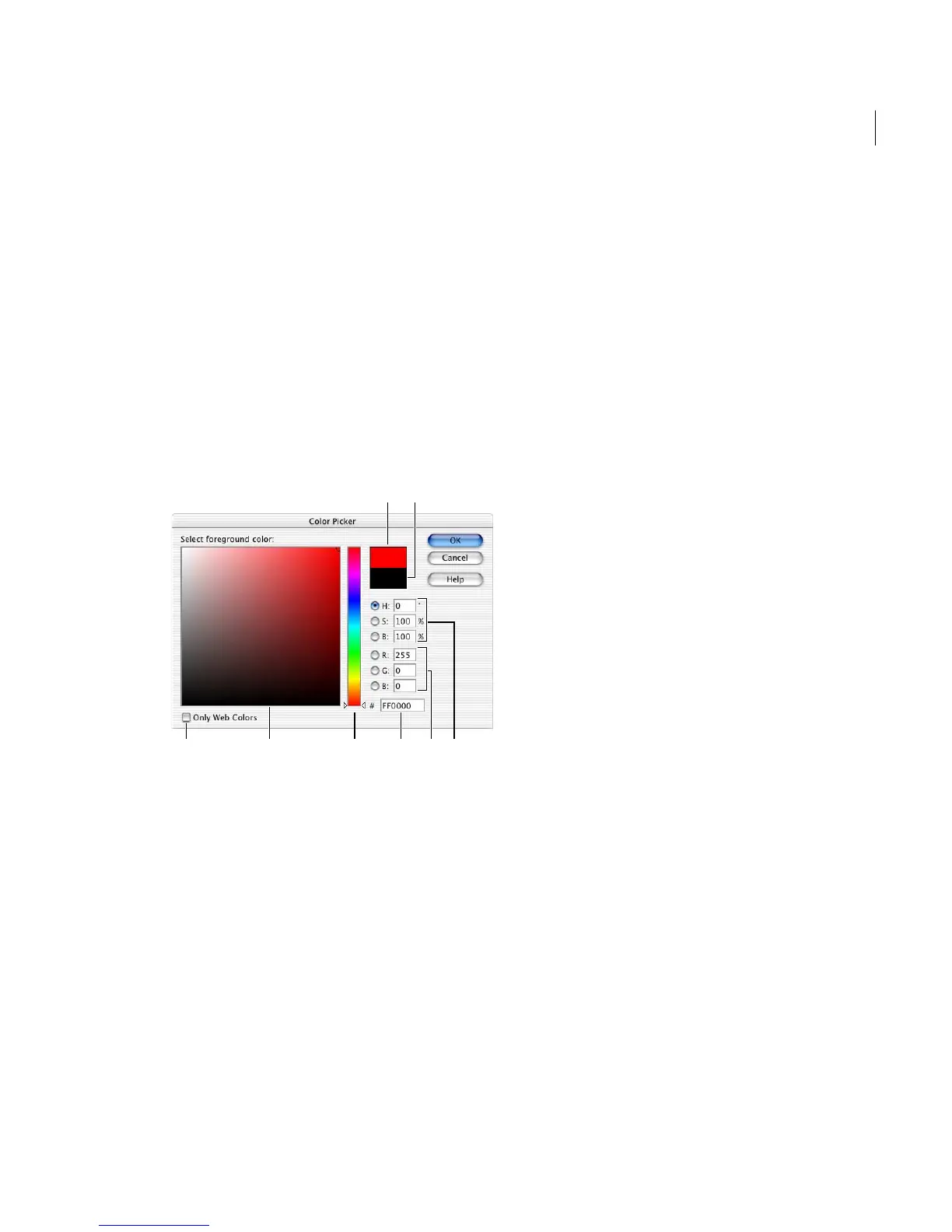
Adobe Color Picker
A. Adjusted color B. Original color C. Web Colors option
D. Color field E. Color slider F. Hexadecimal color value
G. RGB color values H. HSB color values
Specifying a color using the color field and
color slider
To select a color in the HSB (Hue, Saturation, and
Brightness) or RGB (Red, Green, Blue) color
modes, you can use the color field or the color
slider in the Color Picker dialog box. The color
slider displays the range of color levels available for
the selected color component (for example, R, G,
or B). The color field displays the range for the
remaining two components—one on the
horizontal axis, one on the vertical. (For more
information about HSB and RGB color modes, see
“Describing color” on page 64.)
For example, if the current color is black and you
select the red radio button (R) using the RGB color
mode, the color slider displays the range of color
for red (0 is at the bottom, and 255 is at the top).
The color field displays blue values along its
horizontal axis and green values along its
vertical axis.
To specify a color using the color field and color slider
in the Color Picker dialog box:
1 Select a radio button next to an HSB or RGB
value.
2 Select a color:
• Drag the white triangles along the slider.
• Click inside the color slider.
• Click inside the color field.
When you click in the color field, a circular marker
indicates the color’s position in the field, and the
numerical values change to reflect the new color.
The color rectangle to the right of the color slider
displays the new color in the top section of the
rectangle. The original color appears at the bottom
of the rectangle.
Specifying a color using numeric values
In the Adobe Color Picker, you can select a color
by specifying numeric values for each color
component.
C D
A
E F G H
B



 To Next Page