43
ADOBE PHOTOSHOP ELEMENTS 2.0
User Guide
6 Select the digital camera from which you want
to import images.
Note: If the name of your camera does not appear in
the submenu, verify that the software and drivers
were properly installed and that the camera is
connected.
7 Choose the image or images you want to
import:
• Click the image from the list of thumbnails to
import the image.
• Hold down Shift and click on multiple images
to import them at the same time.
• Click Select All to import all available images.
8 Click Get Picture to import the image.
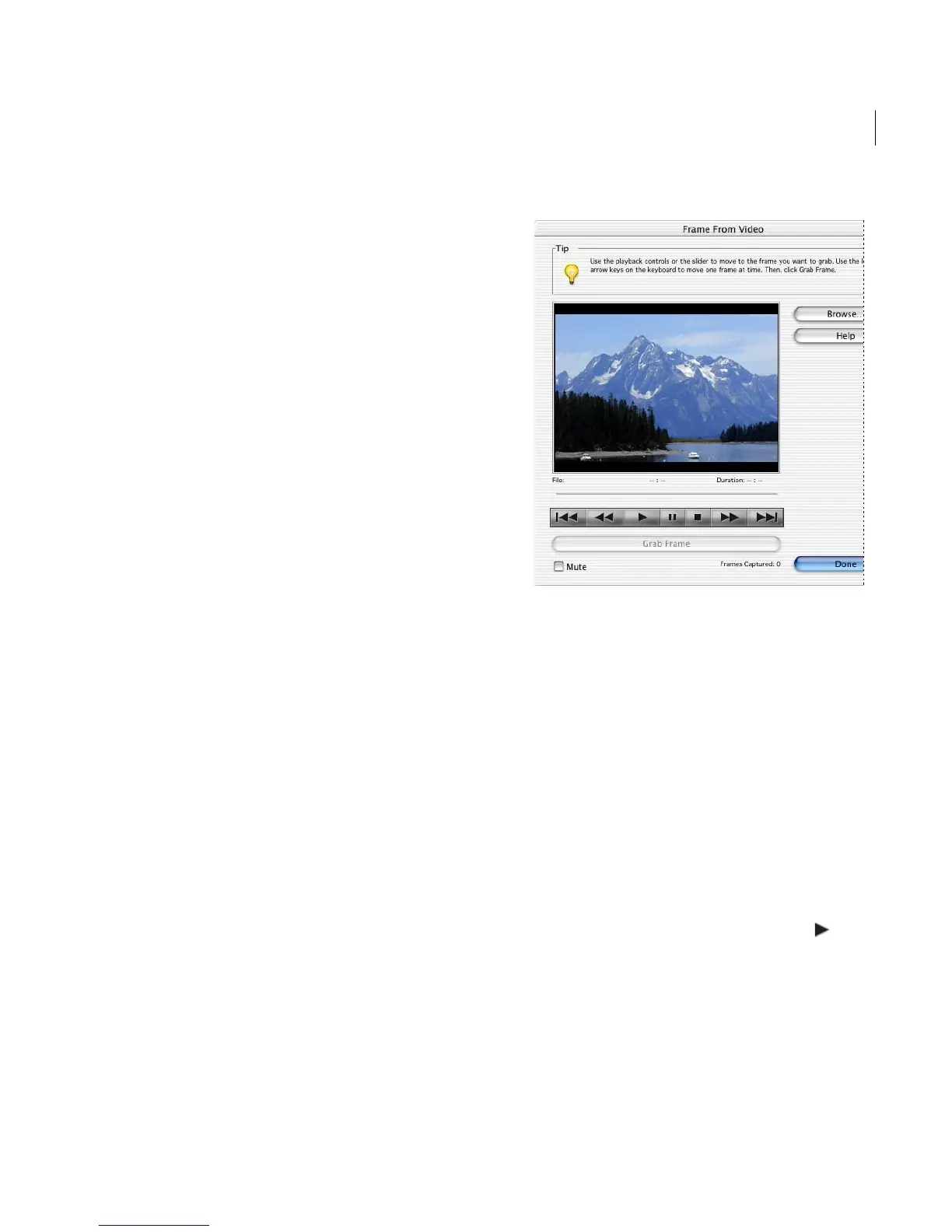
Getting images from video
You can quickly and easily capture frames from
your digital videos using the Frame from Video
command. When you see a frame you’d like to
import as a still image, click the Grab Frame
button, or simply press the space bar.
Your video clips must be saved in video file
formats that Photoshop Elements can open in the
Frame for Video dialog box. Windows formats
include .avi, .mpg, and .mpeg, and Mac OS
formats include QuickTime and .mpeg.
Capturing a frame from video
To acquire still frames from a video:
1 Do one of the following:
• Choose File > Import > Frame from Video.
• Click the Connect to Camera or Scanner button
in the Welcome window, and then choose
Frame from Video from the Import pop-up
menu in the Select Import Source dialog box.
2 In the Frame from Video dialog box, click the
Browse button, navigate to the video from which
you want to acquire still frames, and then click
Open.
3 To start the video, click the Play button .



 To Next Page