CHAPTER 12
214
Optimizing Images for the Web and E-mail
To optimize an image in PNG-24 format:
1 Choose PNG-24 for the optimization format.
2 Select Interlaced to create an image that displays
at low-resolution in a browser while the full-
resolution image is downloading. Interlacing can
make downloading time seem shorter, and assures
viewers that downloading is in progress.
3 If the image contains transparency, select Trans-
parency to preserve transparent pixels; deselect
Tr ansparency to fill fully and partially transparent
pixels with the Matte color. (See “Making trans-
parent and matted images” on page 214.)
4 To save your optimized image, click OK. In the
Save Optimized As dialog box, type a filename,
and click Save.
Making transparent and matted
images
Tr ansparency makes it possible to create non
rectangular images for the Web. Background
transparency, supported by the GIF and PNG
formats, preserves transparent pixels in the image.
These pixels allow a Web page background color
or background image to show through the trans-
parent areas of your image.
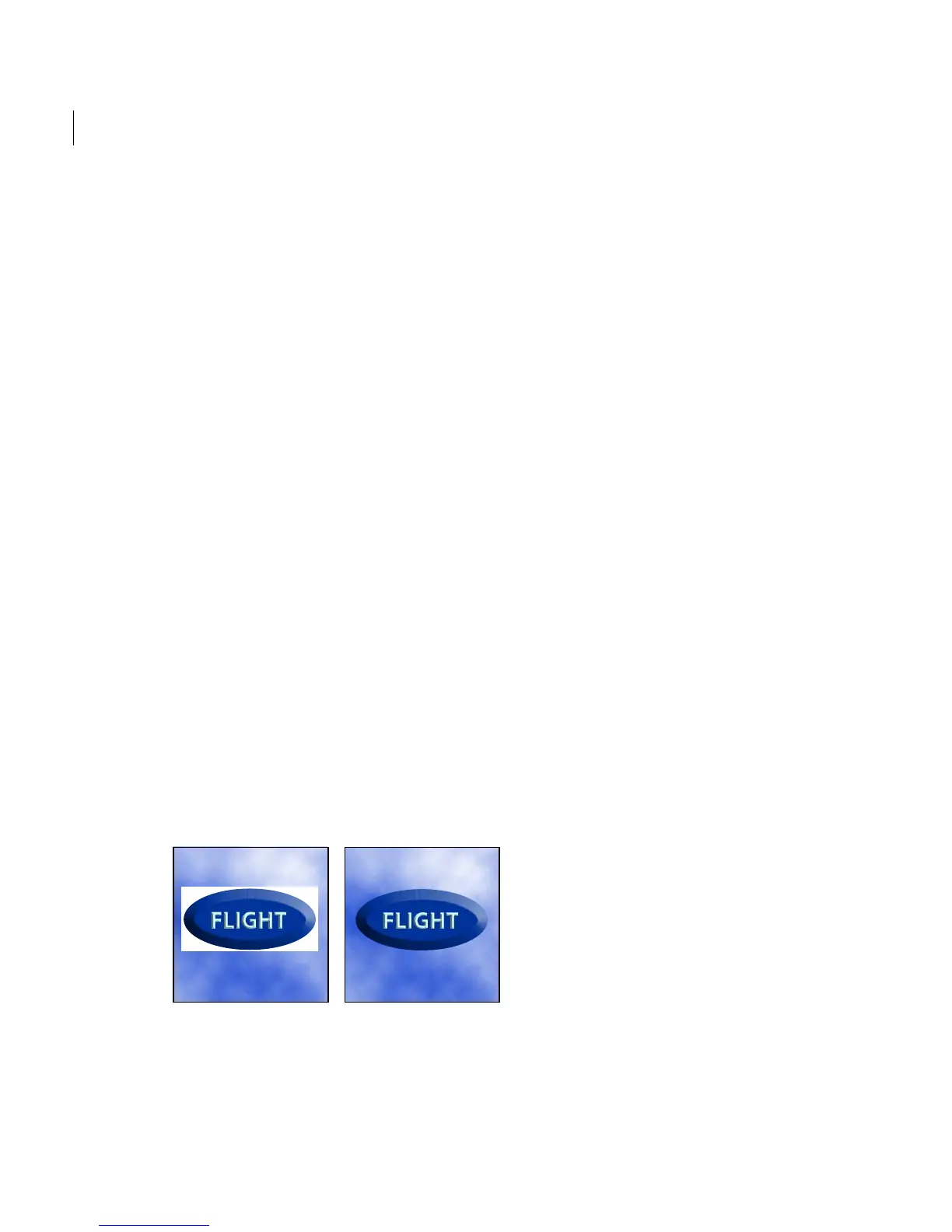
Web button without transparency and with transparency
Background matting, supported by the GIF, PNG,
and JPEG formats, simulates transparency by
filling or blending transparent pixels with a matte
color that can match the Web page background.
Background matting works best if the Web page
background is a solid color and if you know what
that color is.
To create background transparency or background
matting in the optimized image, the original
image must contain transparency. You can create
transparency when you create a new layer or use
the eraser tools. (See “Adding layers” on page 95
and “Erasing” on page 142.)
Preserving transparency in GIF and PNG
images
GIF and PNG-8 formats support one level of
transparency—pixels can be fully transparent or
fully opaque, but not partially transparent.
PNG-24 format, however, supports multilevel
transparency, letting you preserve up to 256 levels
of transparency in an image.
To preserve background transparency in a GIF or
PNG image:
1 Open or create an image that contains trans-
parency, and choose File > Save for Web.
2 In the Save For Web dialog box, select GIF,
PNG-8, or PNG-24 as the optimization format.
3 Select Transparency.



 To Next Page