CHAPTER 5
80
Resizing, Cropping, and Laying Out Images
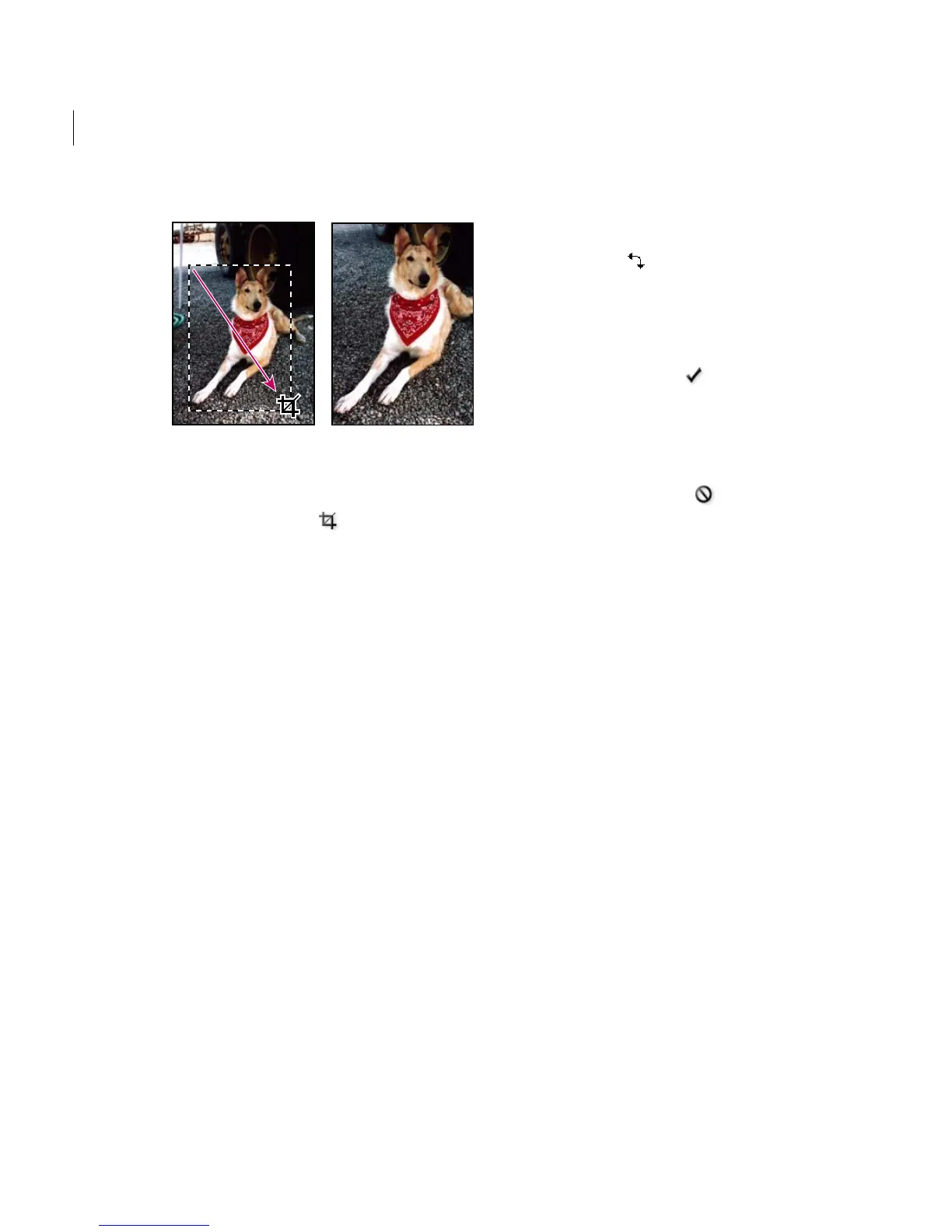
Using the crop tool to focus on the dog in the image.
To crop an image using the crop tool:
1 Select the crop tool .
2 If you want to specify the size or resolution of
the crop, enter the values in the Width, Height, or
Resolution text boxes in the options bar. You can
also click Front Image to enter the values of the
currently active image.
3 Drag over the part of the image you want to
keep. When you release the mouse button,
the crop marquee appears as a bounding box with
handles at the corners and sides.
4 If necessary, select the Shield cropped area
option to show the cropping shield. To adjust the
color and opacity of the cropping shield, use the
color selection box and the opacity pop-up slider
in the options bar.
5 Adjust the crop marquee:
• To move the marquee to another position, place
the pointer inside the bounding box, and drag.
• To scale the marquee, drag a handle. To
constrain the proportions, hold down Shift as you
drag a corner handle.
• To rotate the marquee, position the pointer
outside the bounding box (the pointer turns into a
curved arrow ), and drag.
Note: You can’t rotate the crop tool marquee for an
image in Bitmap mode.
6 Do one of the following to crop the image:
• Click the OK button in the options bar.
• Double-click inside the crop marquee.
• Select a different tool in the toolbox.
• Press Enter (Windows) or Return (Mac OS).
Click the Cancel button in the options bar to
cancel the cropping operation.
To crop an image using the Crop command:
1 Select the part of the image you want to keep.
(See “About selections” on page 113.)
2 Choose Image > Crop.
Changing the size of the work
canvas
The Canvas Size command lets you add or remove
work space around an existing image. You can crop
an image by decreasing the canvas area. Added
canvas appears in the currently selected
background color or transparent as the
background.
To use the Canvas Size command:
1 Choose Image > Resize > Canvas Size.



 To Next Page