CHAPTER 11
202
Creating Shapes and Text
3 In Mac OS X, choose Photoshop >
Preferences > Units & Rulers.
4 Select a unit of measurement for Type.
Creating a text selection border
When you use the horizontal type mask tool or
vertical type mask tool , you create a selection
in the shape of the type. Type selections appear on
the active layer, and can be moved, copied, filled,
or stroked just like any other selection. You can
also warp the text created with the type mask tools.
To create a type selection border:
1 Select the layer on which you want the selection
to appear. For best results, don’t create the type
selection border on a type layer.
2 Select the horizontal type mask tool or the
vertical type mask tool .
3 Select additional type options, and enter your
text.
The type selection border appears in the image on
the active layer.
Yo u can have fun with text selection borders by
cutting text out of an image to show the
background, or pasting the selected text into a new
image. Experiment with different options to person-
alize your images and compositions.
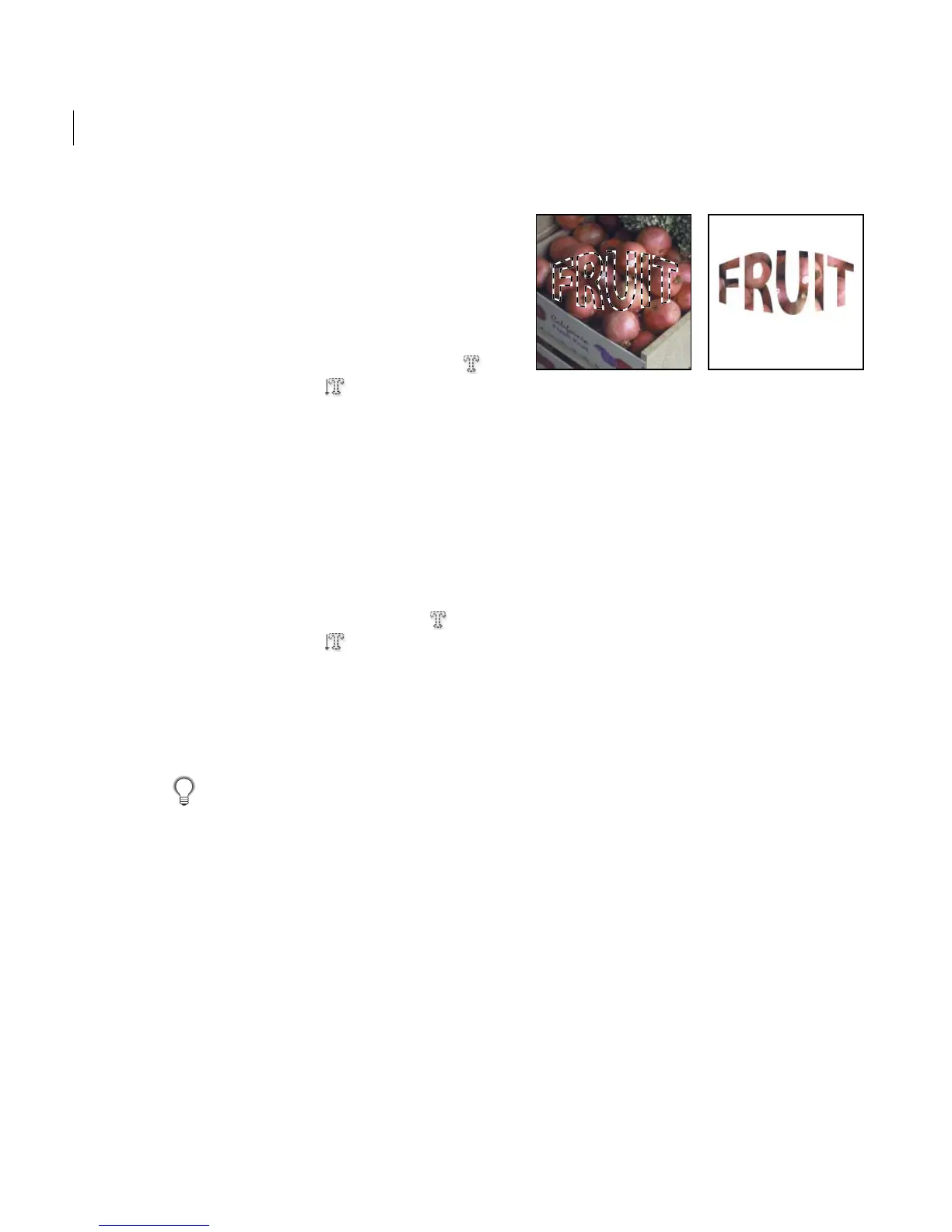
Horizontal type mask with type warp applied to create
filled selection
Setting options for Asian type
Photoshop Elements provides several options for
working with Asian type. Asian fonts are often
referred to as double-byte fonts or CJK fonts,
meaning Chinese, Japanese, and Korean fonts.
Displaying Asian text options
In order to view and set options for working with
Chinese, Japanese, and Korean type, you must
select Show Asian Text Options in the Preferences
dialog box. You can also control whether font
names are displayed in English or in the Asian
languages.
To display Asian type options:
Choose Edit > Preferences > General, and select
Show Asian Text Options.
To display Asian font names in English:
Choose Edit > Preferences > General, and select
Show Font Names in English.



 To Next Page