15
ADOBE PHOTOSHOP ELEMENTS 2.0
User Guide
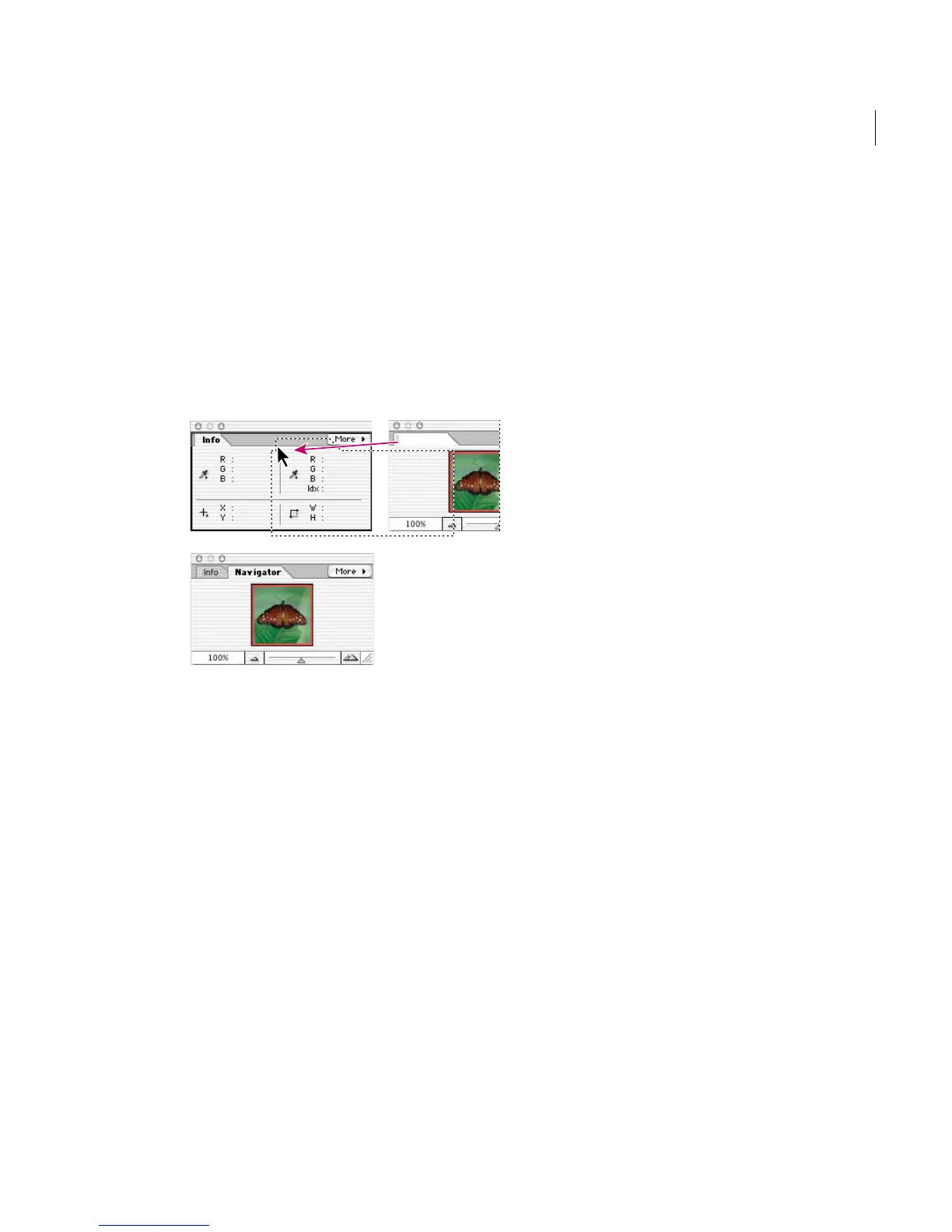
To group palettes together:
1 Display the palettes you want to group together.
If the palettes are in the palette well, drag at least
one of them into the work area.
2 Drag a palette’s tab onto the body of the target
palette. A thick line appears around the body of
the target palette when the pointer is over the
correct area.
Grouping two palettes together
A. Dragging a palette onto another open palette
B. Palettes grouped together
To move a palette to another group, drag the
palette’s tab to that group. To separate a palette
from a group, drag the palette’s tab outside
the group.
To dock palettes together:
Drag a palette’s tab to the bottom of another
palette. A double line appears at the bottom of
the target palette when the pointer is over the
correct area.
Note: Entire palette groups cannot be docked
together at once, but you can dock the palettes from
one group to another, one at a time.
To move a palette group:
Drag its title bar.
To collapse a palette group:
Double-click a palette’s tab or title bar.
To reset palettes to their default positions:
Choose Window > Reset Palette Locations.
To always start with the default palette and dialog box
positions:
1 In Windows or Mac OS 9.x, choose Edit >
Preferences > General.
2 In Mac OS X, choose Photoshop Elements >
Preferences > General.
3 Deselect Save Palette Locations. The change
takes effect the next time you start the application.
Using palette menus
Palette menus are an important part of working
with Photoshop Elements. Some commands in
palette menus can be found in the menu bar; other
commands are exclusive to palette menus.
When a palette has a palette menu, a More button
appears at the top of the palette. The exact location
and appearance of the More button depends on
where the palette is located: in the palette well, in a
palette group, or in the options bar. When a palette
is docked, the More button is a sideways triangle.
A
B



 To Next Page