CHAPTER 6
96
Using Layers
• By using the type tool or by using a shape tool.
(See “Creating text” on page 196 and “Creating
shapes” on page 191.)
• By duplicating an existing layer. See “Dupli-
cating layers” on page 98.
To create a new transparent layer with default
options:
Click the New Layer button at the bottom of the
Layers palette. The layer uses Normal mode with
100% opacity and is named according to its order
of creation.
To add a new layer and specify options:
1 Do one of the following:
• Choose Layer > New > Layer.
• Choose New Layer from the Layers
palette menu.
• Alt-click (Windows) or Option-click (Mac OS)
the New Layer button at the bottom of the
Layers palette.
2 Name the layer, and set other layer options.
(See “Specifying layer blending modes” on
page 100, “Specifying opacity” on page 100, and
“Creating grouped layers” on page 106.)
3 Click OK.
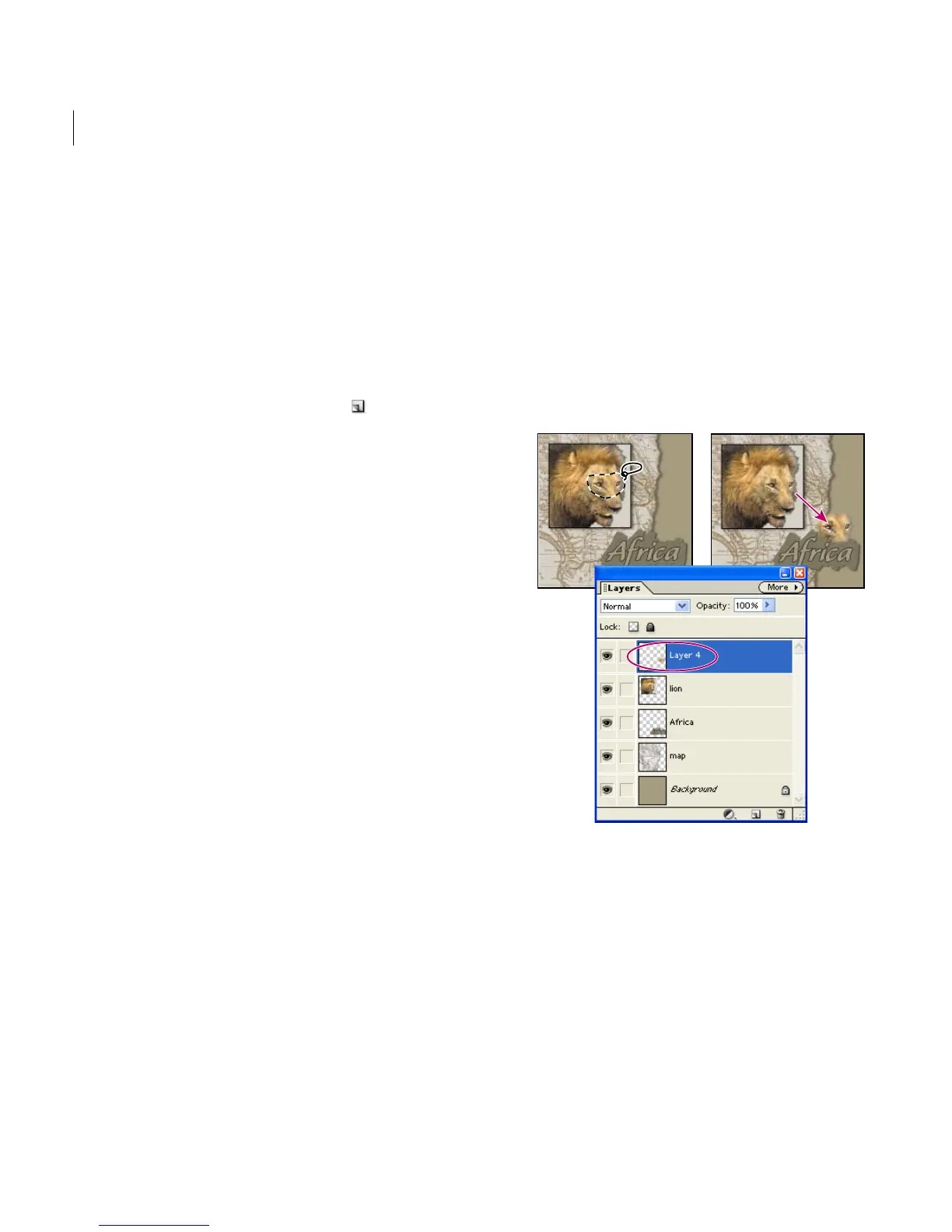
To turn a selected area into a new layer:
1 Select an existing layer, and make a selection.
(See “Selecting pixels” on page 114.)
2 Choose Layer > New, and choose one of the
following commands from the submenu:
• Layer Via Copy to copy the selection into a new
layer.
• Layer Via Cut to cut the selection and paste it
into a new layer.
The selected area appears in a new layer in the
same position relative to the image boundaries.
New layer created from feathered selection with Layer Via
Copy command, and then moved
To create a layer from the background:
1 Do one of the following:
• Double-click the background in the Layers
palette to convert it to a layer.



 To Next Page