CHAPTER 6
102
Using Layers
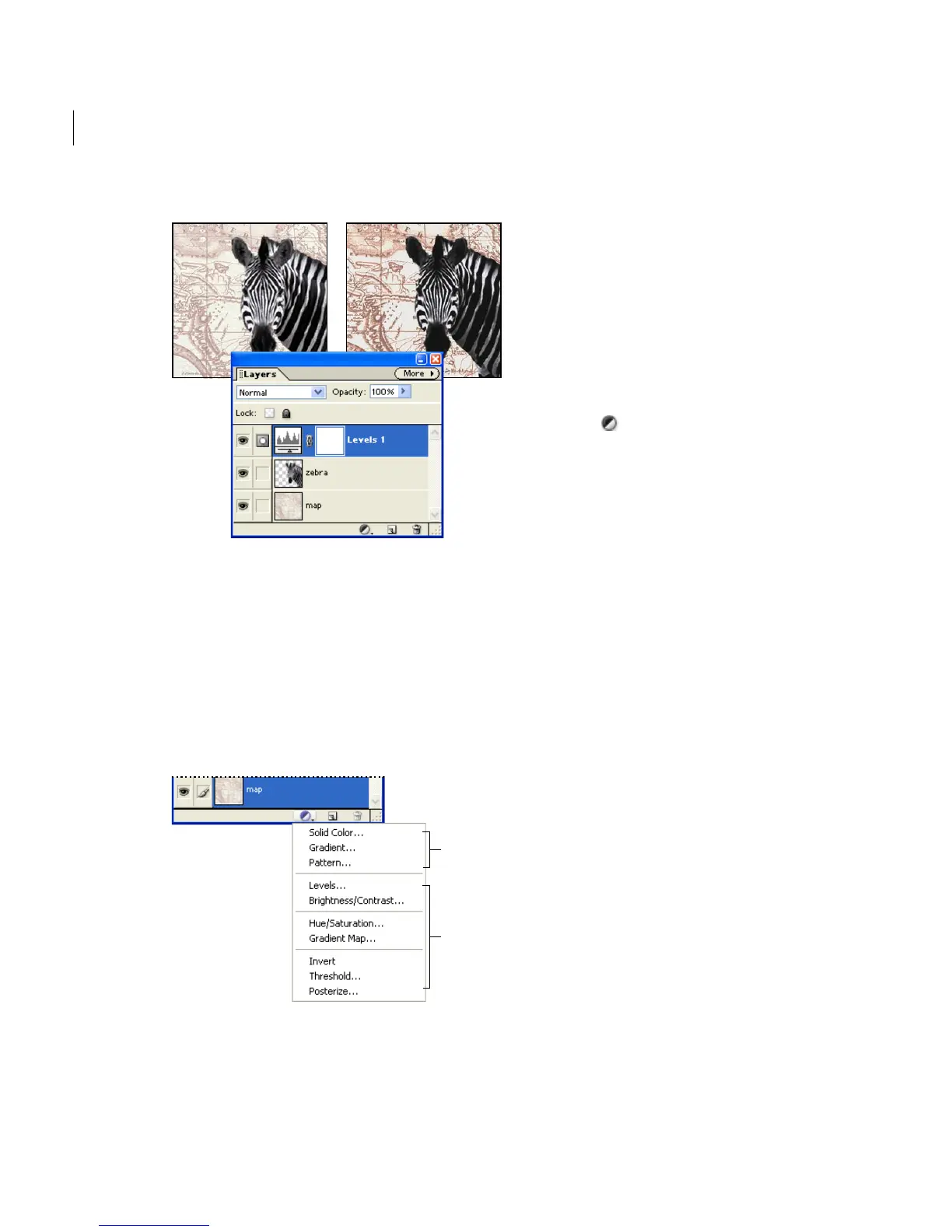
Original image, and image with levels adjustment applied
Creating adjustment layers
Adjustment layers have the same opacity and
blending mode options as image layers and can be
rearranged in the layer stacking order, deleted,
hidden, and duplicated in the same manner as
image layers. By default, adjustment layers take the
name of the adjustment type.
New Fill or Adjustment Layer menu
A. Fill layers B. Adjustment layers
To create an adjustment layer:
1 In the Layers palette, select the topmost layer
you want to affect.
2 To confine the effects of the adjustment layer to
a selected area, make a selection.
3 Do one of the following:
• To affect all the layers below the adjustment
layer, click the New Fill or Adjustment Layer
button at the bottom of the Layers palette,
and choose the adjustment type you want to
create. (Note that the first three commands in
the menu are fill layers, not adjustment layers.)
• To affect only one or more successive layers
below the adjustment layer, Choose Layer >
New Adjustment Layer, and choose an
adjustment type from the submenu. In the New
Layer dialog box, select Group With Previous
Layer, and then click OK.
4 In the [adjustment type] dialog box, set the
options for the adjustment type you chose:
Levels Specify values for the highlights, shadows,
and midtones. (See “Using the Levels dialog box”
on page 62.)
Brightness/Contrast Specify values for Brightness
and Contrast. (See “Using the Brightness/Contrast
command” on page 63.)
Hue/Saturation Choose which colors to edit, and
specify values for Hue, Saturation, and Lightness.
(See “Using the Hue/Saturation command” on
page 67.)
Gradient Map Choose a gradient and set gradient
options. (See “Using the Gradient Map
command” on page 188.)
A
B



 To Next Page