CHAPTER 6
110
Using Layers
• Select the layer in the Layers palette, and choose
Rename Layer from the Layer menu or the More
menu in the Layers palette. Type a new name in
the Layers Properties dialog box.
Simplifying layers
You can simplify a type layer, shape layer, solid
color layer, gradient layer, pattern fill layer, or a
layer set imported from Photoshop in order to
convert the layer’s content into a raster image.
Once you simplify a layer, you can apply filters to
it and edit it with the painting tools. However, you
can no longer make changes to the layer using the
type- and shape-editing options.
To simplify a layer:
1 In the Layers palette, select a type layer, shape
layer, fill layer, or a Photoshop layer set.
2 Simplify the layer or layer set:
• If you selected a shape layer, click Simplify in the
options bar.
• If you selected a type, shape, or fill layer, or a
Photoshop layer set, choose Simplify Layer from
either the Layer menu or the Layers palette
More menu.
Tracking file size
File size depends on the pixel dimensions of an
image and the number of layers contained in the
image. Images with more pixels may produce
more detail when printed, but they require more
disk space to store and may be slower to edit and
print. You should keep track of your file sizes to
make sure the files are not becoming too large for
your purposes. If the file is becoming too large,
you can merge some layers together, remove
hidden layers you don’t need, flatten your image,
or change the image size. (See “Merging layers” on
page 111, “Flattening all layers” on page 112, and
“About image size and resolution” on page 75.)
To track file size:
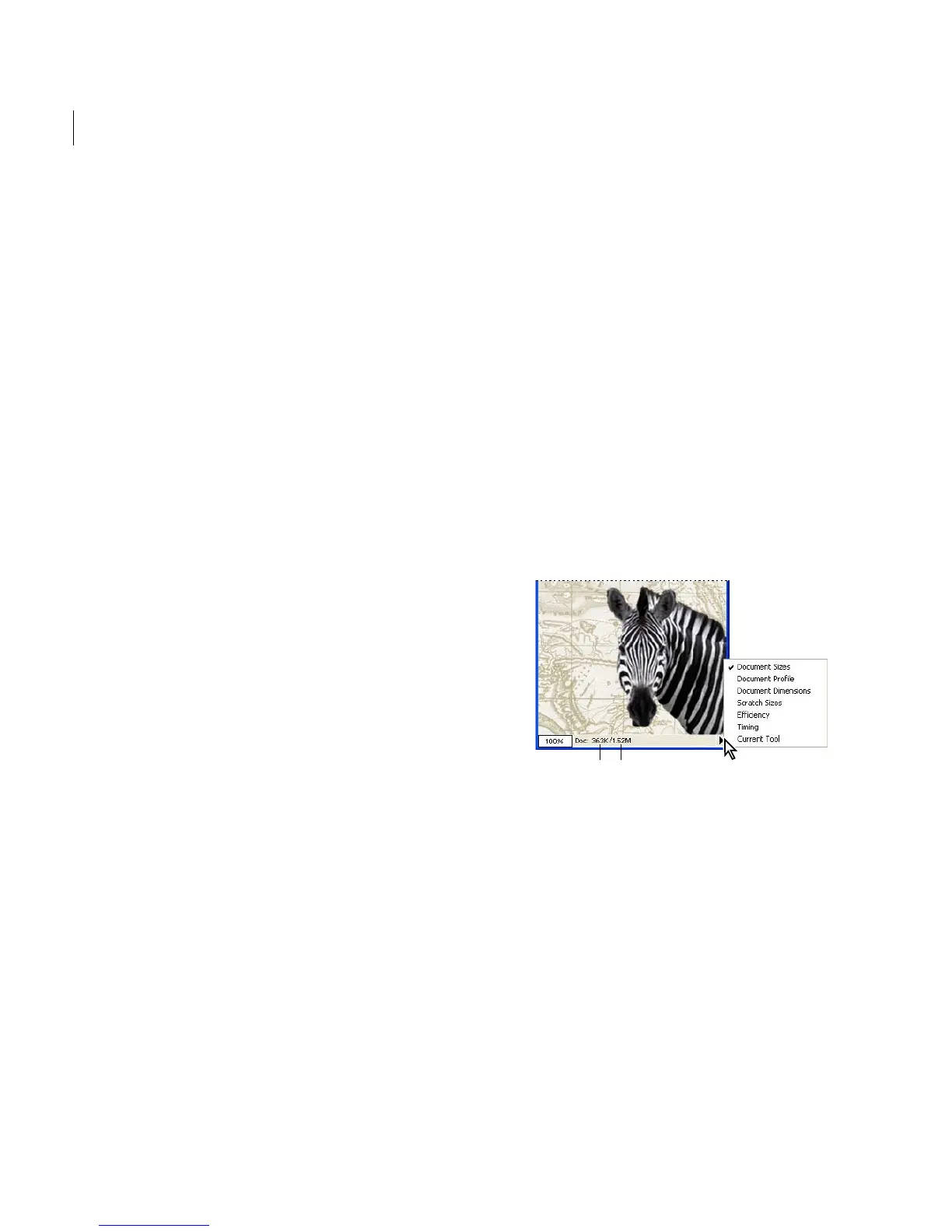
Choose Document Sizes from the status bar pop-
up menu at the bottom of the application window.
(See “Using the status bar” on page 18.)
The value on the left shows what the file size would
be if you were to flatten all the layers into one. The
value on the right shows the file size with all the
layers intact.
Status bar pop-up menu
A. Flattened document size B. Document size with
layers intact
Deleting layers
Deleting layers that you no longer need reduces
the size of your image file.
To delete a layer:
1 Select the layer in the Layers palette.
A B



 To Next Page