CHAPTER 6
112
Using Layers
2 Select a layer in the Layers palette on which to
merge all visible layers.
3 Hold down Alt (Windows) or Option
(Mac OS), and choose Merge Visible from either
the Layers menu, or the Layers palette menu.
Photoshop Elements merges a copy of all visible
layers into the selected layer.
Flattening all layers
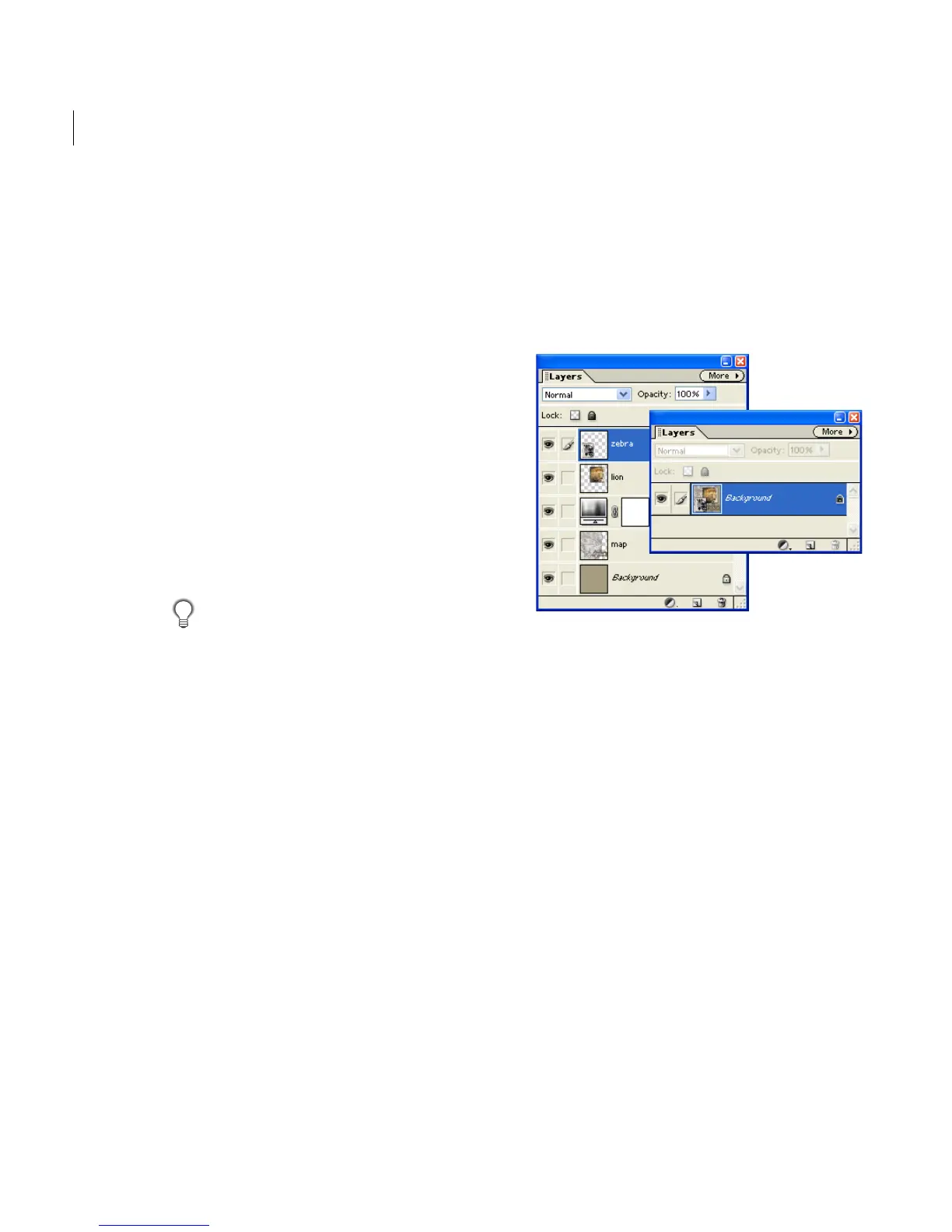
When you flatten an image, Photoshop Elements
merges all visible layers into the background,
greatly reducing the file size. Flattening an image
discards all hidden layers, and fills any transparent
areas with white. In most cases, you won’t want to
flatten a file until you’ve finished editing
individual layers.
Yo u can see the difference between your image’s
layered file size and its flattened file size by
choosing Document Sizes from the status bar pop-up
menu. See “Tracking file size” on page 110.
To flatten an image:
1 Make sure that the layers you want to keep in
your image are visible.
2 Choose Flatten Image from either the Layers
menu or the Layers palette menu.
Layered file and flattened file



 To Next Page