CHAPTER 8
148
Painting
Applying a gradient fill
You fill an area with a gradient by dragging in the
image or in a selection. The distance between the
starting point (where you press and hold the
mouse button) and ending point (where you
release the mouse button) affects the gradient
appearance, as does the gradient type.
To apply a gradient fill:
1 To fill part of the image, select the desired area.
Otherwise, the gradient fill is applied to the entire
active layer.
2 Select the gradient tool .
3 In the options bar, click the desired gradient
type (linear , radial , angle , reflected ,
or diamond ).
4 Choose a gradient fill from the Gradient Picker
pop-up palette in the options bar. (See “Using
pop-up palettes” on page 28.)
5 Specify a blending mode and opacity for the
paint. (See “Setting options for painting and
editing tools” on page 135.)
6 To reverse the order of colors in the gradient fill,
select Reverse.
7 To create a smoother blend with less banding,
select Dither.
8 To use a transparency mask for the gradient fill,
select Transparency. (See “Specifying the gradient
transparency” on page 150.)
9 In the image, position the pointer where you
want to set the starting point of the gradient, and
drag to define the ending point. To constrain the
gradient angle to a multiple of 45°, hold down
Shift as you drag.
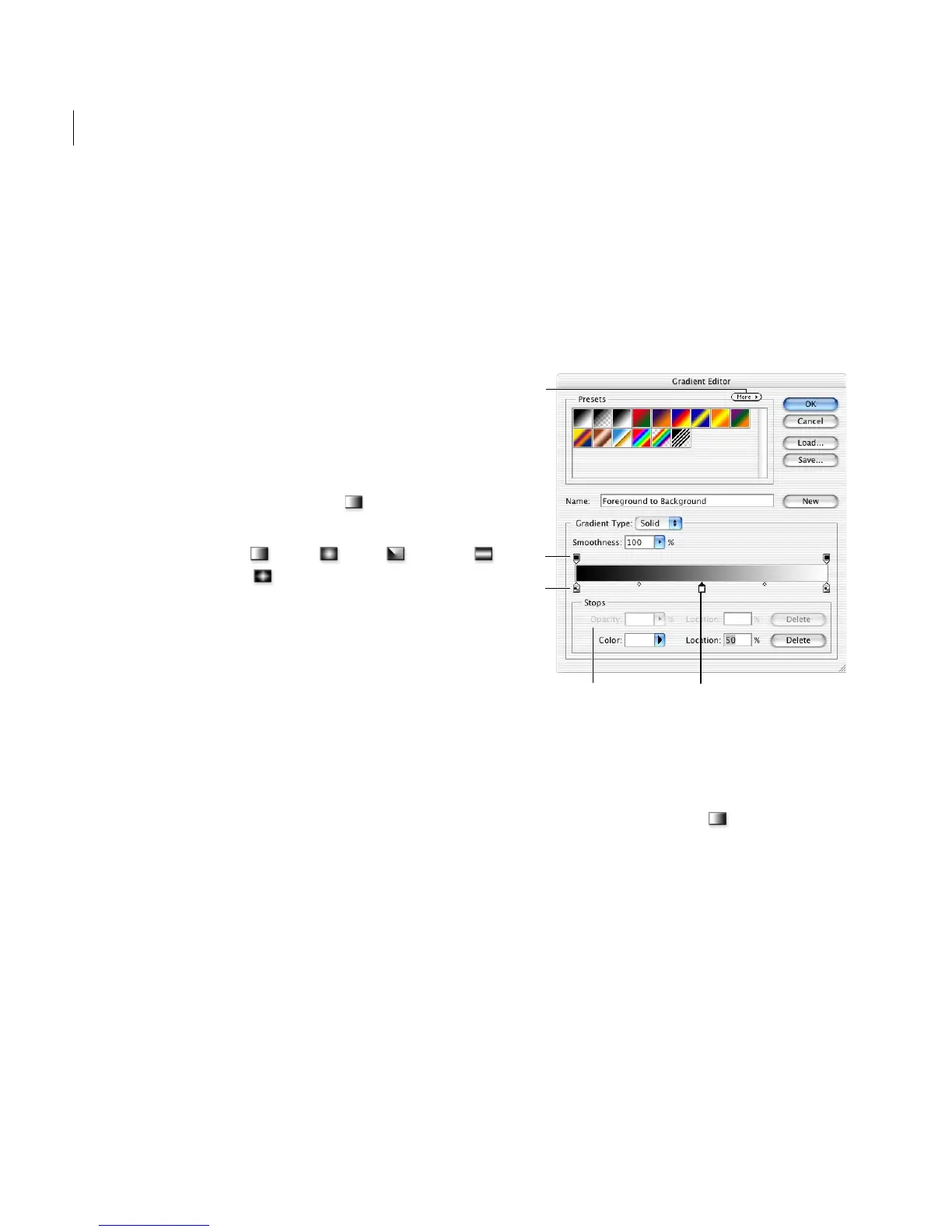
Creating or editing gradient fills
The Gradient Editor dialog box lets you define a
new gradient by modifying a copy of an existing
gradient. You can also edit fills by either adding
intermediate colors to a gradient, or creating a
blend between three or more colors.
Gradient Editor dialog box
A. Palette menu B. Opacity stop C. Color stop D. Adjust val-
ues or delete the selected opacity or color stop E. Midpoint
To create a gradient:
1 Select the gradient tool .
2 To display the Gradient Editor dialog box, do
one of the following:
• Click the Edit button next to the gradient
sample.
• Click the gradient sample in the options bar.
3 In the Presets section of the Gradient Editor
dialog box, select a gradient on which to base your
new gradient.
A
B
C
DE



 To Next Page