CHAPTER 10
170
Applying Filters, Effects, and Layer Styles
Layer styles are cumulative, which means that you
can create a complex effect by applying multiple
styles to a layer. You can also change a layer’s style
settings to adjust the final effect.
Applying layer styles
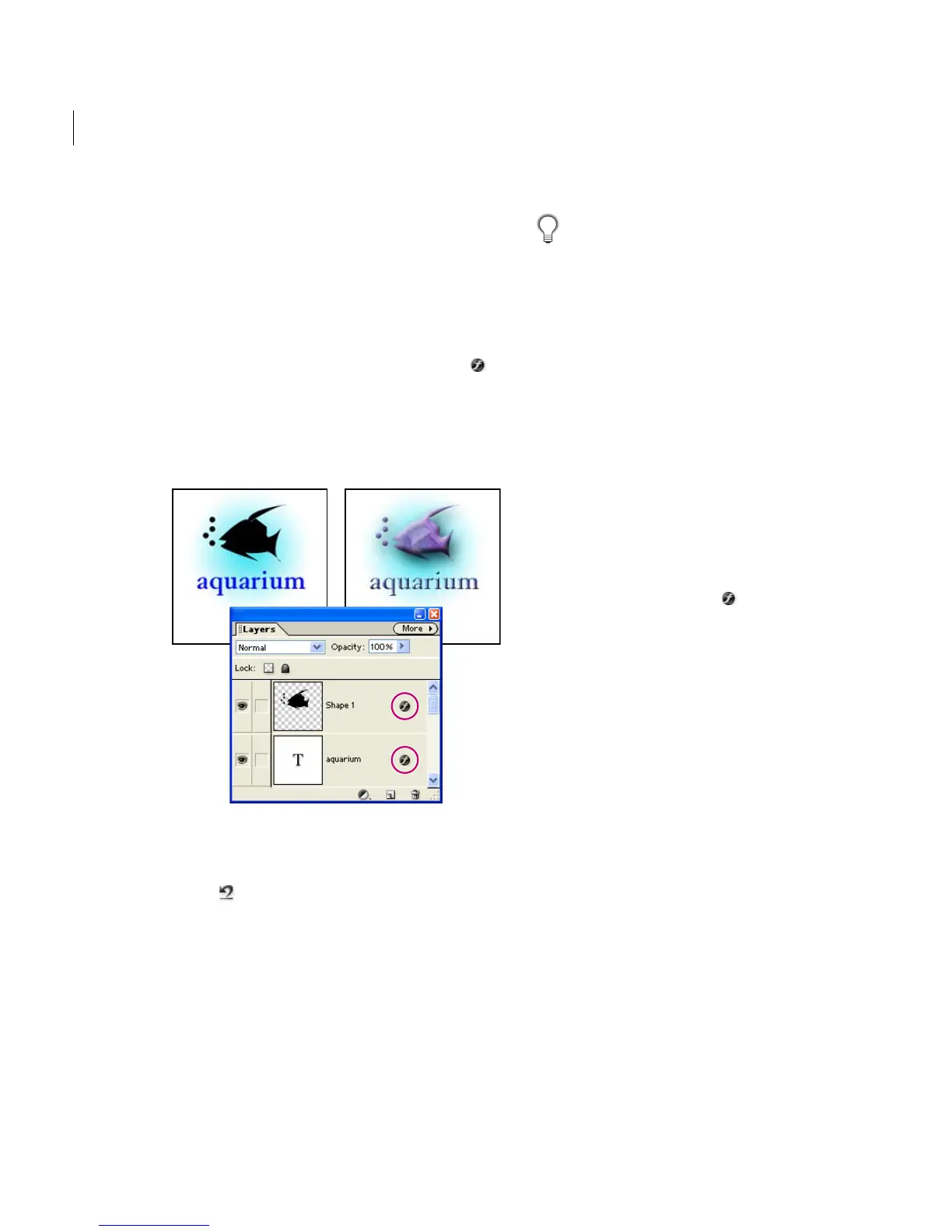
When you apply a style to a layer, an “f” icon
appears to the right of the layer’s name in the
Layers palette. Layer styles are linked to the layer
contents. When you move or edit the contents of
the layer, the effects are modified correspondingly.
Layer style added
To remove a layer style, click the Step Backward
button in the shortcuts bar.
To apply a layer style to a layer:
1 Select a layer from the Layers palette.
2 Click a style in the Layer Styles palette.
Yo u can also drag the style to the image, where
it is applied to the selected layer.
To hide or show all layer styles in the image:
1 Choose one of the following:
• Layer > Layer Style > Hide All Effects.
• Layer > Layer Style > Show All Effects.
Editing layer styles
You can edit a layer’s style settings to adjust the
effect. You can also copy style settings between
layers and remove a style from a layer.
To edit a layer’s style settings:
1 Do one of the following:
• Double-click the “f” icon in the Layers
palette.
• Choose Layer > Layer Style > Style Settings.
2 To preview the changes in your image, select
Preview.
3 Adjust one or more of the following settings,
and click OK. If a setting is dimmed, it is not
available for the effect you are using.
Lighting Angle Specifies the lighting angle at
which the effect is applied to the layer.
Use Global Light Applies the lighting angle to all
styles in the image. Using a global angle gives the
appearance of a consistent light source shining on
the image.
Shadow Distance Specifies the distance of a drop
shadow from the layer’s content.



 To Next Page