13
ADOBE PHOTOSHOP ELEMENTS 2.0
User Guide
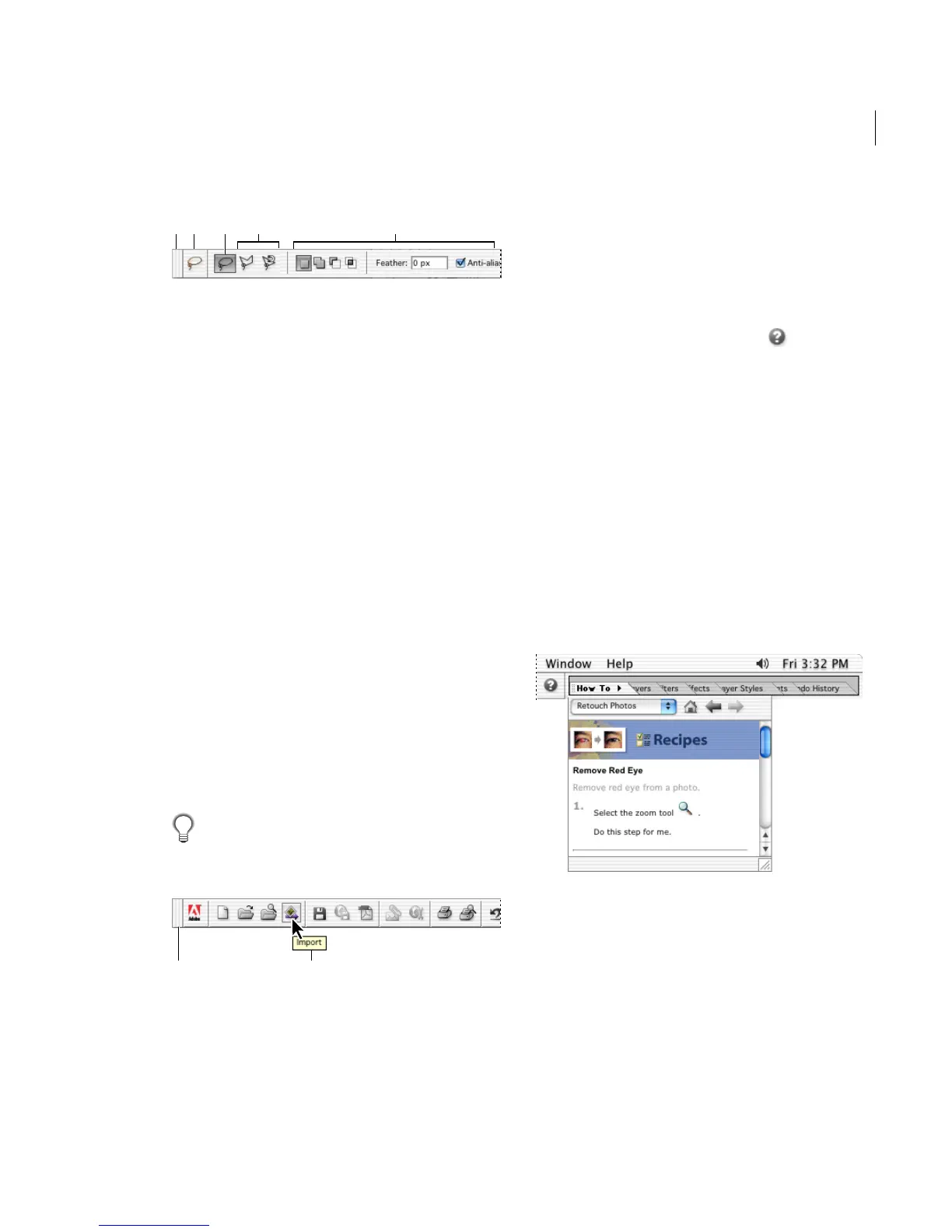
Options bar for lasso tool
A. Gripper bar B. Tool icon C. Active tool D. Hidden tools
E. Tool options
To use the options bar:
1 Select a tool. (See “Using the tools” on page 12.)
2 Look in the options bar to see the available
options. For more information on setting options
for a specific tool, search for the tool’s name in
online Help.
To return a tool or all tools to the default settings:
Click the tool icon in the options bar, then choose
Reset Tool or Reset All Tools from the context
menu.
Using the shortcuts bar
The shortcuts bar displays buttons for common
commands. You can quickly click commands as
you need them while you’re working in Photoshop
Elements. To see the name of a button, position
the pointer over the button and its tool tip appears.
The shortcuts bar should always be left open in
the work area so you can access all the tools and
options that are available to you.
Shortcuts bar
A. Gripper bar B. Tool tip
You can also perform searches in the shortcuts bar.
In the search field, you can enter a word or a
phrase, click the Search button, and then a Search
Results palette will appear. You can click on a link
for more information about your search topic.
Clicking the Help Contents button in the
shortcuts bar takes you directly to the Help system.
In the Help system, you can search through the
User Guide on-screen to help you find the answers
you need. The results of your search will appear in
the Search Results palette.
Using the palette well
The palette well helps you organize and manage
palettes. You can store palettes that you don’t
frequently use in the palette well. You can still
access the palettes, without having them expanded
in the work area.
Palette well
Note: The shortcuts bar must be showing in order to
use the palette well. Choose Window > Shortcuts to
display the shortcuts bar if it’s not open.
AB CD E
AB



 To Next Page