206
CHAPTER 12
Optimizing Images for the Web and E-mail
Viewing images during optimization
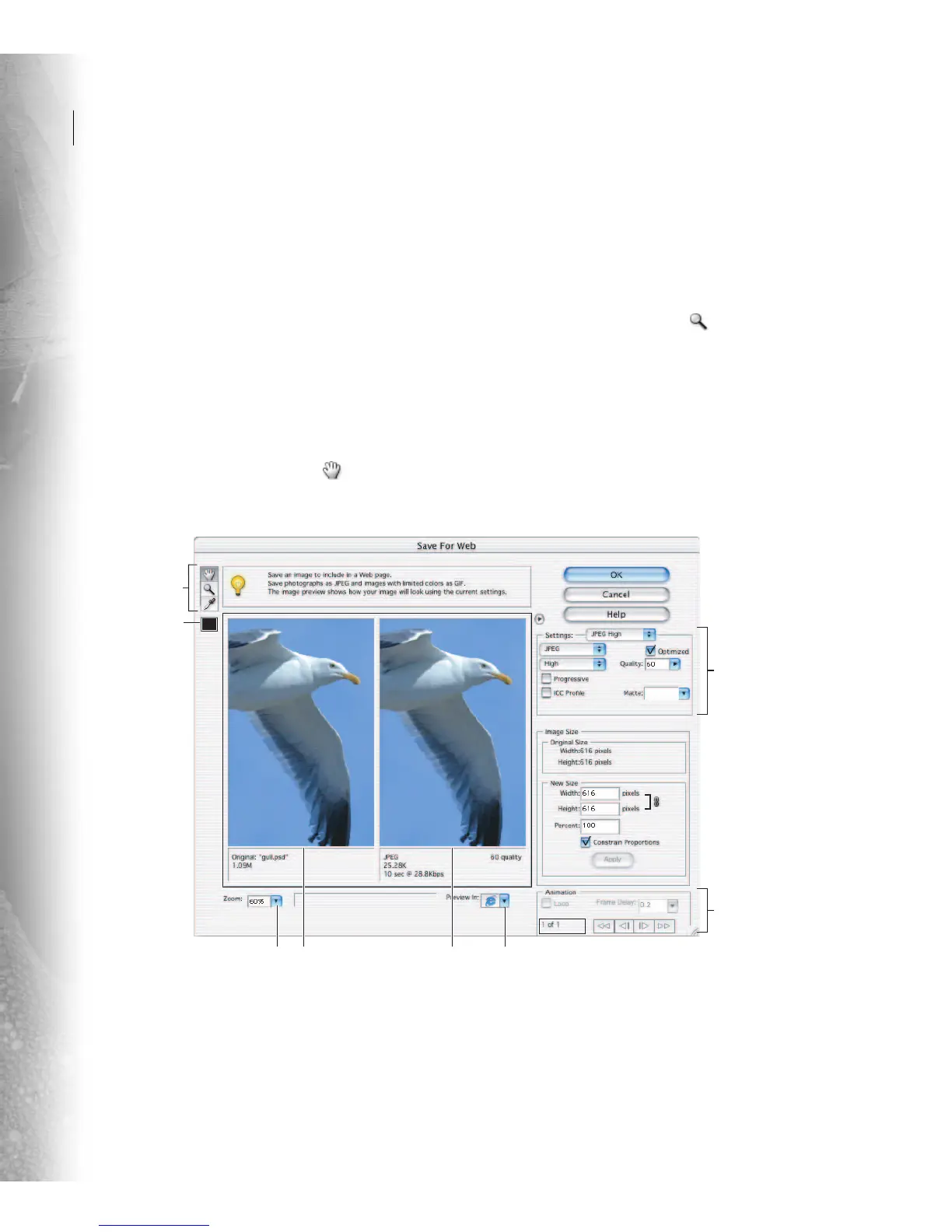
You use a dual-image window to see both your
original and optimized images in the Save For Web
dialog box. This view lets you compare the two
images and determine which optimization settings
work best. If some areas of an image aren’t visible,
you can use the hand tool to bring those areas into
view. You can also use the zoom tool to magnify or
reduce the view.
To navigate in a view:
1 Select the hand tool in the Save For Web
dialog box, or hold down the spacebar.
2 Drag in the view area to pan over the image.
To zoom in or zoom out:
Do one of the following:
• Select the zoom tool in the Save For Web
dialog box, and click in a view to zoom in.
• Hold down Alt (Windows) or Option (Mac OS)
and click in a view to zoom out.
• Choose a magnification level from the Zoom
pop-up menu, or enter a value in the Zoom text
box, and then press Tab on your keyboard.
Save for Web dialog box
A. Toolbox B. Color Picker C. Optimization settings D. Animation options E. Zoom level menu F. Original image
G. Optimized image H Browser Preview menu
A
FE
B
C
D
GH



 To Next Page