CHAPTER 1
22
Looking at the Work Area
Navigating the view area
If you have enlarged your image, you can navigate
to bring another area of the image into view.
To view another area of an image:
Do one of the following:
• Use the window scroll bars.
• Select the hand tool and drag to pan over
the image.
To use the hand tool while another tool is
selected, hold down the spacebar as you drag
in the image.
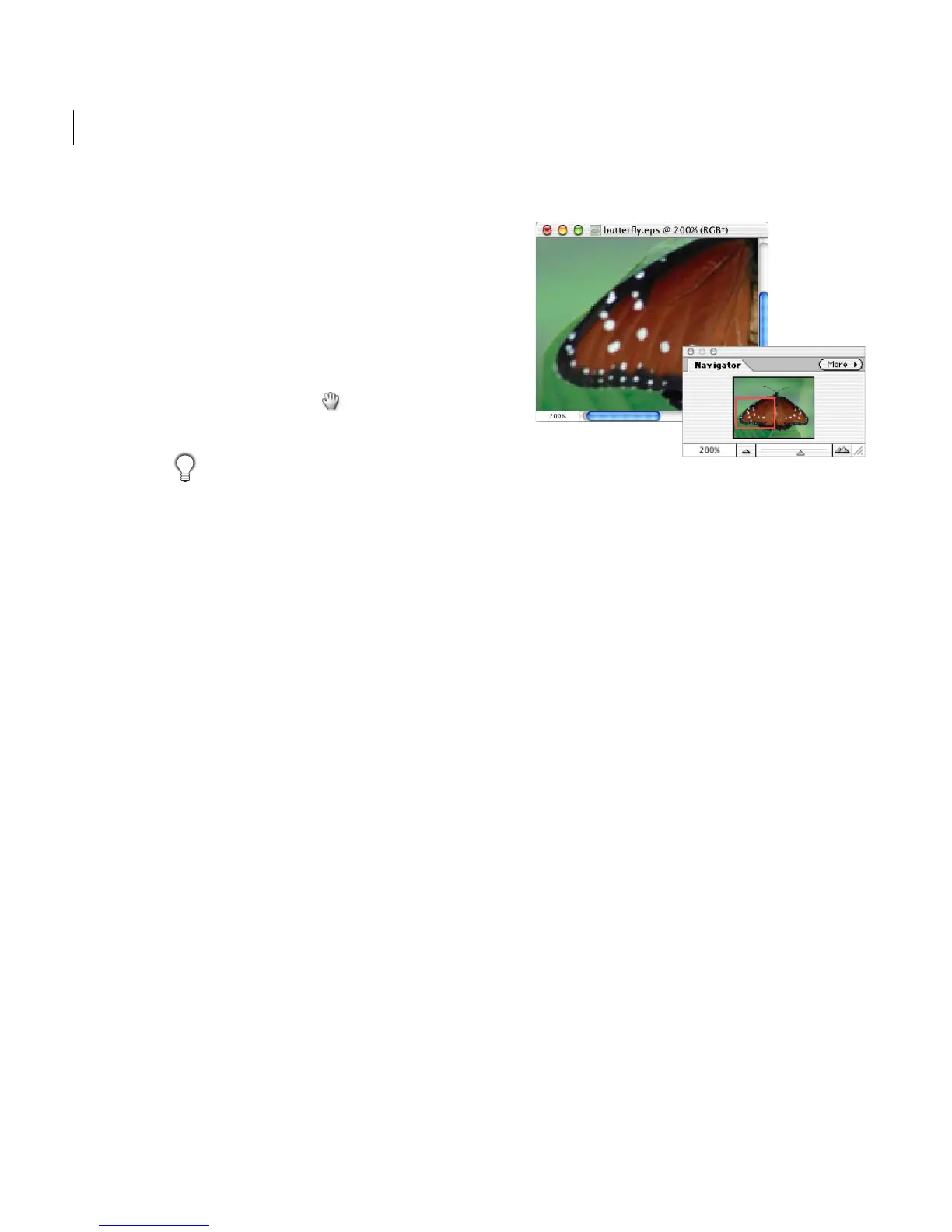
To move the view of an image using the Navigator
palette:
1 Choose Window > Navigator, or click the
Navigator tab in the palette well.
2 Do one of the following:
• Drag the view box in the thumbnail of the
image, which represents the boundaries of the
image window.
• Drag the slider in the Navigator palette.
• Click in the thumbnail of the image. The new
view includes the area you clicked.
View of an image in the Navigator palette
To change the color of the Navigator palette view box:
1 Choose Palette Options from the Navigator
palette menu.
2 Choose a color:
• To use a preset color, choose an option for
Color.
• To specify a different color, click the color box,
and choose a color. (See “Using the Adobe
Color Picker” on page 131.)
• Choose Custom from the preset list.
3 Click OK.
Using the document window
You can open multiple windows to display
different views of the same file. A list of open
windows appears in the Window menu. Available
memory may limit the number of windows
per image.



 To Next Page