CHAPTER 1
28
Looking at the Work Area
Presets are stored in separate library files that can
be found in the Presets folder in the Photoshop
Elements application folder.
Using pop-up palettes
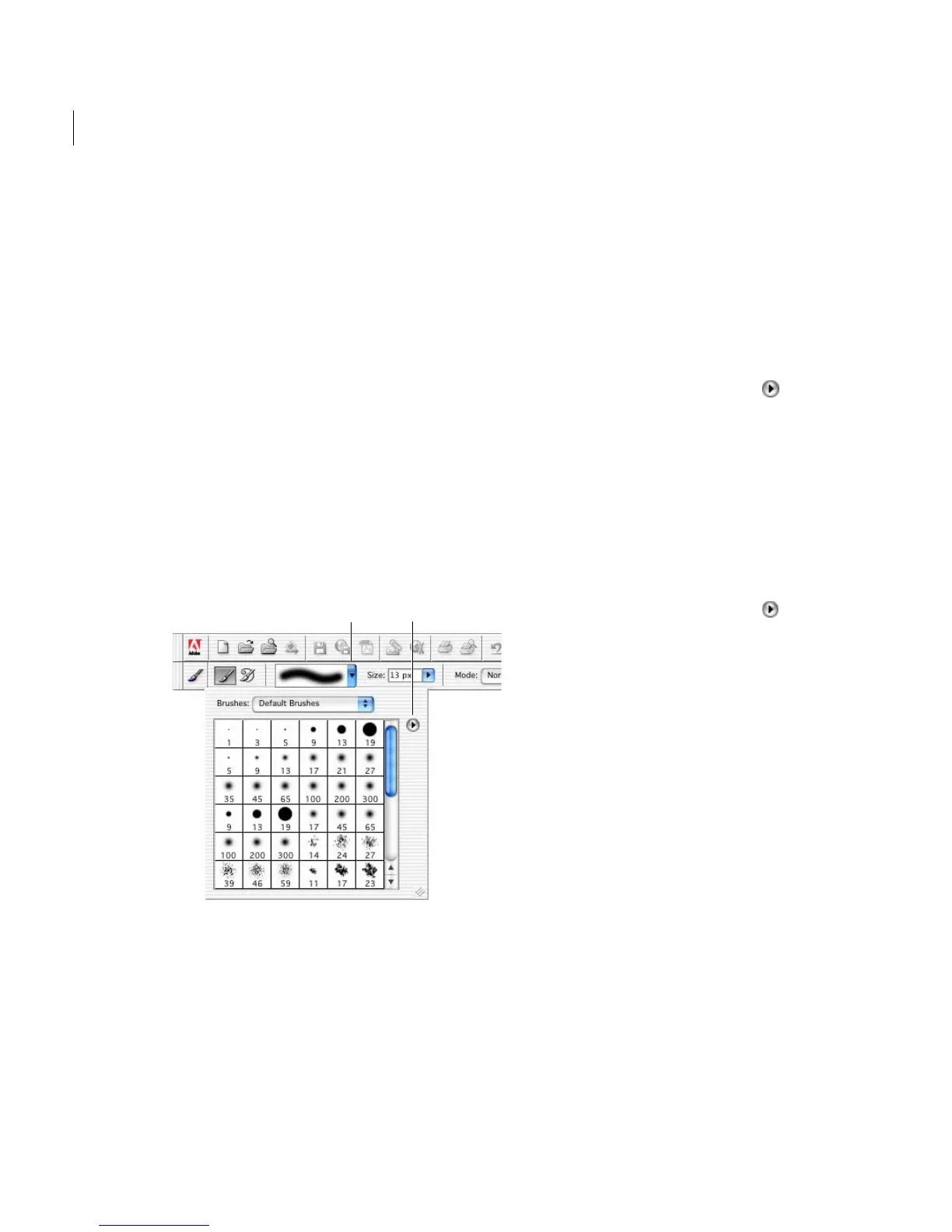
Pop-up palettes appear in the options bar and
provide access to libraries of brushes, swatches,
gradients, patterns, layer styles, and custom
shapes. When closed, pop-up palettes display a
thumbnail image of the currently selected preset.
When you click the triangle to the right of the
thumbnail image, the pop-up palette opens to
show you the currently loaded preset libraries. You
can change the display of a pop-up palette to view
presets by their names, as thumbnail icons, or with
both names and icons.
The Brush pop-up palette in the options bar.
A. Click to open the pop-up palette. B. Click to view
the pop-up palette menu.
To select a preset in a pop-up palette:
1 Click the triangle in the upper right area of a
pop-up palette.
2 Choose a preset.
To rename a brush, gradient, or pattern in a pop-up
palette:
1 Select an item, click the triangle in the upper
right corner of the pop-up palette, and choose the
Rename command from the palette menu.
2 Enter a new name in the dialog box provided,
and click OK.
To delete a brush, gradient, or pattern from a pop-up
palette:
Do one of the following:
• Select an item, click the triangle in the upper
right corner of the pop-up palette, and choose
the Delete command from the palette menu.
• Hold down Alt (Windows) or Option (Mac OS)
and click a brush or gradient.
To save a library of brushes, gradients, or patterns for
later use:
Choose the Save command from the pop-up
palette menu. Then enter a name for the library
file, and click Save.
To load a library of brushes, gradients, or patterns:
Choose the Load command from the pop-up
palette menu. Then select the library file you want
to add to the pop-up palette, and click Load.
AB



 To Next Page