45
ADOBE PHOTOSHOP ELEMENTS 2.0
User Guide
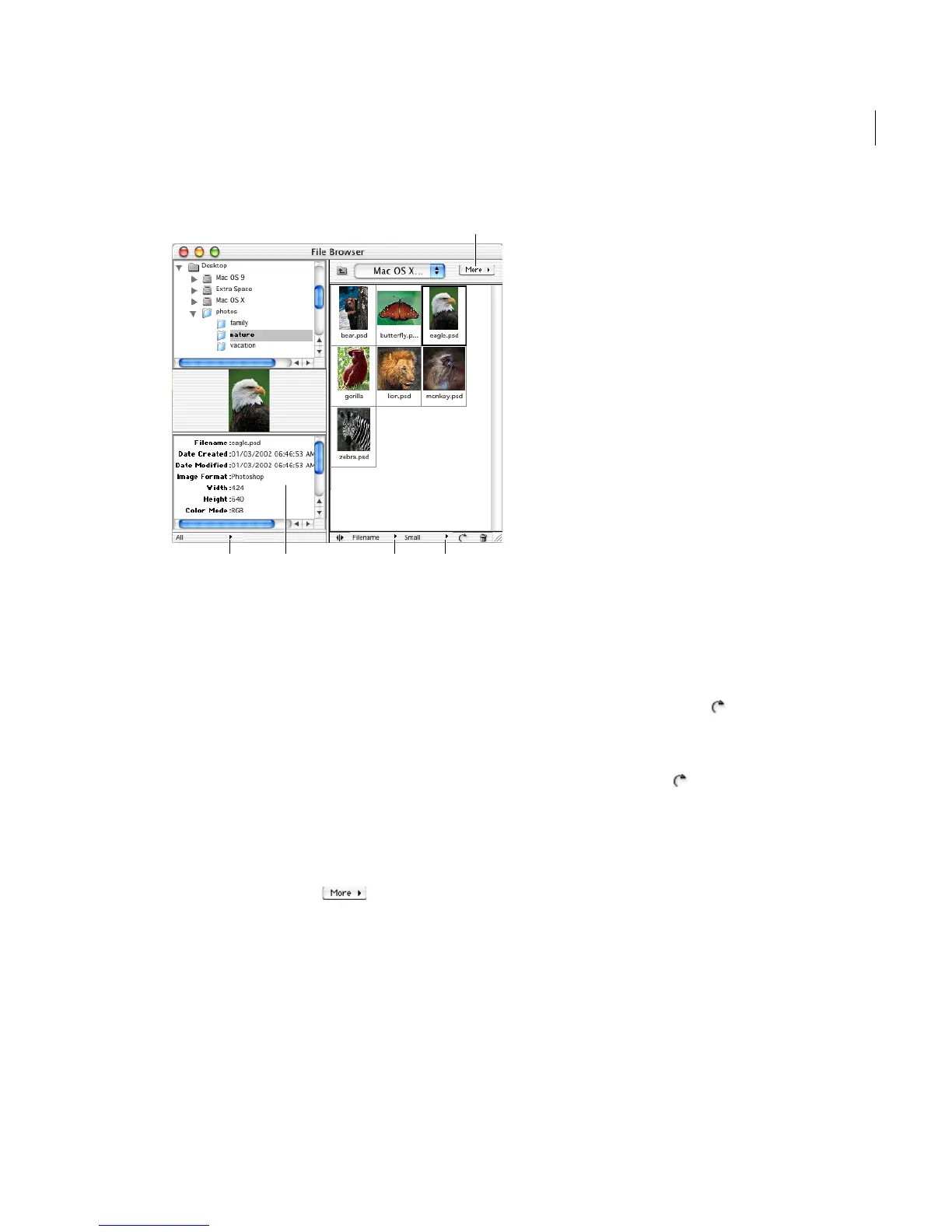
File Browser screen
A. File Browser menu B. File information pop-up menu
C. File information D. Sort By pop-up menu
E. View By pop-up menu
To display the File Browser:
Do one of the following:
• Click the Browse for File button in the Welcome
window.
• Choose File > Browse.
• Choose Window > File Browser.
To display the File Browser menu:
Click the More button .
Opening files from File Browser
File Browser helps you quickly locate image files
and open them in the work area. You can also
rotate images and view file information in the
File Browser.
To open a file:
Select the file or files you want to open, and do one
of the following:
• Double-click the file.
• Drag the selected file or files into the work area.
• Choose Open from the File Browser menu.
• Press Enter (Windows) or Return (Mac OS).
To rotate an image in the File Browser:
Select one or more files, and do one of the
following:
• Choose a rotation option from the File Browser
menu.
• Click the Rotate button to rotate the images
clockwise by 90 degrees.
• Alt-click (Windows) or Option-click (Mac OS)
the Rotate button to rotate the images
counterclockwise by 90 degrees.
Note: Using the File Browser, you can’t Rotate or
Batch Rename files stored on your computer desktop.
To display file information:
Click the File Information pop-up menu at the
bottom of the File Browser, and select one of the
following:
• All to view all image information for a file.
A
B D EC



 To Next Page