English
96
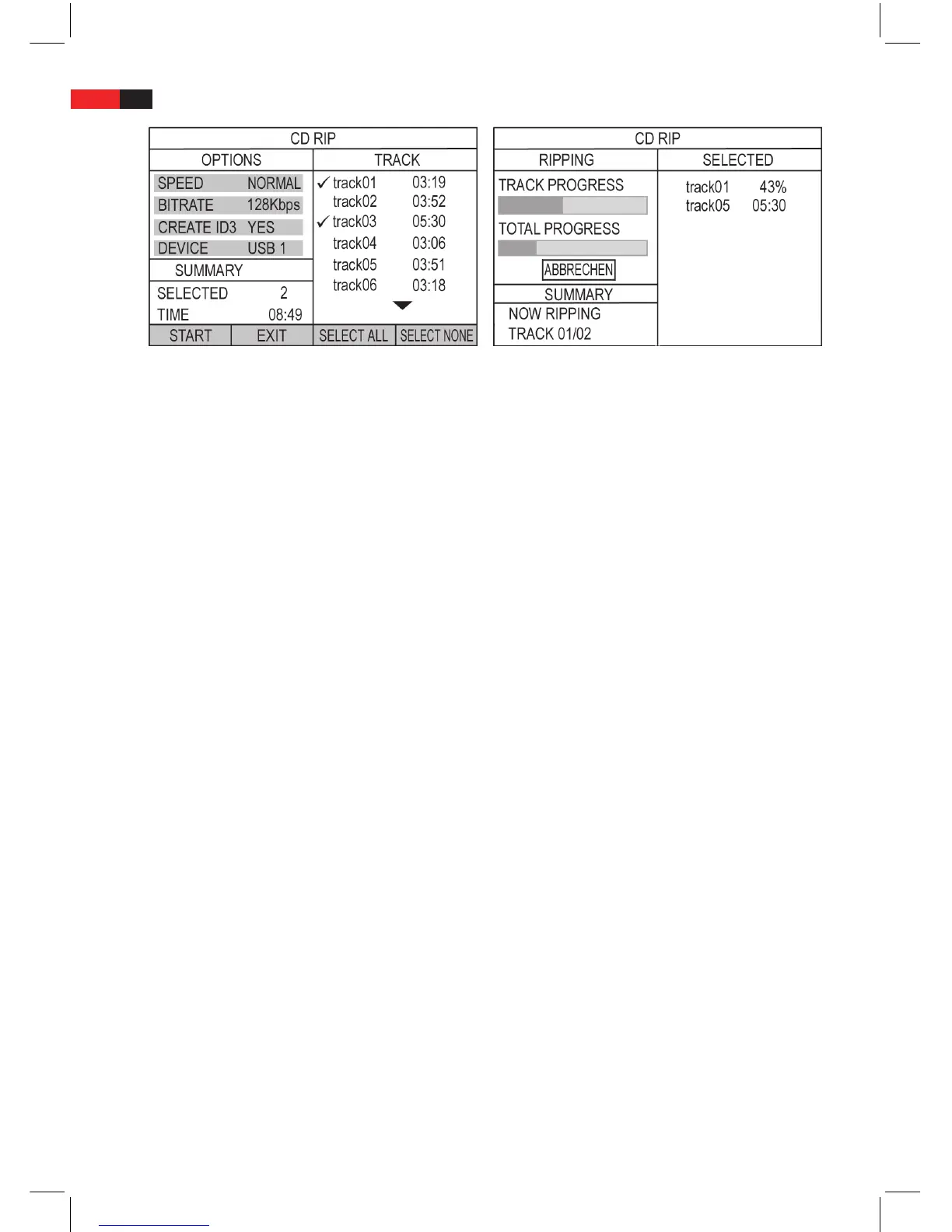
CD Ripping Menü CD Ripping progress
3. In the Ripping menu, use the navigation buttons ▲▼►◄ to move and change the settings with the PLAY/
ENTER buttons.
4. Set the required settings using “Options“.
SPEED: Select the speed with which the tracks should be converted. Select NORMAL = Realtime, FAST = Fast.
BITRATE: Select the required bit rate size.
CREATE ID3: Select whether an ID3 Information should be created (YES, NO).
DEVICE: The connected memory device is displayed here.
5. In the right hand column, select the tracks to be converted using the navigation buttons ▲▼ and PLAY/ENTER.
6. In the overview (SUMMARY), the number of selected tracks and the total track running time is displayed.
• Ifyouwanttoconvertalltracks,selectthe“SELECTALL“eld.
• Using“SELECTNONE“,deleteyourselection.
7. Now select the “START“ eld and press the PLAY/ENTER button.
8. The conversion begins. The progress is shown on the screen.
• Duringtheconversion,youcanstoptheprocessusing“CANCEL“.Todoso,pressthePLAY/ENTERbutton.The
tracks which have been converted up to this point are still saved.
• InterruptedandexistingtrackscanonlybedeletedonthePC.
9. To exit the Ripping menu, select the “EXIT“ eld and press PLAY/ENTER.
Operating the FM Radio
FM: Select radio operating mode
You can also use your DVD machine as an FM Radio.
To select radio operating mode (switch on):
1. Press the FM button to select FM radio as an operating mode for the machine. Alternatively hold down the
STOP/FM button on the front of the device for several seconds.
2. If you want to exit radio mode, press the DVD button to start playing a disc.


 To Next Page