15. Icons manager configuration
The “Icon” is a set of images, each one of them to be shown on every page is desired, in dependence upon a
certain condition that, when exists, triggers the proper image.
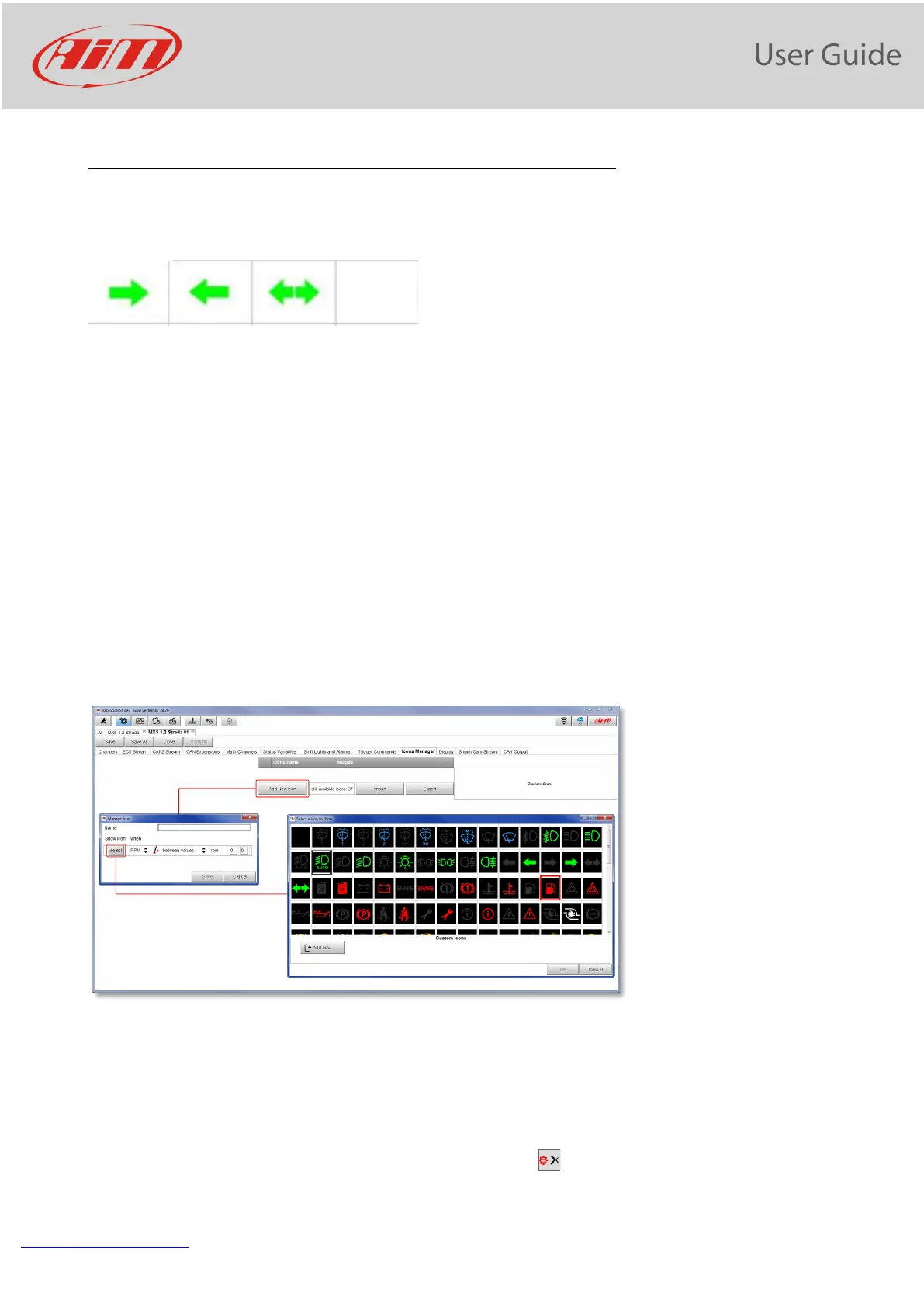
For example:
- the first image has to be shown when the signal TurnRight is TRUE
- the second when the signal Turnleft is TRUE
- the third when the signal Hazard is TRUE
- the fourth when no signal is TRUE
Not all the display pages offer the possibility to show Icons, but our technicians are working for offering more
pages with this feature.
To configure an icon:
press “Add New Icon”
“Manage Icon” panel shows up
press “Select” to see the panel showing all images
select the image you want to set
the software comes back to “Manage Icon” panel
set the image conditions according to the channel they are related to
It is possible to use custom images pushing the “Add New” pushbutton. They must be 64x64 pixels png
format.
Once all Icons set “Icons page” shows the icons summary and mousing over an Icon the related panel shows
up on the right of the page as shown here below.
Here you can also edit and delete an icon using the related icons .


 To Next Page