www.aim-sportline.com - PDM 32 User Guide 49
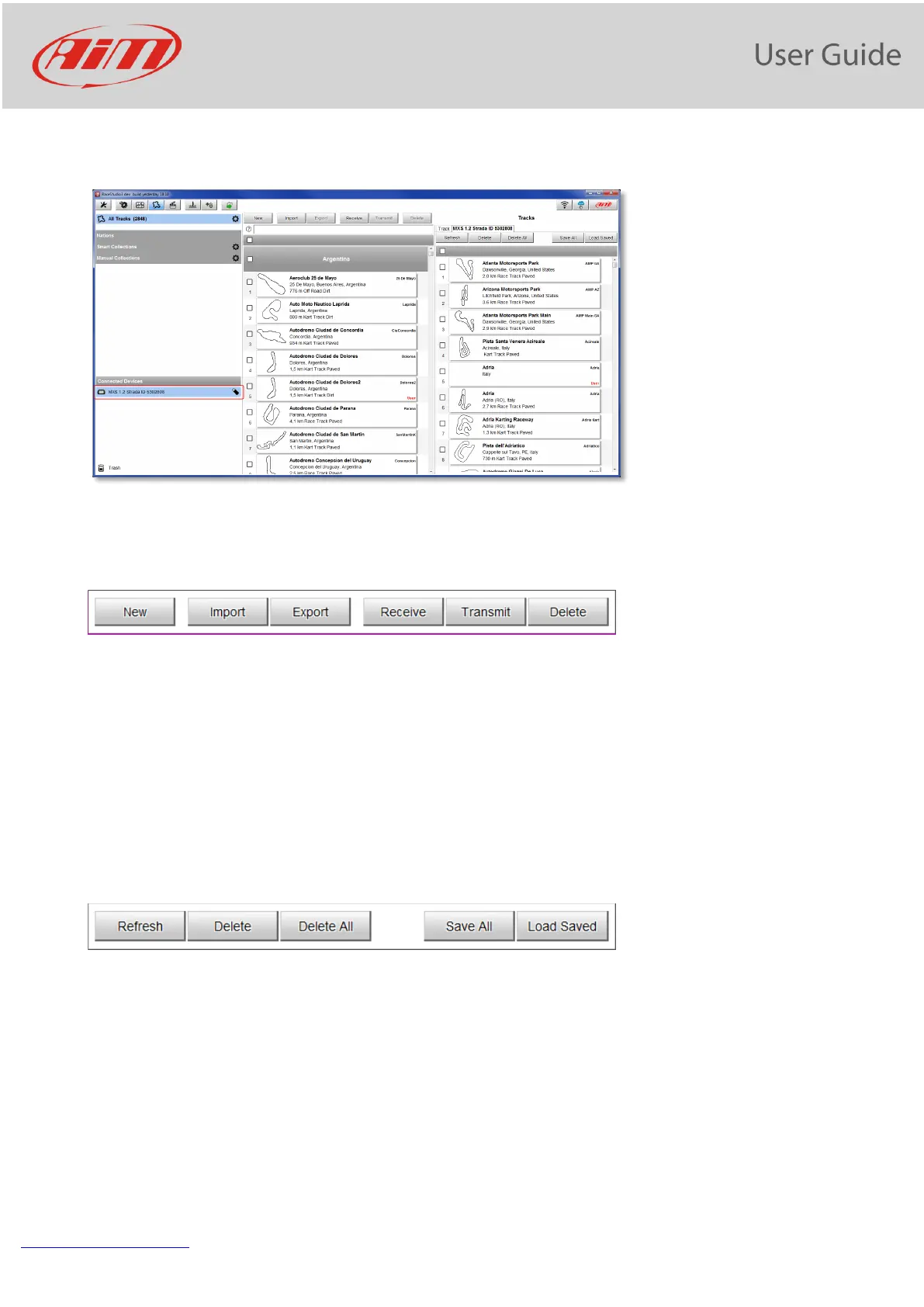
When your PDM is connected it is shown on the left bottom part of the page as said before. Clicking on it all
the tracks it contains are shown in the right column of the page.
The page keyboards are used to manage the tracks.
The keyboard you find above the central column allows you to:
• New: create a new track
• Import: import one or more tracks you stored in your MXS 1.2 Strada or in another external device
• Export: export one or more tracks to a specific PC folder or to another peripheral device
• Receive: receive from your connected MXS 1.2 Strada the tracks you created (if no device is connected
the button is disabled)
• Transmit: transmit one or more tracks form the PC to your connected MXS 1.2 Strada (if no device is
connected the button is disabled)
• Delete: delete one or more tracks from Race Studio 3 Database
The keyboard you find above the right column allows you to:
• Refresh: refresh the track list stored in your connected PDM 32
• Delete: delete one or more tracks from your PDM 32 memory
• Delete All: delete all tracks stored in your PDM 32 memory
• Save all: save all the tracks stored in your connected PDM 32; it creates a zip file you can load to
another AiM device
• Load Saved: load the tracks you previously saved in your connected PDM 32 memory


 To Next Page