6
(1.3) Support
For guides, firmware updates, and other content, visit:
alesis.com/strataprime/downloads.
For the latest information about this product (system requirements, compatibility
information, etc.) and product registration, visit alesis.com.
For additional product support, visit support.alesis.com.
(1.4) Setup
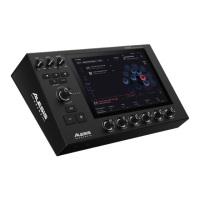
Your PRIME drum module runs the powerful BFD software sound engine with tons of
editing capabilities, easily accessible from the 10.1” touchscreen. Editing is made easy,
following the steps below.
Note: Some parameters have multiple pages. Swipe right on the lower part of the
screen to go to the next page; swipe left to go to the previous page.
Follow these steps to start playing a Kit in the PRIME drum module:
1. Study the Connection Diagram section.
2. See the Hi-hat Setup section for proper calibration.
3. Load a Preset Kit or a Playlist from the Kit Browser mode.
4. Use Kit Edit mode to assemble a custom kit or further modify the underlying drum
sounds.
5. Each Trigger Zone has presets already set to optimize each of the Trigger inputs.
You can select from a list of known/tested triggers or hi-hat control pedals. The
presets contain basic settings, Tweak “behind the scenes” settings, and Advanced
settings. If needed, you can save your own trigger presets. See the Trigger Input
Tweak section for more details.
6. Use Mixer mode to process the sounds, adjusting sound volume levels, panning,
and add Insert Effects.
7. Audition a Drum sound by using the drum pads or pedal, or by tapping the Kit
display graphic in Kit Edit mode.
Note: If you experience crosstalk symptoms (vibrations of a struck pad are picked
up by other pads' trigger sensors causing double triggering of sounds), follow the
troubleshooting tips in the Crosstalk and Learn XTalk sections.
8. Use Backing Track mode to record your drumming to a track or load a song to
practice your drumming along to your favorite music.
Consult the Operation section for a more detailed guide to the main aspects of using
the PRIME drum module.


 To Next Page