18
(3.1.1) Kit Browser Functions
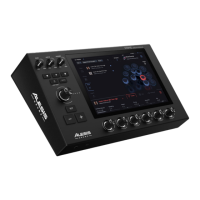
To scroll through kits or edit on-screen parameters, turn the Main Encoder.
To immediately load the next or previous kit, use the +/– buttons.
To toggle between the main Kit menu and other active modes, press the Kit button.
Adding a Kit to a Playlist:
1. In the main Kit Browser, scroll to find a Kit
from the Factory Kits using the Encoder.
2. Tap the 3 vertical dots at the end of a kit to
select.
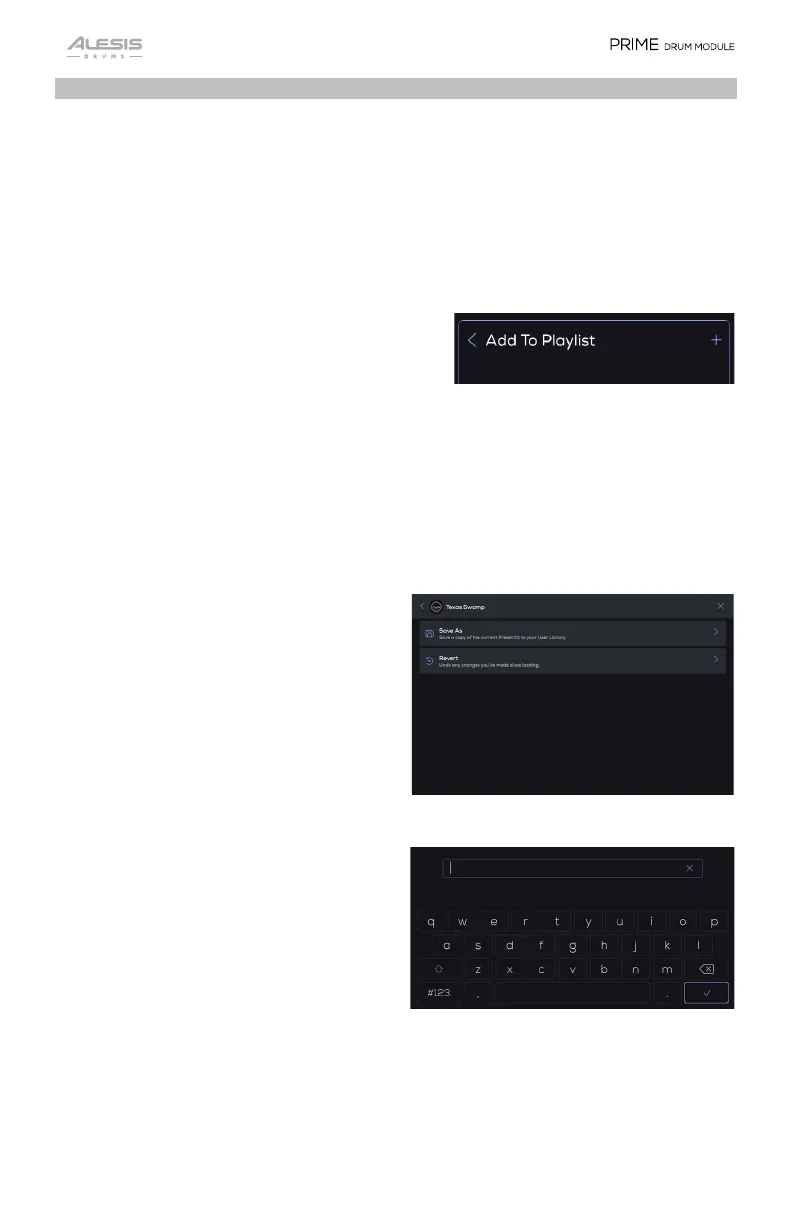
3. Tap the option Add to Playlist option.
4. Tap the + icon to create and name your new
Playlist (using the touchscreen keyboard).
5. Tap the check mark on the keyboard to add
the kit to the playlist.
Saving a Kit to your User Library:
1. In the main Kit Browser, scroll to find a
Kit from the Factory Kits using the
Encoder.
2. Tap the 3 vertical dots at the end of the
selected kit.
3. Tap the option Save As option.
4. Name the Kit and press the checkmark
on the touchscreen keyboard to save
the Kit to your User Library.
Renaming a User Kit:
1. In the main Kit Browser, tap the Playlist
icon to access the Playlist feature.
2. Tap the list of User Kits.
3. Tap the 3 vertical dots at the end of the
User kit.
5. Select Rename and name the Kit from
the touchscreen keyboard.
6. Press the checkmark on the touchscreen
keyboard to rename the Kit.


 To Next Page