60
(4.0) Settings
Use the Settings menu to configure the PRIME drum module’s overall operation.
To show the settings, press the Kit button and then tap Settings on the left edge
of the screen.
To switch through each tab of the settings, tap the tabs along the left edge of
the screen.
(4.1) Info
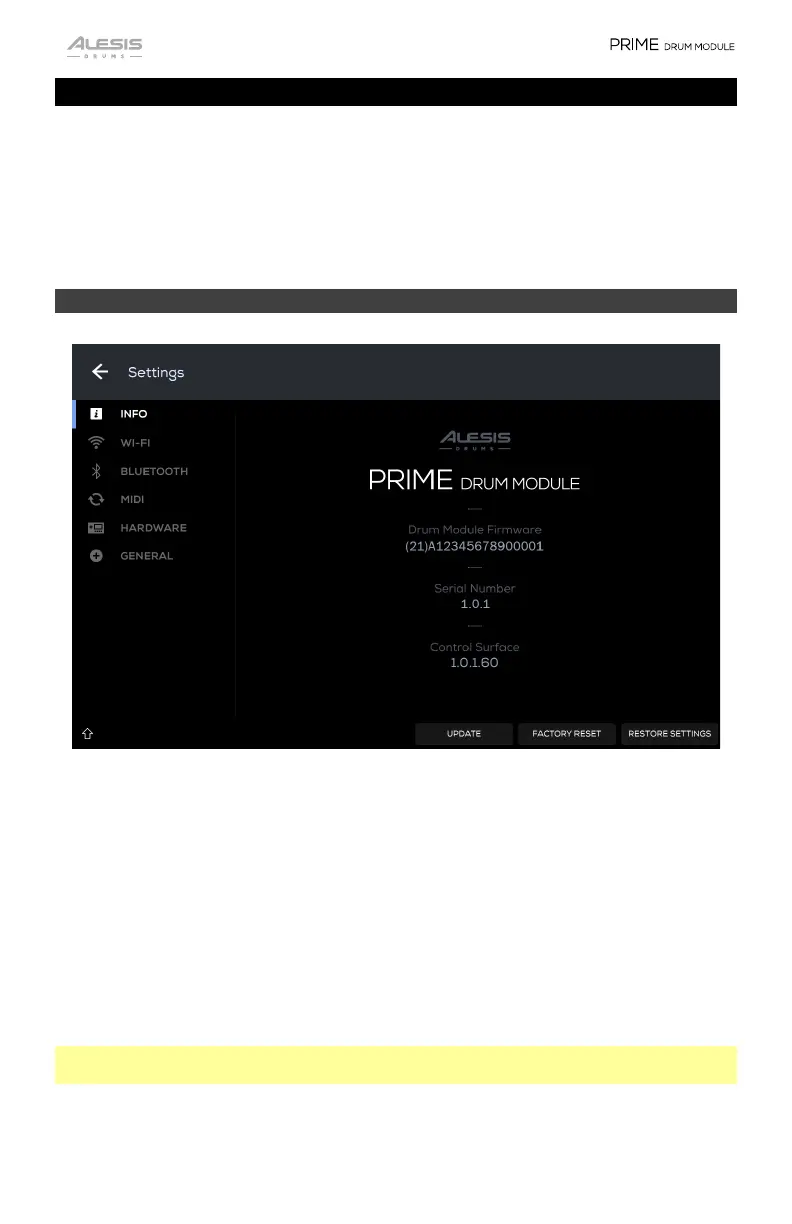
On this tab you can view the PRIME drum module’s current Firmware version, access
PRIME’s Serial Number, as well as the Control Surface number. This menu also allows
you to update PRIME’s firmware and perform a factory reset. Press the Up arrow in
the bottom-left corner to see Credits, Legal Info, and Version Info.
Update: Press to update your module to the latest available firmware. Select Online
Update to download an available update through your connected Wi-Fi network.
Select USB Drive Update to download a firmware update that you have manually
downloaded from alesis.com. Select Switch to Update to install the update from a
USB connection to your computer.
Factory Reset: Press to restore the module to a new out-of-box state.
Important: A reset will permanently erase all of your User Content (Kits, Kit Pieces,
Samples, etc.).
Restore Settings: Press to reset your module’s default settings, including Wi-Fi
network connections.


 To Next Page