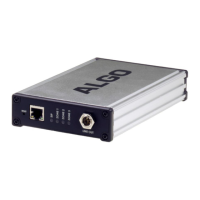
1. Connect the 8301 Paging Adapter & Scheduler to an IEEE 802.3af compliant PoE network switch or PoE Injector.
The blue lights on the front will remain on until boot up is completed – about 60 seconds.
2. After the blue lights turn off, press the reset switch (RST) to hear the IP address over the analog outputs (e.g.,
headset can be connected to the green Aux output port). The IP address may also be discovered by downloading
the Algo locator tool or a third-party network scanner to find Algo devices on your network:
www.algosolutions.com/locator. Algo device's MAC address starts with 00:22:ee.
3. Connect the adapter Line Out to an amplifier using the mini-XLR connector or pluggable terminal block.
4. Access the 8301 Paging Adapter & Scheduler web page by entering the IP address into a browser (e.g., Chrome,
Firefox, or Edge) and login using the default password algo.
5. Enter the IP address or the domain name for the SIP server into the SIP Domain field under the Basic Settings →
SIP tab.
6. Enter the credentials (SIP Extension, Authentication ID, and Password) for the Page and/ or Ring extension. Leave
the credentials blank for either extension if there is no intended use to have both registered.
7. Verify the extension is properly registered with the SIP server in the Status tab. Ensure the SIP Registration is
“Successful”.
8. Make a call to the adapter by dialing the registered SIP extension of the adapter from a telephone.
2.2 Installation
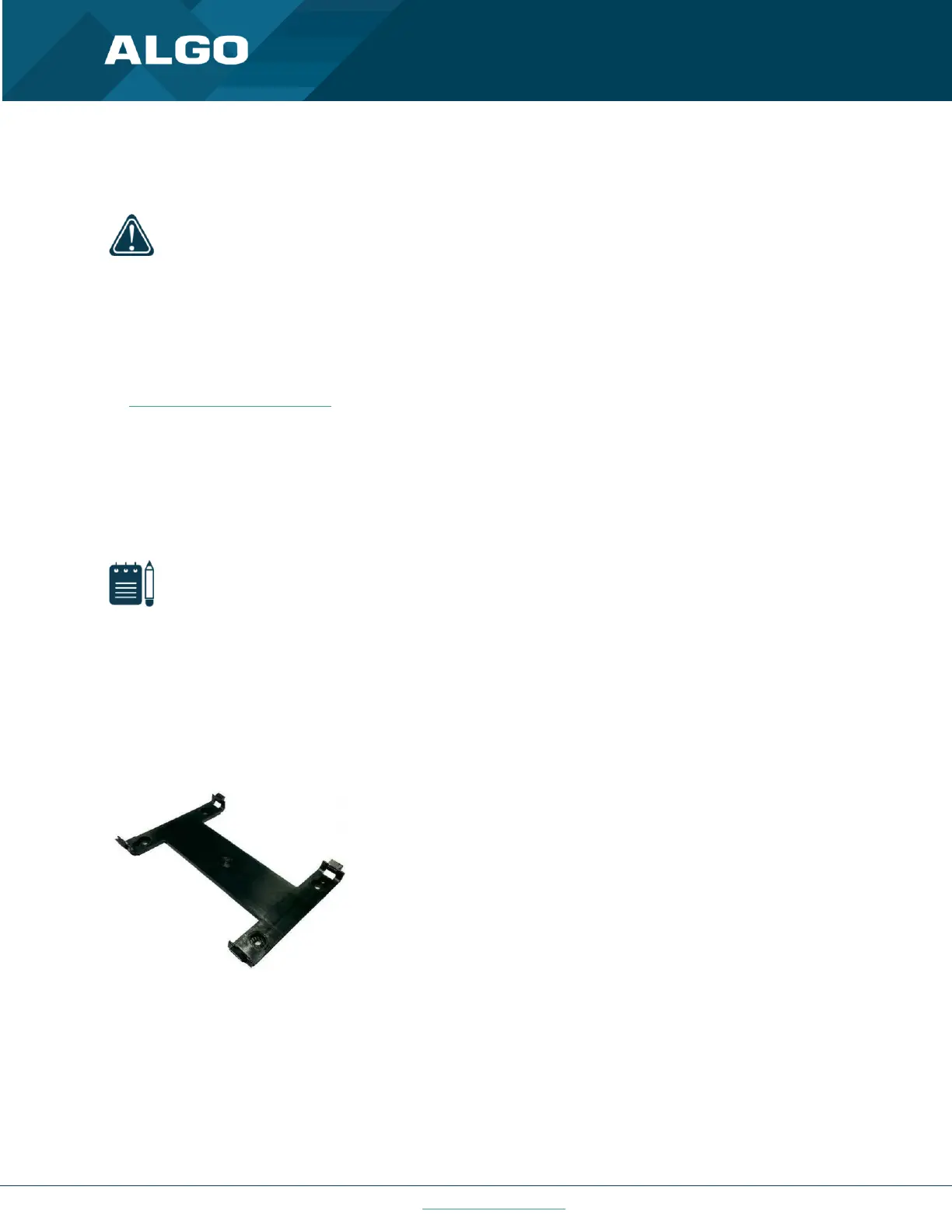
The 8301 is wall mountable in a horizontal orientation using the supplied bracket.
Example installation on 1/2” drywall:
Use appropriate drywall anchors for #8 screws, and
pre- drill per anchor manufacturer’s instructions.
Insert 4 anchors into the wall, and then attach bracket
to wall anchors using #8 screws. Snap the 8301 into
the bracket.


 To Next Page