38 Get more from your alienDVR with our Free CCTV tips at aliendvr.com
How To - Setup The Android Phone & iPhone App
Port forwarding and
AlienDDNS must be setup
in order for the Android
and iPhone app to work.
For the Android app navigate
to www.aliendvr.com on your
Android device and click the
‘Mobile Clients’ tab. Scroll down
and download the latest Android
client software.
For the iPhone app search for
‘alien DVR’ on the app store.
1
Install the app and open. You will
be prompted to make a login
account to ensure secure access.
(Please note for the Android
app you will have to have 3rd
party app installation enabled
on your phone or tablet. This
can be found as an option under
Application/Security Settings
and reads: ‘Allow installation of
non-market applications’.)
2
Select ‘Devices’ from the tab bar
and click the ‘Add’ button. Enter
the following details then click
the ‘Save’ icon.
Device Name:
(your choice)
Address:
(Enter your IP address or
domain name)
Port:
(default 8240)
Username:
(default ‘admin’)
Password:
(default ‘555555’)
3
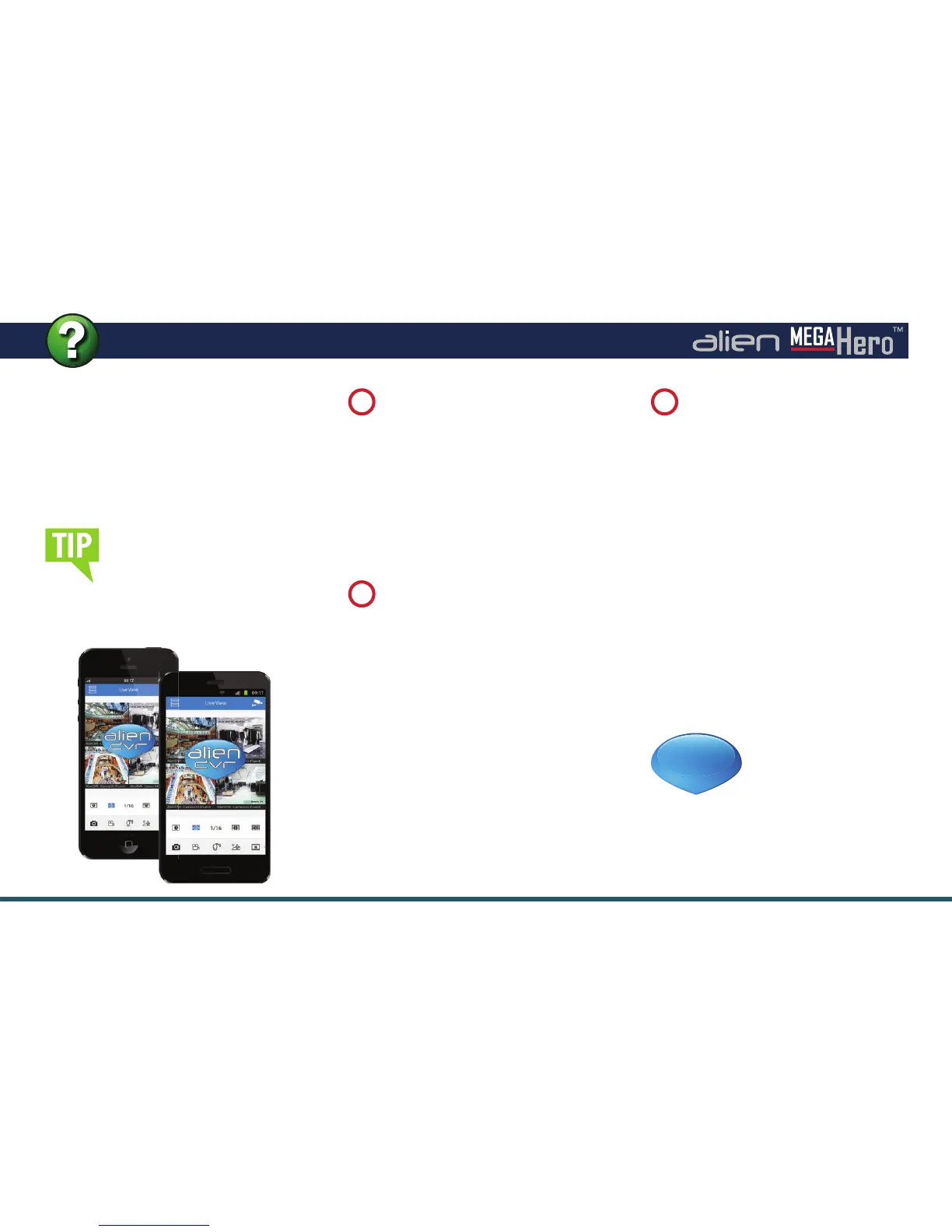
The Phone app allows you to
remotely monitor and control your
DVR whilst on the go. This useful
little app boasts remote viewing,
remote playback, remote record, PTZ
control and relay control.
See online tip 275
for a step by step
guide to watching
live CCTV images
on your mobile at
aliendvr.com
TIP
275


 To Next Page