39The full instruction manual can be found on the CD which accompanied the DVR.
How To - Setup The Android Tablet & iPad App
For the Android app navigate
to www.aliendvr.com on your
Android device and click the
‘Mobile Clients’ tab. Scroll down
and download the latest Android
client software.
For the iPhone app search for
‘alien DVR’ on the app store.
1
Install the app and open. You will
be prompted to make a login
account to ensure secure access.
(Please note for the Android
app you will have to have 3rd
party app installation enabled
on your phone or tablet. This
can be found as an option under
Application/Security Settings
and reads: ‘Allow installation of
non-market applications’.)
2
Click the ‘+’ to add a new device.
Enter the following details and
tap the ‘Save’ button when done.
Name:
(choose device name)
Server:
(enter a xed IP address or
domain name)
Port:
(default 8240)
Username:
(default ‘admin’)
Password:
(default ‘555555’)
4
Port forwarding and
AlienDDNS must be setup
in order for the Android
tablet and iPad app to work.
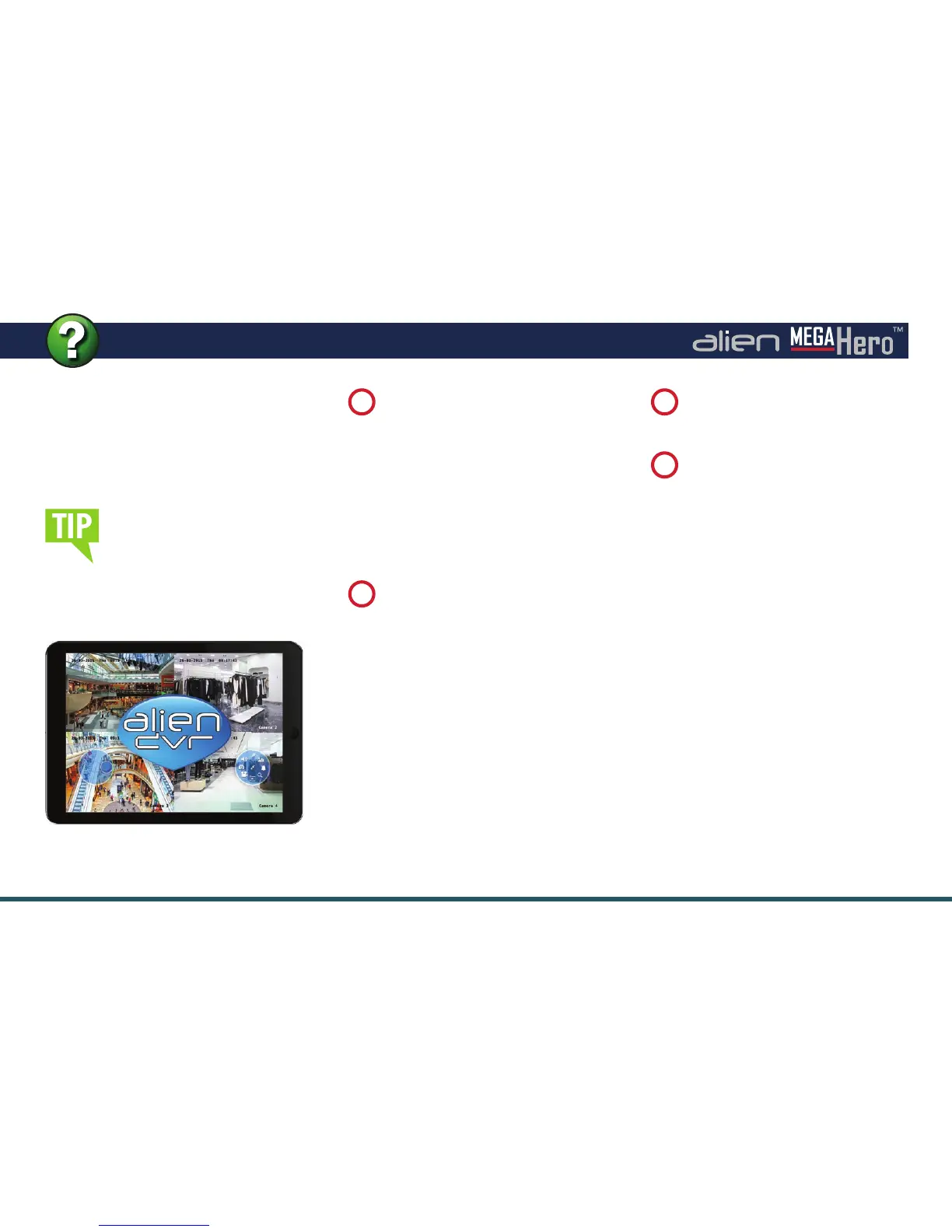
The tablet app allows you to remotely
monitor and control your DVR whilst
on the go & boasts remote viewing,
remote playback, remote record, PTZ
control and relay control.
In the app tap the ‘Settings’ icon
on the tab bar and select ‘Devices’.
3


 To Next Page