20 MaxAgent Manual
Log Out or Change Workgroups
You can log out of a workgroup or change the workgroups you’re logged in
to as follows:
1. Click the Login button to open the WG Login window.
2. To log out or change workgroups, deselect the check box(es) next to the
workgroup(s) you’re logging out from.
3. If logout reason codes are required in your system, select one in the
Logout Reason drop-down list.
4. If you want to log in to other workgroups, select their check boxes.
5. Click OK.
Minimizing and Exiting MaxAgent
Minimize - To minimize MaxAgent, click the Minimize button in the
top right corner of the screen. MaxAgent shrinks to an icon in the tray in the
lower right corner of your screen.
Exit - If you are shutting down Microsoft Windows, MaxAgent will exit
automatically. Otherwise, to exit MaxAgent, click the button at the top
right of the MaxAgent window. To exit MaxAgent when you have shrunk it
to a single toolbar, first restore it to normal size, then click the exit button.
Shrinking MaxAgent
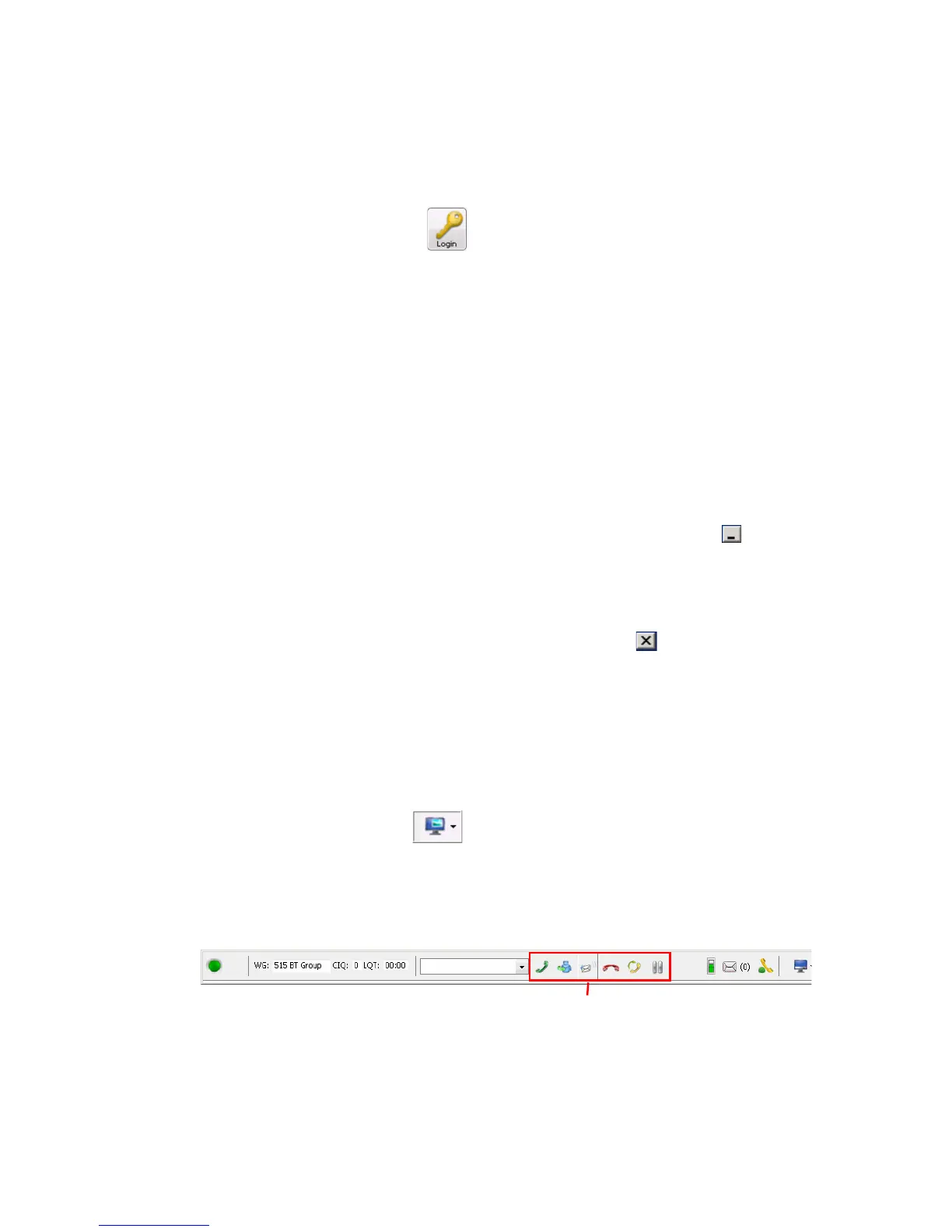
To shrink MaxAgent to a strip at the top or bottom of your screen, click the
Arrange Window button and select Top or Bottom. The strip
displays the MaxAgent status bar, the workgroup number and name, number
of calls in queue, longest queue time, plus no more than six call control
buttons and the dialer field:
To restore MaxAgent to full view, click the Arrange Window button and
select Normal.
Default call control buttons



 To Next Page