30 MaxAgent Manual
If more than one Smart Tag-enabled program is open, MAXCS
will use the first one it finds, using this search order:
MaxCommunicator, MaxAgent, MaxOutlook,
MaxCommunicator/MaxAgent for OCS.
Additionally, if you were using the Smart Tag method with a
particular program, for example, MaxOutlook, and then you open
a Smart Tag-enabled MaxAgent, MAXCS will continue dialing a
Smart Tag call through MaxOutlook. To have the call dialed
through MaxAgent, close MaxOutlook.
Dialing Speed Dial Numbers
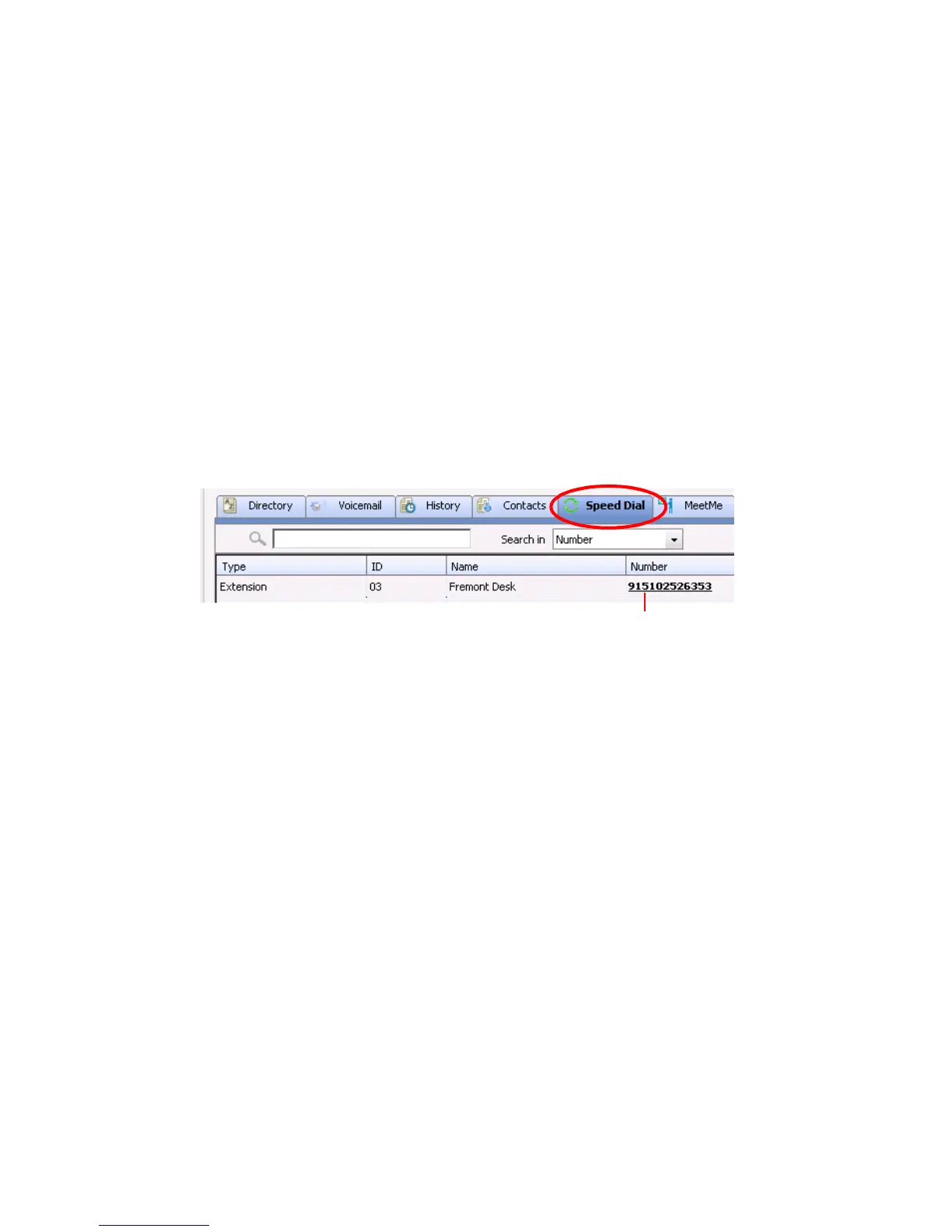
To dial speed dial numbers, click the Speed Dial tab:
This tab lists speed dial numbers that you have configured at your extension
(extension speed dial numbers), and it lists speed dial numbers, if any, that
have been set up for your extension by the system administrator (system
speed dial numbers). You can see in the Type column which numbers are
extension speed dial numbers and which are system speed dial numbers.
To call a speed dial number, click the number in its Number column.
Setting Up and Editing Extension Speed Dial Numbers
To set up an extension speed dial number:
1. Click the Speed Dial tab and double-click an empty Extention type
row. The Extension Speed dialog box pops up.
2. Enter a name, number, and note if desired.
When you add an outside number, all relevant prefix digits such as
trunk or route access number, the long distance prefix 1 and area codes
must precede the phone number.
3. Click OK.
You can enter up to 20 speed dial numbers.
Click the number to make the call



 To Next Page