34 MaxAgent Manual
This feature works only with inbound trunk calls.
Transferring to Voice Mail
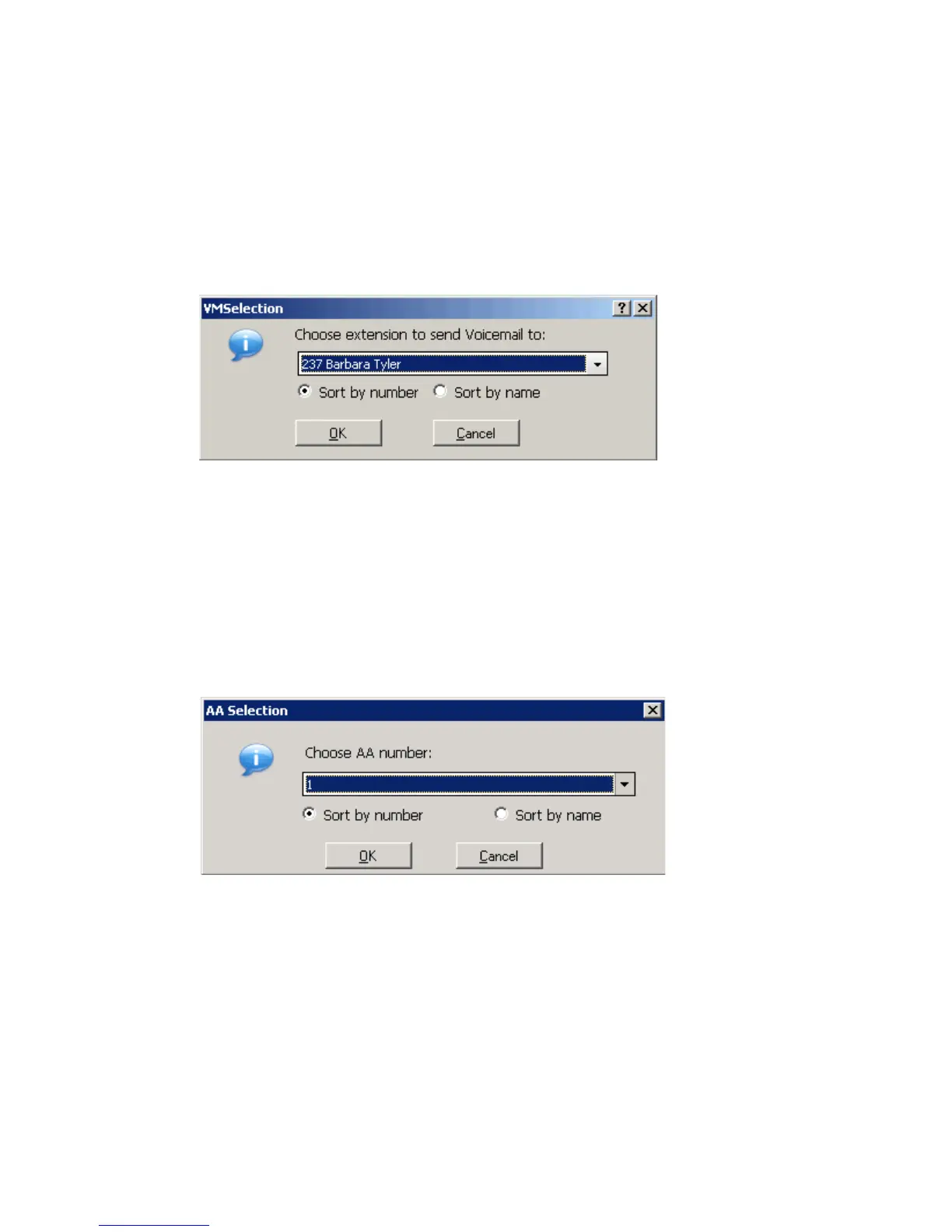
While connected to a call, click the To VM button in the toolbar. In the box
that pops up, choose the extension you want to send the call to, then click
OK. (You can sort extensions by number or by name.)
Note: You can also forward a call to voice mail without answering it by
clicking the To VM button while the call is ringing.
Transferring to Auto Attendant
To transfer a call to an auto attendant, while connected to the call click the
To AA button. The AA Selection box pops up. Use the drop-down list to
select an auto attendant to transfer to. (You can sort the list by number or
by name.)
Note: You can forward a call to an auto attendant without answering it by
clicking the To AA button while the call is ringing.
Forwarding Calls Using Do Not Disturb
If allowed, click the DND button to forward all incoming calls according
to your “Enable Busy Call Handling” settings. See “Busy Call Handling
and No Answer Handling” on page 56.



 To Next Page