MaxAgent Manual 57
Using MaxAgent
Much of the data reported here is also reported in the Supervisor’s view of
group statistics and is further discussed in “Viewing Group Statistics” in
the MaxSupervisor Manual.
Click the Export button to export the statistics as a .csv (comma-separated
values) file.
Click the Print button to print the statistics.
Viewing Queues
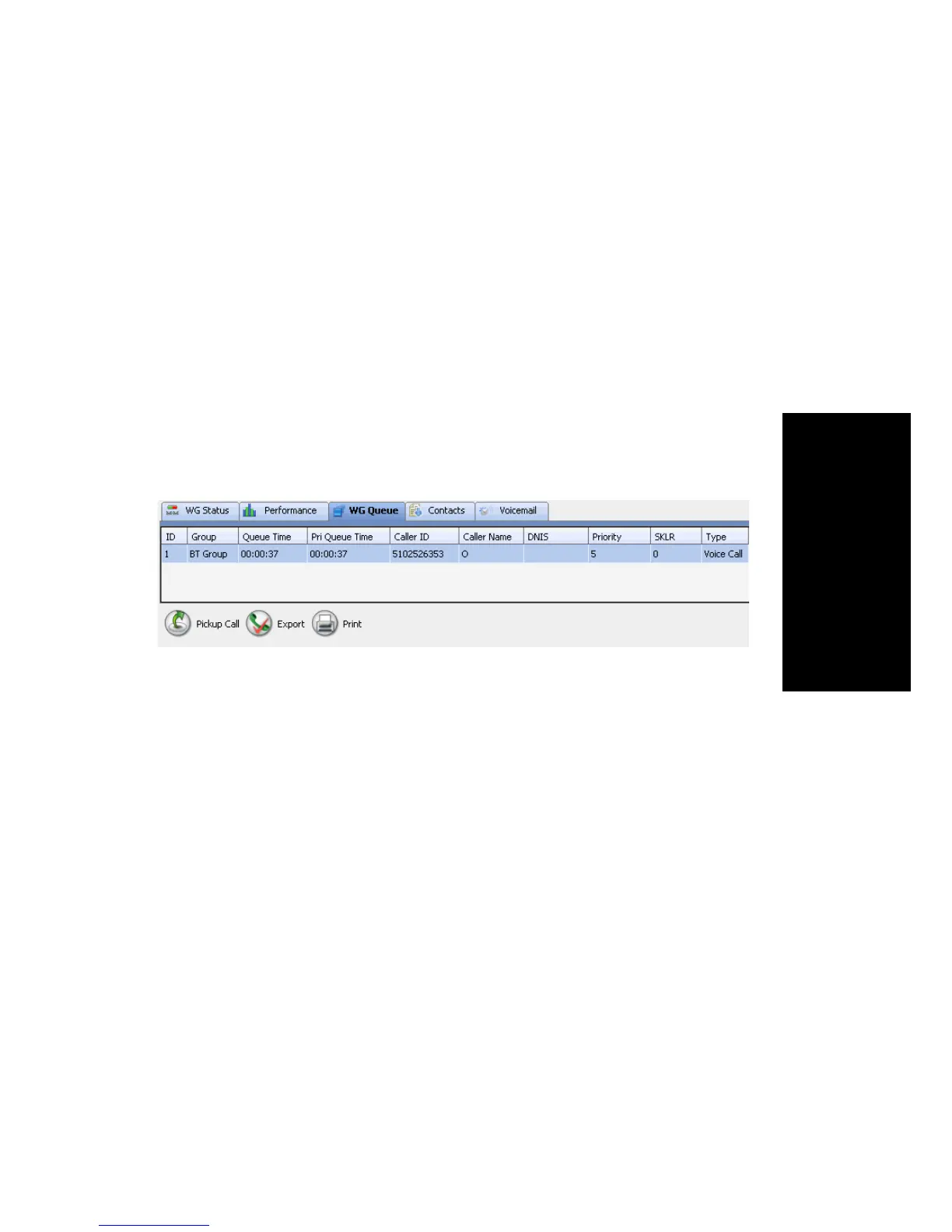
Click the WG Queue tab to view the calls in queue for the monitored
workgroups. You can export the data to a .csv file (click the Export
button), and you can print the data as a WG Queue Report (click the Print
button).
These are the fields on the WG Queue tab:
• ID—Call ID in the queue of one workgroup. The ID is unique within
a workgroup, but may be repeated in all workgroups.
• Group—Workgroup name or workgroup number
• Queue Time—Duration of the call in queue
• Priority Queue Time—Duration the call has been in queue at the
current priority level. Priority queue time is reset to 0 when the call’s
priority is promoted to a higher level.
• Caller ID, Caller Name (if available), DNIS
• Priority—The priority level assigned to the call
• SKLR—Skill level required
• Type—Queue call type



 To Next Page