74 MaxAgent Manual
CRM Integration
MaxAgent can access phone numbers from your Microsoft Outlook,
Outlook Express, ACT!, or GoldMine® database. During installation, the
install program reads which applications you have installed on your PC.
You can also integrate MaxAgent with your Microsoft Office
Communications Server (OCS) account for instant messages. The OCS
contacts can be imported from Microsoft Outlook client.
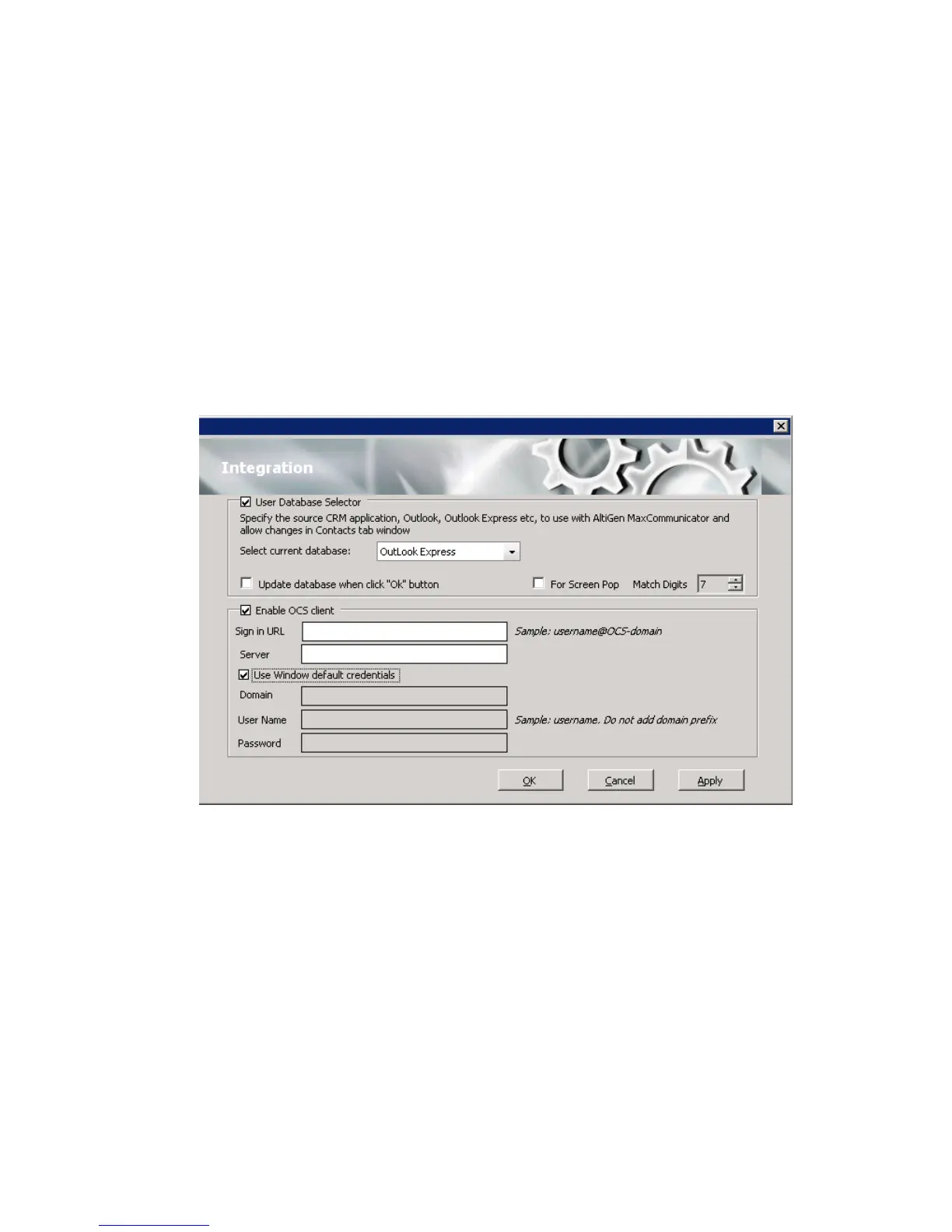
Configure CRM integration in the Configuration window’s Integration
screen:
Use Database Selector—Check this check box to allow integration of your
company’s CRM database with your MaxAgent, then select your CRM
program from the Select current database drop-down list.
Update database when click “OK” button—When you check this check
box, MAX Communication Server refreshes the data MaxAgent accesses
from the database.
Note: If you select Outlook, MAX Communication Server will load all
the subfolders and data in your main Contacts folder, which will
take a few moments. Once the data is loaded, you can close the
Configuration window, reopen it, and click the Select Folder
button that now appears to choose which Contacts subfolders you
want to use.



 To Next Page