characters are allowed: a - z (lowercase letters), A - Z (uppercase letters), 0 - 9 (numbers), "-"
(hyphens are not allowed as the first and last character).
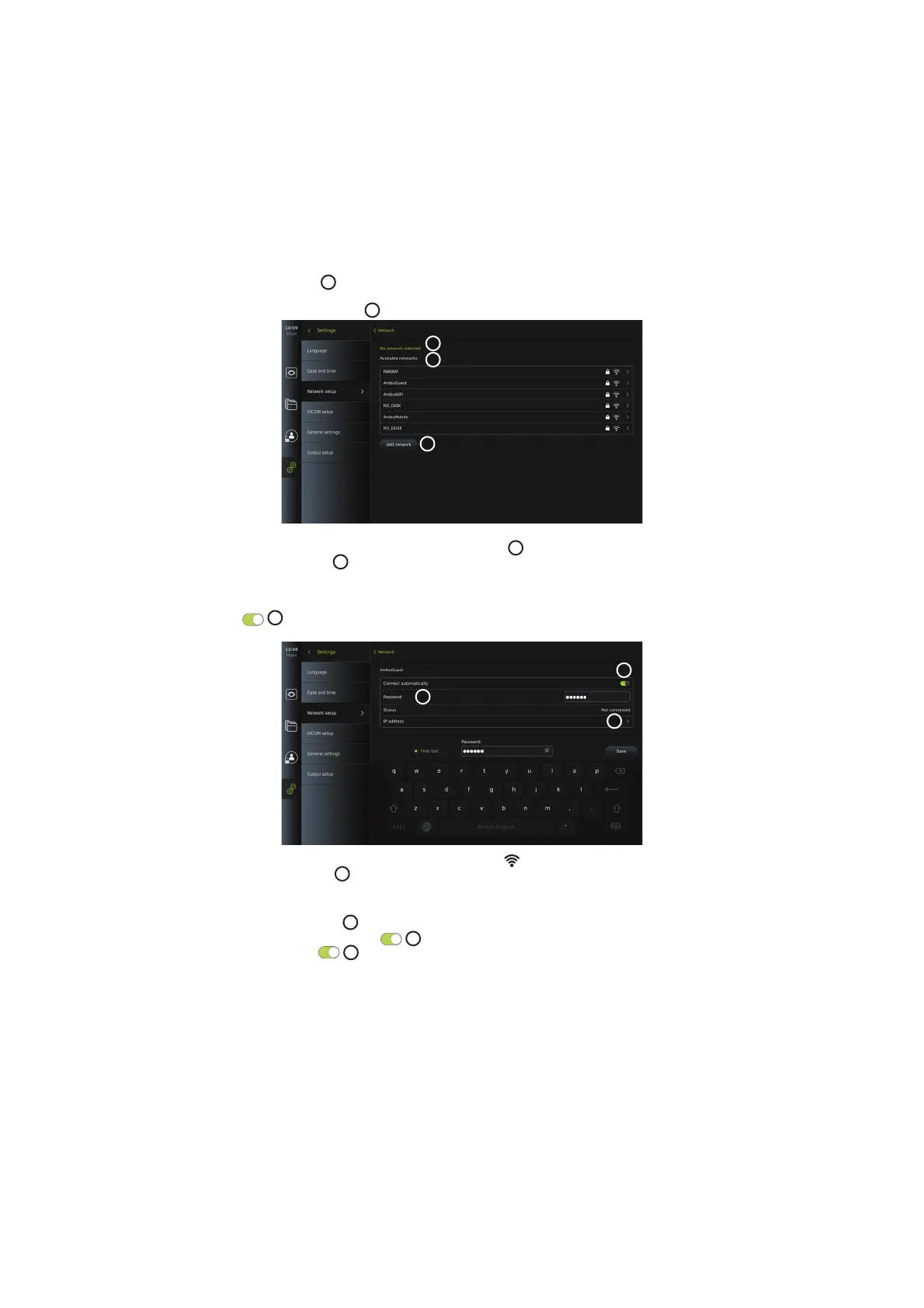
Press Configure
26
and a list of available networks is shown.
If a network is already
connected, it will be listed under Currently selected network. Otherwise the same field will
say No network selected
27
.
27
28
29
Connecting to a new network:
Choose a new network from the list Available networks
28
.
Type the Password
30
for the selected network. Press OK and press Connect. IP-address will be
assigned automatically.
You can enable automatic connection to a specific network by pressing the ON/OFF slider
31
. The displaying unit will automatically remember and connect to this network, when
it is recognized.
30
31
32
When connection to Wi-Fi is established, a Wi-Fi symbol will appear at the bottom of the
tool bar on the left
35
.
Enable manual configuration of static IP address and/or DNS server
• Press the arrow
32
to enter the IP and DNS configuration.
• Press the ON/OFF slider
33
to enable configuration of a static IP address or the ON/
OFF slider
34
for configuration of a DNS server.
16



 To Next Page