The Search
28
field can be used to find specific procedures. Press the field and type a
procedure date or words from a note added to a specific procedure.
You can also choose to filter the procedure list to only see procedures in a given date range.
• Use the Select range
29
wheel to select and view a wider or narrower range of
procedure folders.
• The list will filter automatically when a range is selected.
• To get a full overview, move the range selector back to Recent.
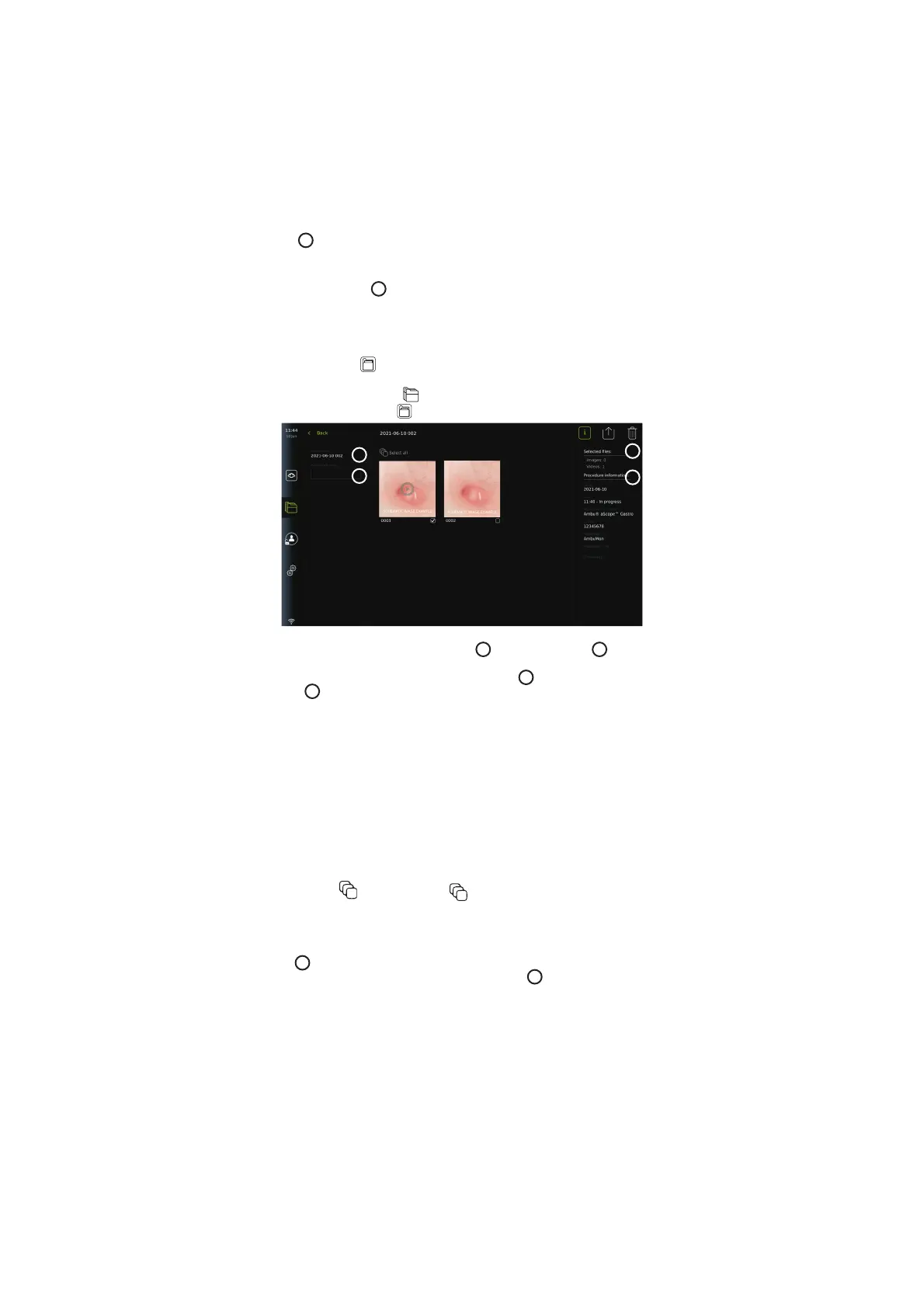
7.4.1 Viewing Procedure folder in Archive
In the Procedure folder
an overview of all photos, videos and information from the
specific procedure is shown.
• To access, press the Archive
tab in the tool bar on the left.
• Select a Procedure folder
in the procedure list to view the content.
0:00:07
30
31
32
33
In the left side of the screen the Procedure name
30
and a field for Notes
31
are shown. The
notes field can be used for adding a short descriptions to specific procedures or files.
In the right side of the screen the number of Selected files
32
and the Procedure
information
33
is shown. The Procedure information includes:
• Date for procedure.
• Time of day the procedure was done.
• Duration of procedure defined by the time the visualization device was initially
connected to the time it was last disconnected.
• The type of visualization device used for the procedure.
• The LOT number for the visualization device.
• The name of the specific displaying unit (edit name in DICOM setup under Device AE
title, see section 5.7.).
• Any Procedure notes.
• Any Timestamps recorded using the stopwatch function during the procedure.
All the recorded photos and videos in the procedure are shown in descending order with the
most recent photo or video at the top left. Below each photo or video thumbnail is the file name
and a Selection box
icon. The Select all icon is found above the photos and videos
overview. The file name is: XXXX, indicating the image count, starting from 0001.
7.4.2. Adding a note to a procedure, photo or video
• To add a note to a procedure, navigate to the procedure folder and press the Procedure
note
31
field and use the appearing keyboard to type. To add a note to a photo or
video, press the photo or video and press the File note
32
field.
The note field is intended for short descriptions about a procedure, photo or video and the
space is limited to 40 characters. The note is stored on the displaying unit with the procedure
photo or video will become part of the folder name when exporting image data to USB.
7.4.3. Viewing photos and videos
• To view a photo or video, press the thumbnail. The photo or video will expand to full size.
34



 To Next Page