en
32
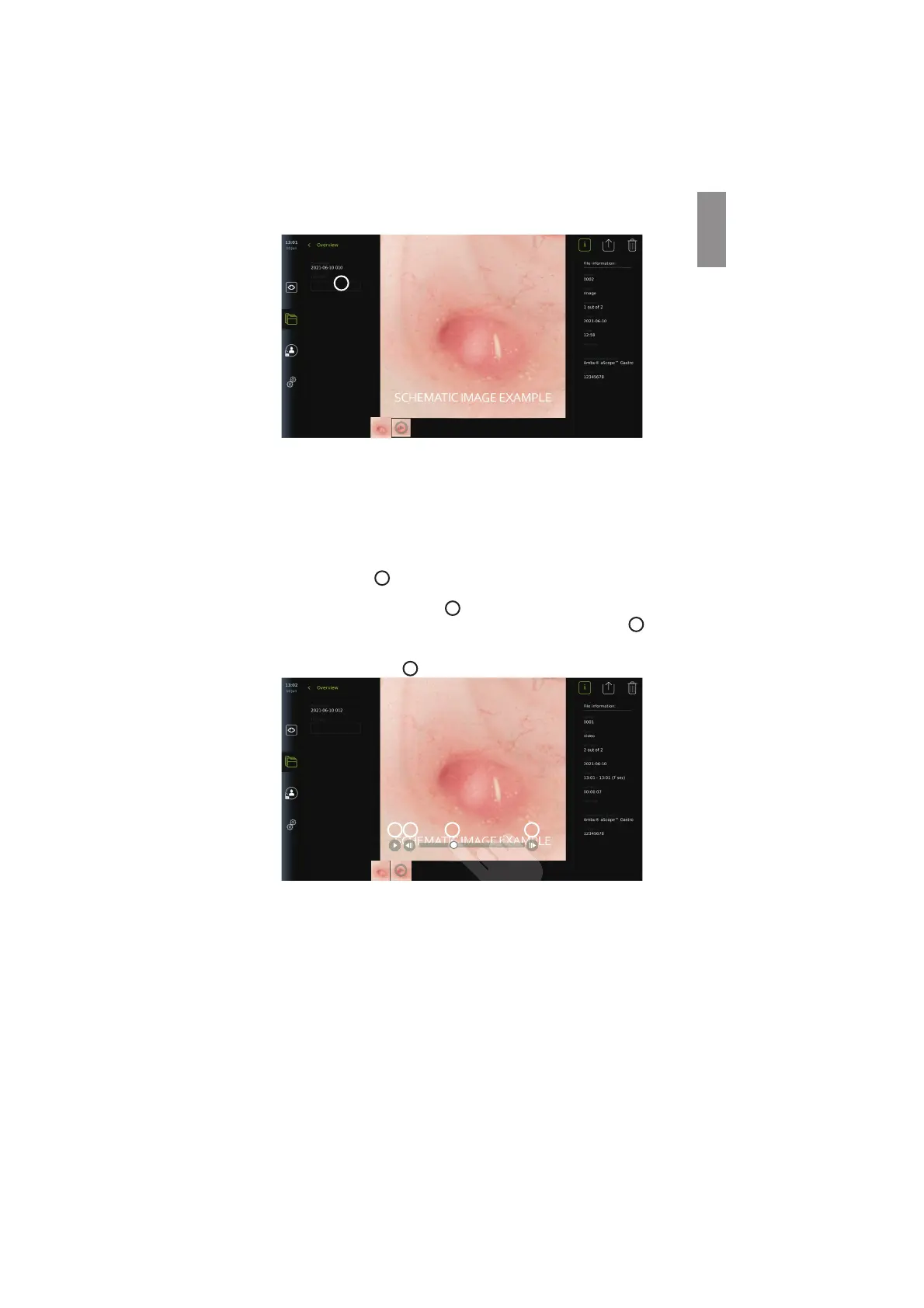
Below the full-size image, all photos and videos from the procedure are shown in descending
order with the most recent on the left. Scroll sideways on the thumbnails to see all photos and
videos from the procedure.
On the right side of the screen, File information is listed for the viewed photo or video. These
data are stored on the displaying unit with the files and not exported to USB and PACS. On the
left side you will find the procedure name and any notes written for the procedure.
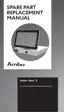
To view a video:
• Press the play button
33
in the centre of the full-size video to view it. A playback bar is
shown below the video.
• To stop/pause the video, press pause
33
.
• To step forward and backwards, frame-by-frame, in the video use the arrows
34
after
pause has been activated.
• To jump to a specific time in the video, tap the playback bar at the preferred location.
You may also slide the knob
35
sideways to fast-forward and rewind in the video.
0:00:02
33 34 35 34
NOTE: It is not possible to take screenshots from a recorded video on the displaying unit.
Please use the Photo feature in the Live view during the procedure for taking still photos.
7.4.4. Deleting files
You can delete recorded photo(s) and/or video(s) in any procedure folder or multiple
procedure folders at once under Recent with Administrator access. All user profiles can
delete files from the Current procedure folder.
35



 To Next Page