Chapter 3 Your No. 2 Pencil 105
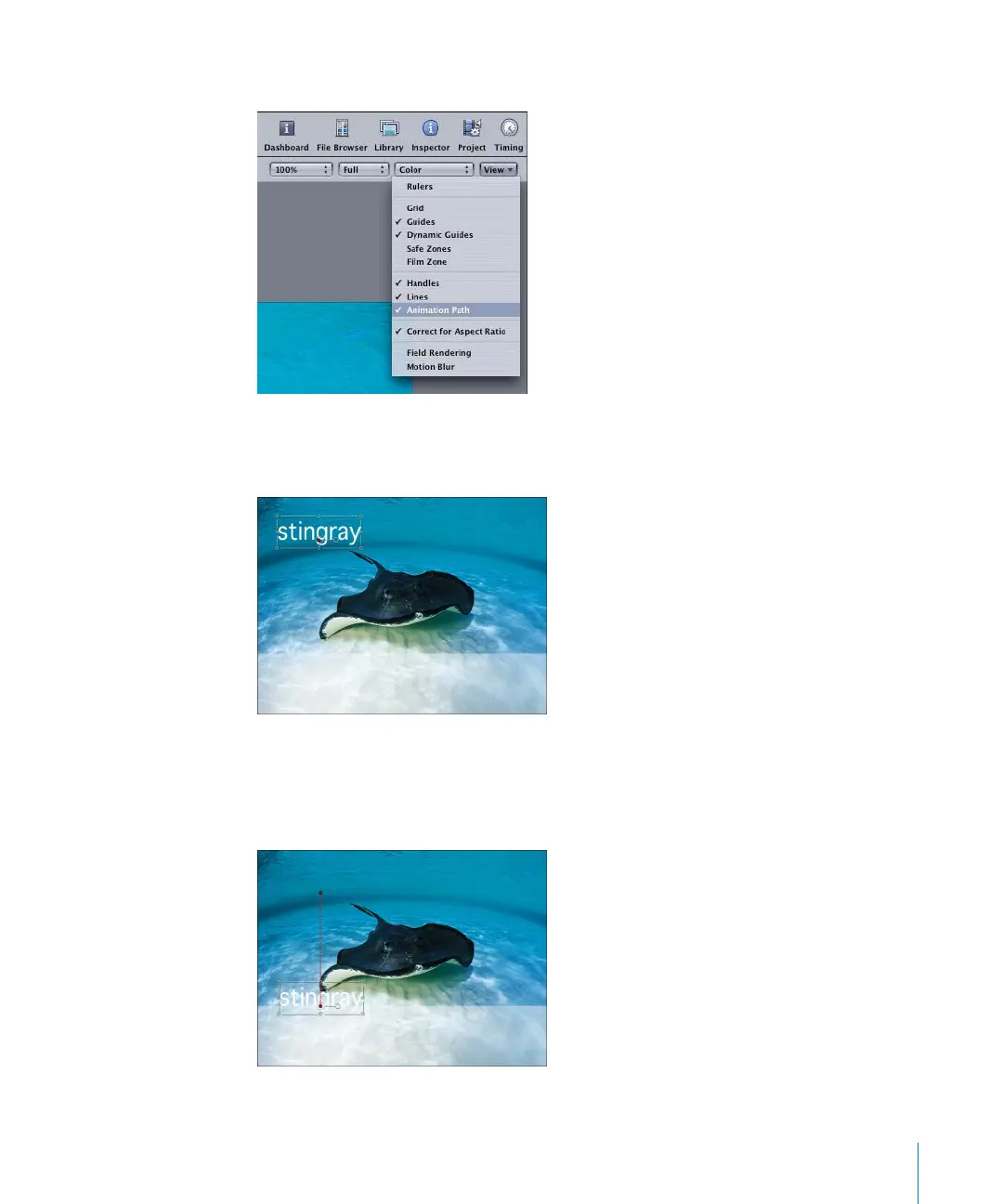
3 In the Canvas, click the View menu and make sure that Animation Path is enabled.
4 In the Canvas, position the object.
The first keyframe is created and appears in the center of the object.
5 Go to the frame where you want the animation to end.
6 Move the object to its end position.
As you drag, the animation path is drawn and the second keyframe is created.
2505.book Page 105 Wednesday, June 30, 2004 5:58 PM



 To Next Page