158 Chapter 5 Extra Credit
To reset tangent handles:
m
Press Command and drag the end of a handle.
To change a control point from smooth to linear:
m
Control-click the point, then choose Smooth or Linear from the shortcut menu.
For more information, see Chapter 11, “Using Shapes and Masks,” in Motion Help.
Using a Shape as a Mask
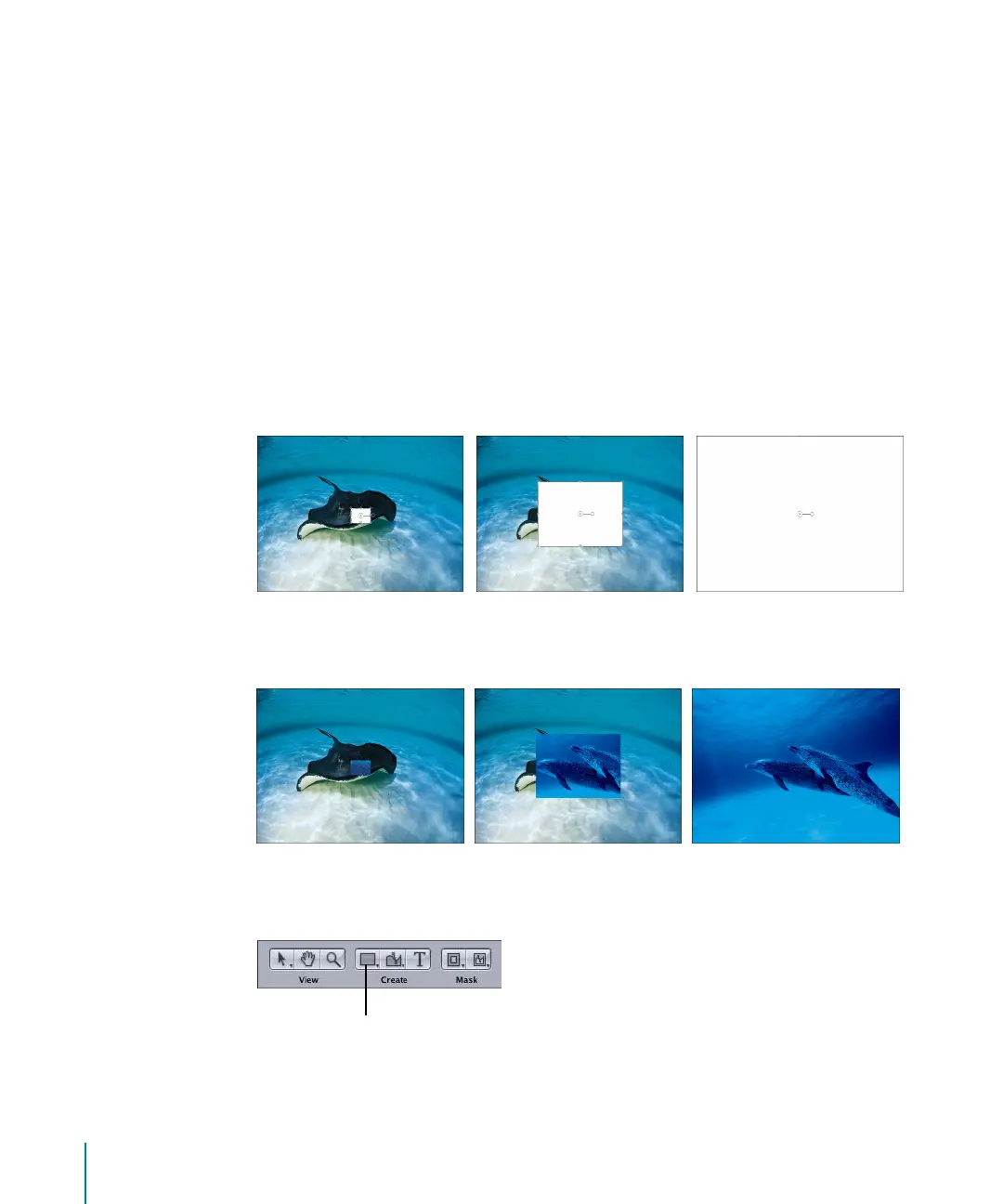
In the following example, an animated rectangular shape is applied to an image as an
image mask. The shape grows over time, and is used as a “wipe” to reveal the image
below the masked image in the layer stack.
The following images show the animated rectangle shape before it is applied as a mask
to the stingray image (in order to reveal a dolphin image below the stingray image in
the layer stack).
Once the animated shape is applied as a mask to the stingray image, the dolphin
image is revealed.
To create a rectangular shape:
1 In the Toolbar, select the Rectangle tool (or press R).
The pointer changes to a “+”.
2 Drag in the Canvas.
Rectangle tool
2505.book Page 158 Wednesday, June 30, 2004 5:58 PM



 To Next Page