54 Chapter 1 Orientation
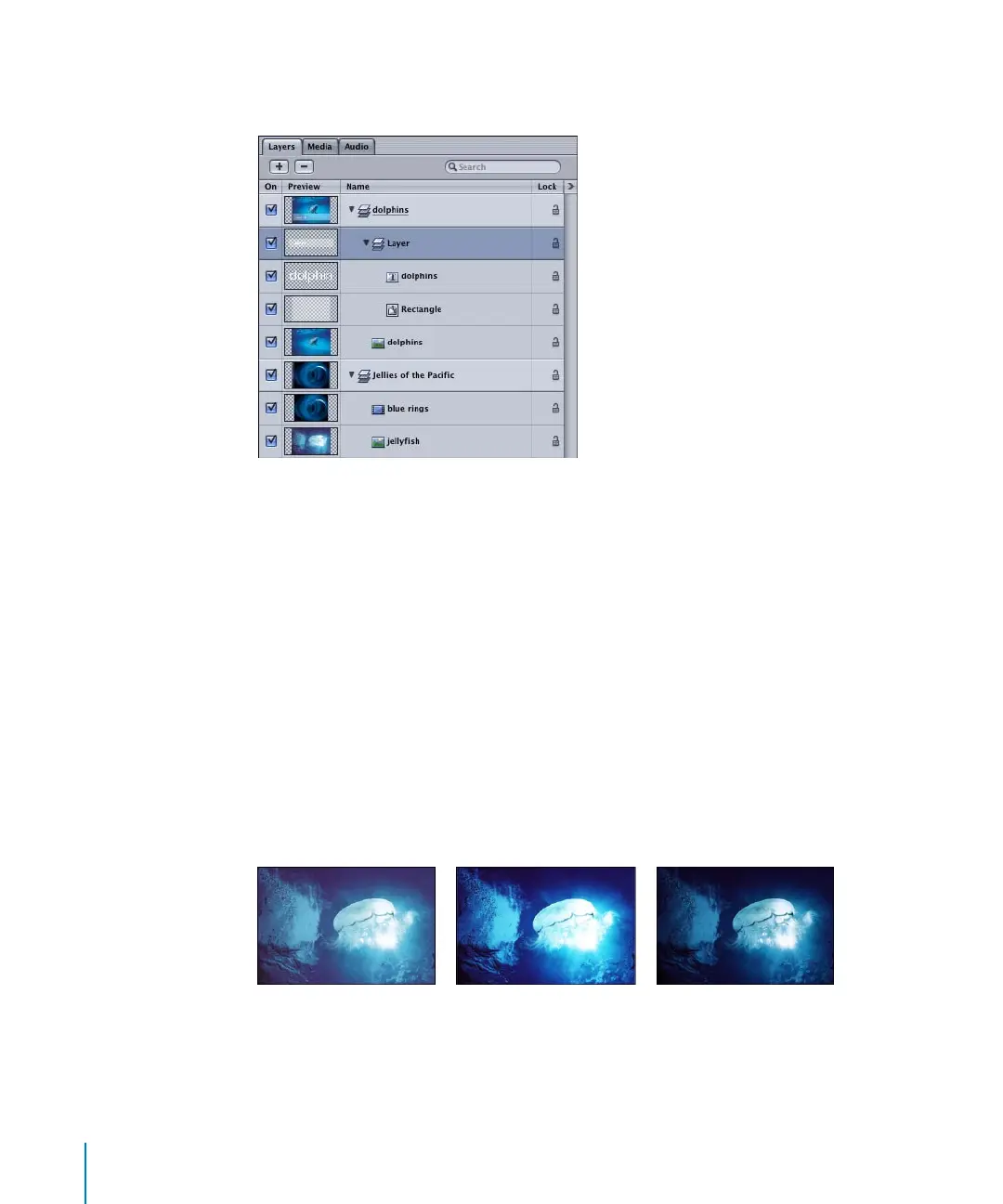
The grouped objects are nested into a layer within the original layer. The new layer is
named “Layer” by default.
Note: You can also group layers. When two or more layers are grouped, a new layer is
created that contains the original layers. You cannot group objects from different layers.
To ungroup grouped objects:
m
Choose Object > Ungroup (or press Command+Option+G).
Changing Blend Modes and Opacity
Like filters, blend modes are one of motion graphics artists’ best friends. However,
while filters are the kind of friends who will share a dinner and a good story with you
(as long as you buy), blend modes are the kind of friends who show up on moving day.
Blend modes affect the way images in a stack are combined, and can create a
completely new look for a composite with little expense in processing time. Using
blend modes with two of the same image (one below the other in the Layers list) can
give a dull image an immediate face lift, as shown in the following images.
The grouped objects are nested into a new layer.
Normal blend mode
Overlay blend mode
Multiply blend mode
2505.book Page 54 Wednesday, June 30, 2004 5:58 PM



 To Next Page