Chapter 5 Extra Credit 155
Masking an Image
In the following example, a garbage mask is added to the matte from the previous
“Creating a Key” section.
To mask an image:
1 In the Layers tab or Canvas, select the object with the applied keying filter, or the filter
itself.
In the Toolbar, the Mask tools become available.
2 In the Toolbar, select the Bezier (default) Mask tool.
The pointer changes to a pen.
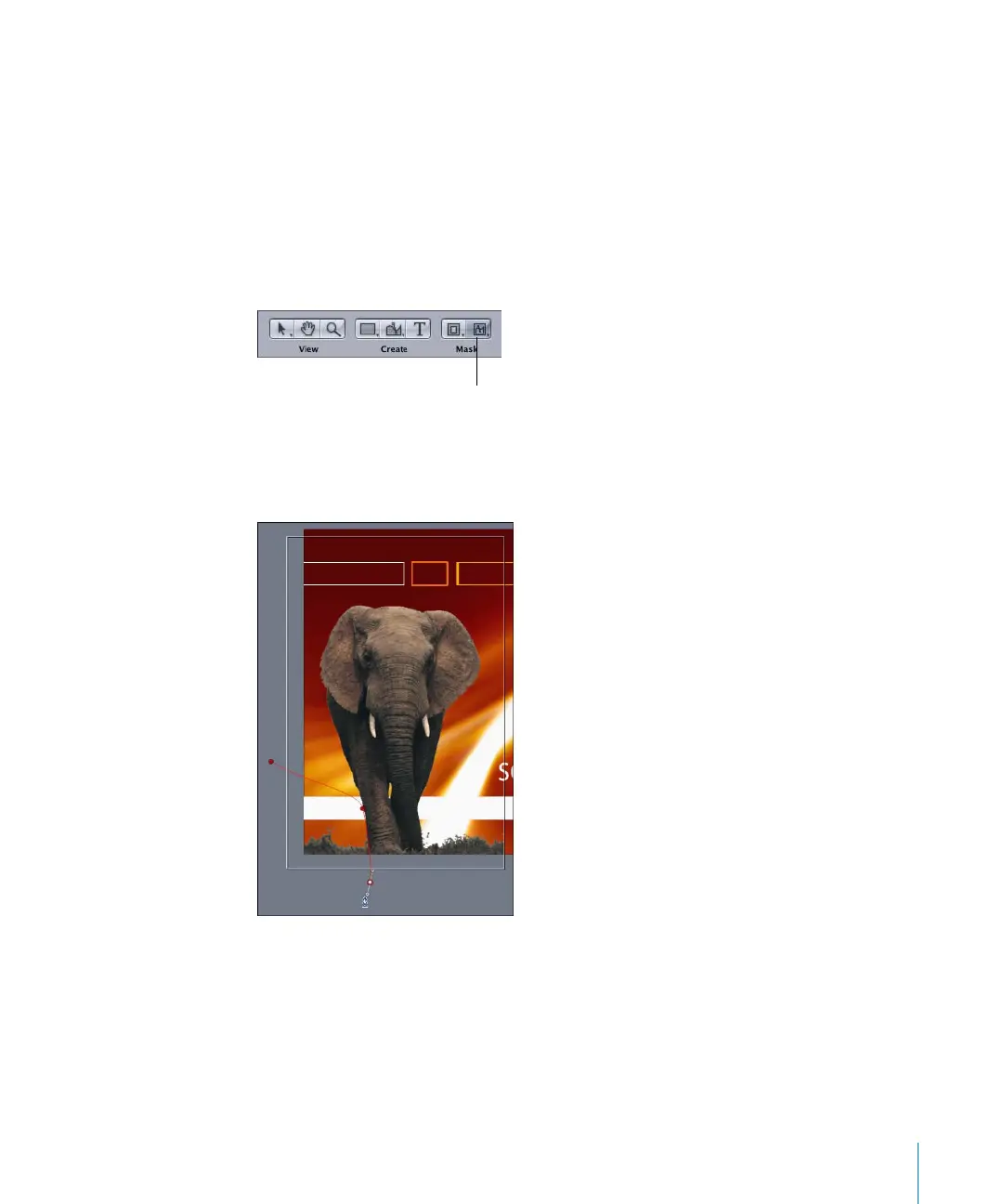
3 In the Canvas, click around the image area you want to remove (in this example, the
grass at the elephant’s feet).
Note: To create tangent handles as you draw the mask, drag outward as you add the
control points.
4 To close the mask, click the first point drawn, or press C.
Bezier Mask tool
2505.book Page 155 Wednesday, June 30, 2004 5:58 PM



 To Next Page