44 Chapter 1 Orientation
m
Choose Window > Show Project Pane (or press F5).
The Project pane appears.
The Project pane contains three tabs that allow you to view the objects in your project.
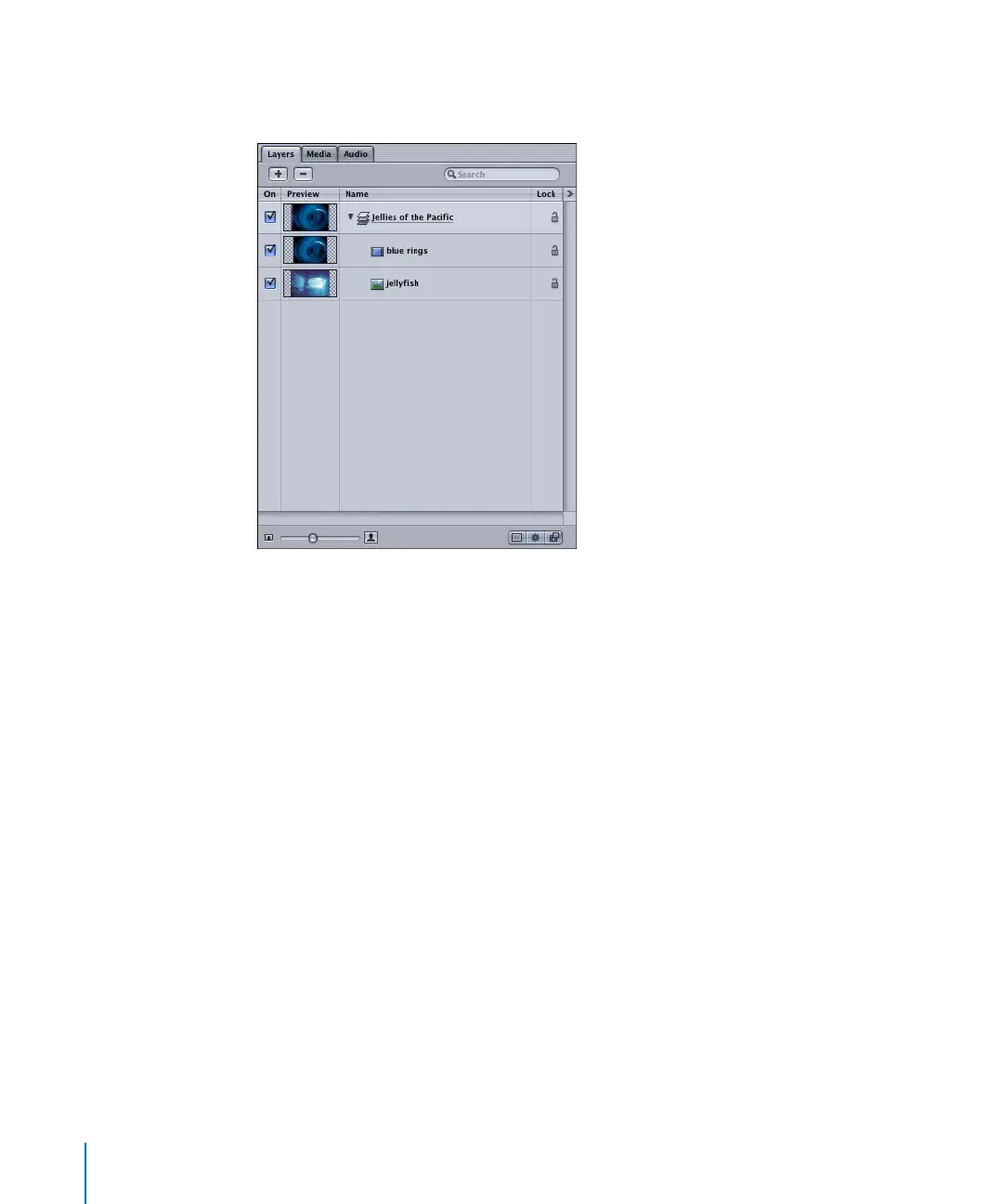
Layers Tab
The Layers tab displays the structure of your project. The main building block of a
project is a layer. A layer contains objects and the behaviors and filters applied to those
objects. Filters and behaviors can also be applied to layers. Use the Layers tab to
manage your composite.
Media Tab
The Media tab displays all media (including audio) that has been imported into a
project, whether or not the media is used as an object in the project. You can import
media directly into the Media tab by clicking the Add button (“+”) at the top of the
Media pane, or by using the File > Import menu command (from within the Media tab).
When media is imported in this manner, you can think of the Media tab as a holding
bin. One reason to import files into the Media tab is so you can use the media as the
source for a text object texture or a mask. You can add files from the Media tab to your
project at any time by dragging the file to the Canvas or Timeline.
Note: Text objects and other shapes created within Motion do not appear in the
Media tab.
2505.book Page 44 Wednesday, June 30, 2004 5:58 PM



 To Next Page