92 Chapter 2 The Playground
Animating Filters With Parameter Behaviors
This section provides a quick overview of applying Parameter behaviors to a filter. In
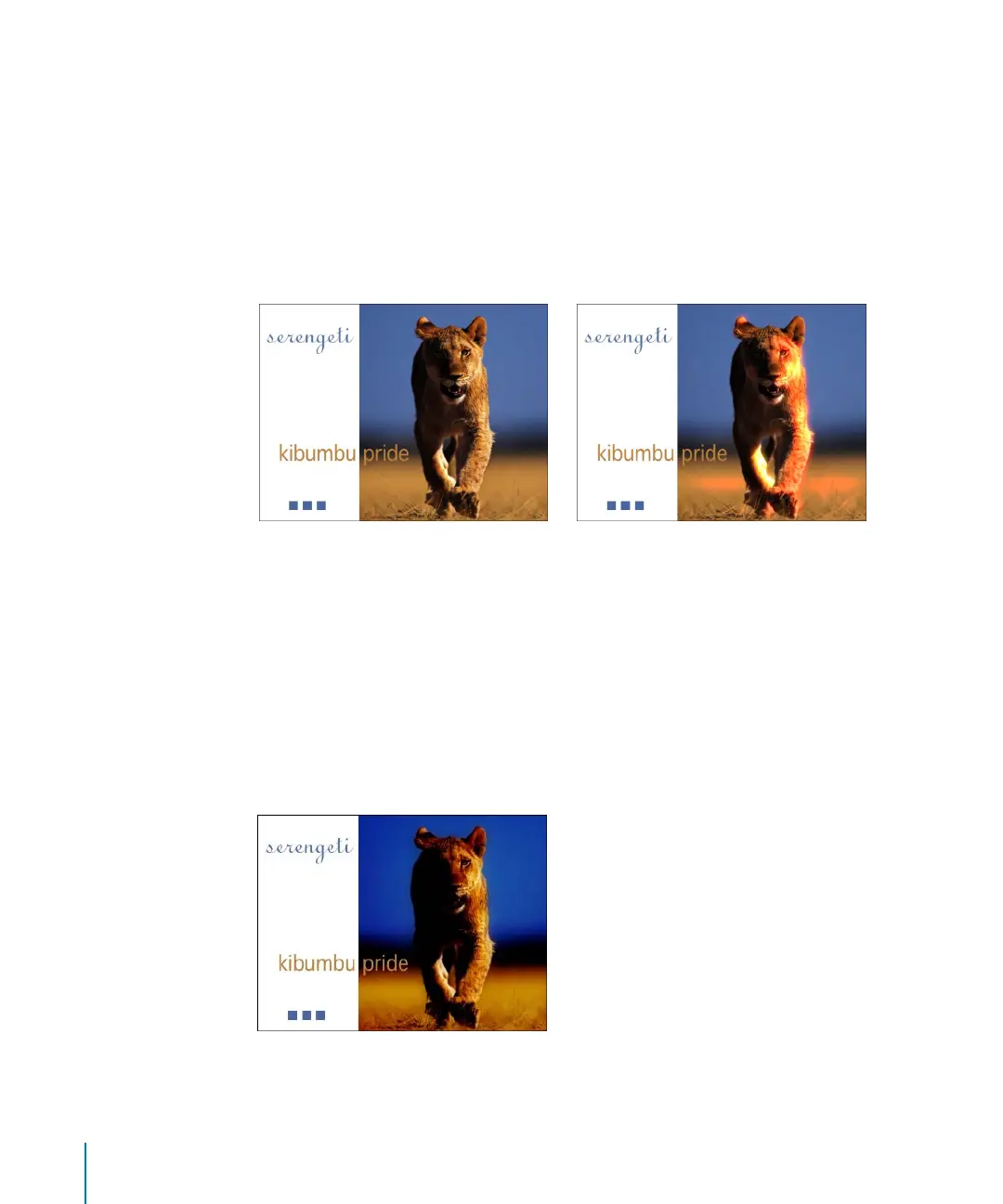
this example, a Bloom filter is applied to an object and its Brightness parameter is
keyframed. Then, a Randomize Parameter behavior is applied to the Threshold
parameter of the Bloom filter.
To apply a Bloom filter to an object:
1 In the Library, select the Filters category, then the Glow subcategory.
2 In the stack, select the Bloom filter and drag it to an object in the Canvas.
The Bloom filter creates flowering highlights in the lighter areas of an object based on
a threshold.
To animate the Brightness parameter of the Bloom filter:
1 Go to the frame where you want to start the filter animation.
2 Enable Record (press A).
3 In the Bloom Dashboard (press D), set the first Brightness value. This example uses a
Brightness value of 47.
Note: You can also adjust the filter parameters in the Filters tab of the Inspector.
Original lion image Lion image after Bloom filter applied
2505.book Page 92 Wednesday, June 30, 2004 5:58 PM



 To Next Page